
Report Sections
Your Reports page used to be one long list you had to scroll through to find anything. Now it's grouped into sections, so related reports sit together, and you get to decide which roles see which group. It's already switched on, so there's nothing to set up.
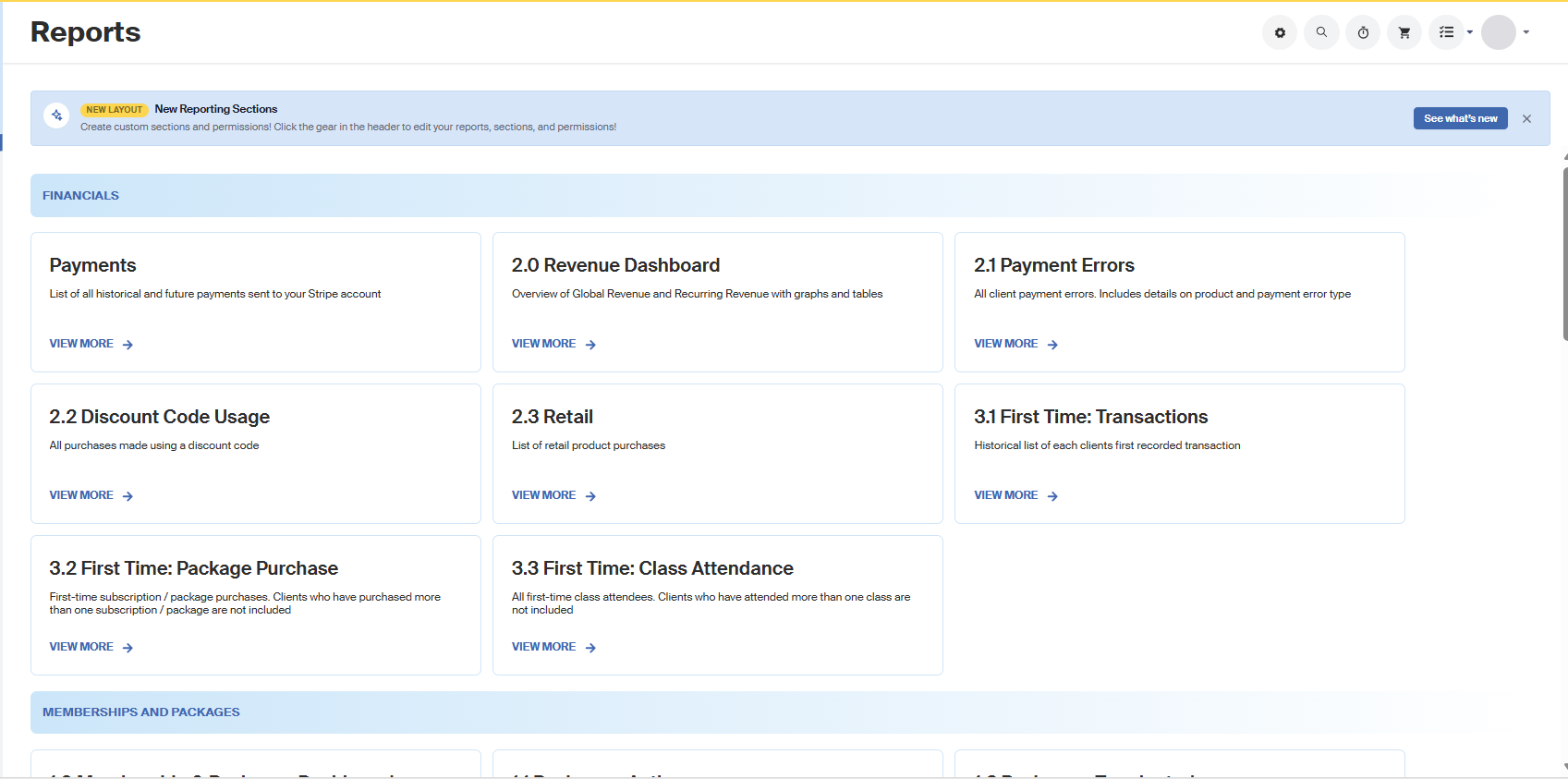
The Built-In Sections
You start with six sections:
- Financials
- Clients
- Operations
- Payroll
- General
- Memberships and Packages
You can reorder these, but you can't rename or delete them. You can add your own sections alongside them.
Where to Find Report Sections
Click the gear icon in the top right of your Reports page (hover over it and you'll see "Settings"). That's where Sections and Report Placement both live. Back to Reports takes you back out.

Controlling Which Roles Can See a Section
Every role at your studio gets its own column in the Sections table, and the checkboxes decide who sees what.
- Click on the Gear Icon to view Settings
- Find the section in the Sections table.
- Check the box under each role that should see it.
- Leave the box unchecked for any role that shouldn't.
Important: A section with no roles checked is visible to everyone. Nothing is hidden until you grant at least one role.
Note: If a role is excluded from a section, that section won't show up on their Reports page at all.
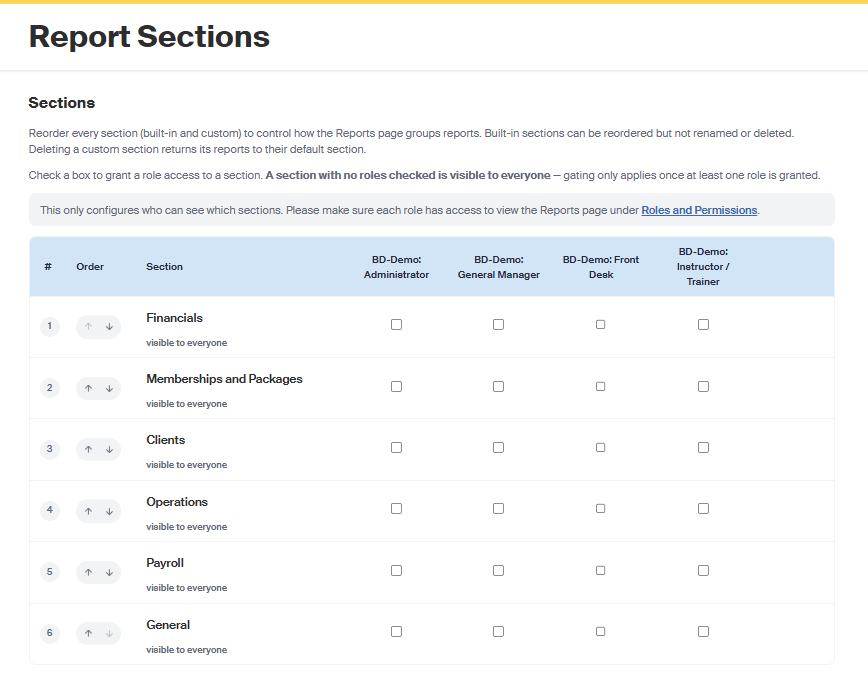
Important: Section access and Reports page access are two different things.
Giving a role a section won't help if they can't open Reports to begin with.
To fix that:
- Head to Tools > Roles & Permissions
- Scroll down to Reporting
- Enable "see reporting for full studio" for every role that should be seeing reports.
There's more on this in Studio Permissions for Designated Roles.
Example: Making Revenue Admin-Only
This is the one most studios want. The Revenue Dashboard lives under Financials, so locking down that section locks down your revenue numbers with it.
- Go to the Sections table on the Report Sections page.
- Find the Financials row.
- Check the box for your administrator role, and leave every other role unchecked.
That's it! Financials and everything in it is now admin-only, and the rest of your sections carry on as they were.
Reordering Sections
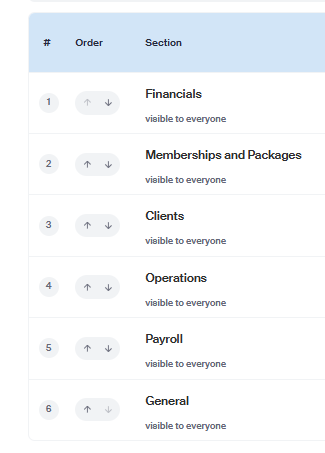
The order of the Sections table is the order your Reports page uses, top to bottom.
- Find the section you want to move.
- Use the up and down arrows in the Order column to move it.
The # column shows you where each section currently sits.
Creating a Custom Section
- Scroll to the bottom of the Sections table.
- Type a name into the New section name field.
- Click + ADD.
Your new section shows up in the Sections table right away, and in the Section dropdown under Report Placement alongside the built-in ones.

Moving a Report Into a Different Section
Report Placement is further down the same page. It lists every report and the section it's sitting in.
- Find the report in the Report column.
- Click the Section dropdown next to it.
- Pick the section you want it to appear in.
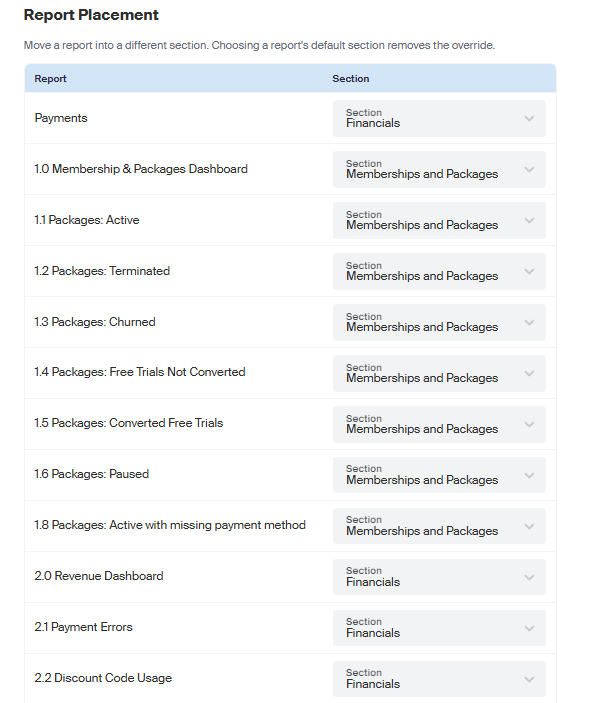
Every report starts out in a default section. Choosing a different one overrides that default, and putting it back to its default clears the override.
Need Help?
Contact our support team at support@recess.tv if you have questions about report sections or role access.