
Marketing Campaign
Marketing campaigns are a great way to engage all or subsets of your clients with updates on the business, special events, and more through both Email and SMS.
Creating a Campaign
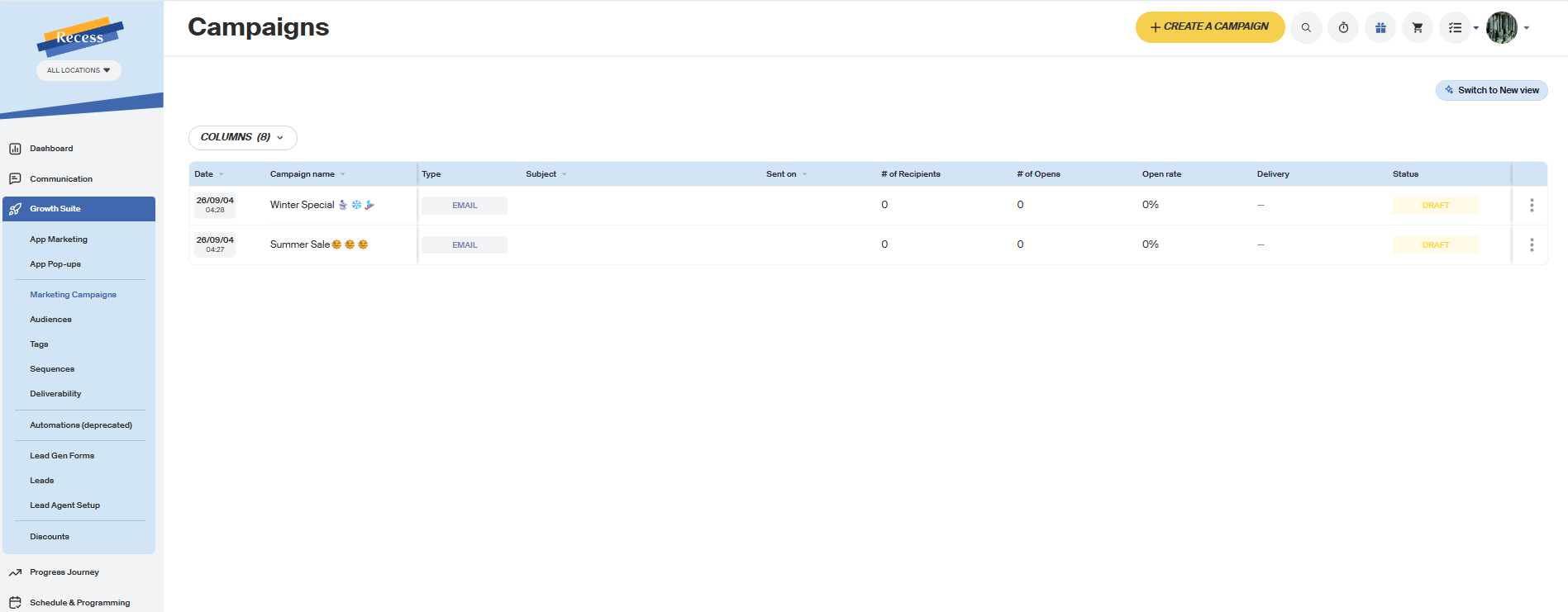
- Go to Growth Suite > Marketing Campaigns.
- Click the + button.
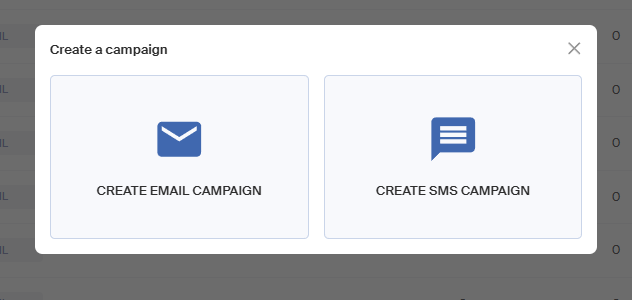
- Choose Create Email Campaign or Create SMS Campaign.
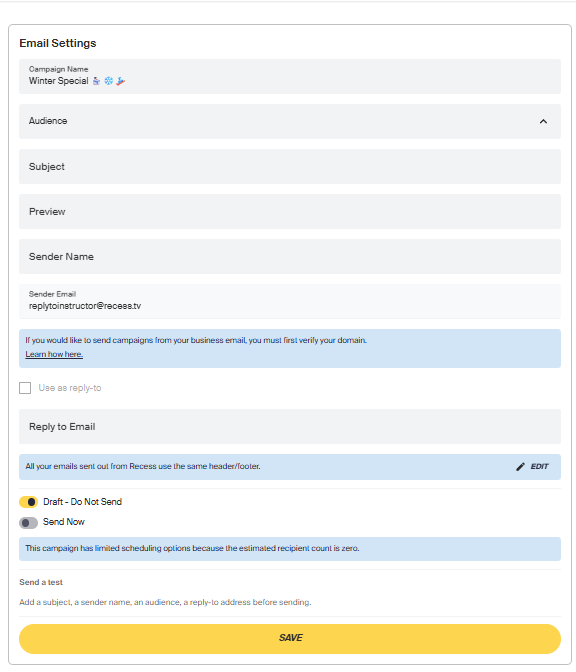
Email Campaign Fields
- Campaign Name: internal name only, clients don't see this.
- Audience: choose a predefined audience or create a custom one.
- Subject Line
- Preview: the line clients see in their inbox before opening (see below).
- Sender Name: what shows up in a client's inbox.
- Sender Email: the email address a client sees. If you'd like to send from your own business email, you'll need to verify your domain first.
- Use as reply-to / Reply to Email: optional, if replies should go somewhere other than the sender address.
- Draft - Do Not Send or Send Now: schedule for later or send immediately.
Note: All your emails use the same header/footer > click Edit next to that note to change it. This is shared across every campaign and sequence you send.
Note: You can send a test once you've saved the campaign > enter an email address and click Send Test Now.
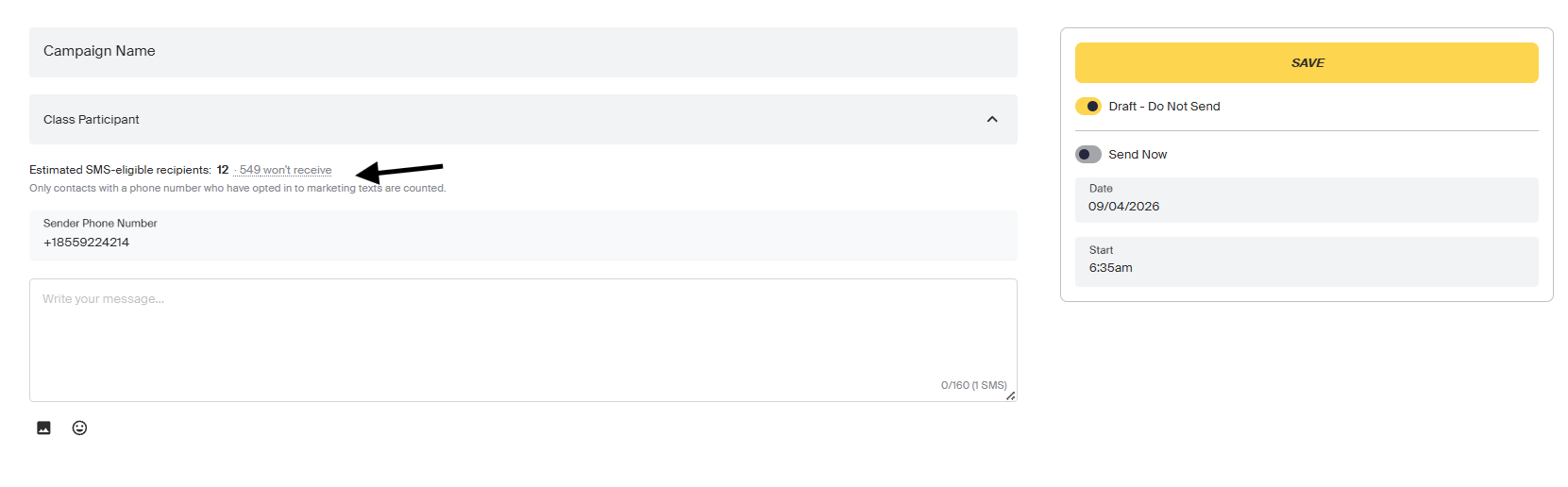
SMS Campaign Fields
- Campaign Name
- Audience
- Sender Phone Number
- Your message: a text box with a live character/segment counter (e.g. "0/160, 1 SMS"). Add images or emoji using the icons below the box.
Note: Only contacts with a phone number who've opted in to marketing texts are counted as eligible recipients > the form shows you how many will and won't receive it before you send.
Choosing a Template
When creating an email campaign, you'll see a template gallery alongside the settings form:
- Search for a specific template, or filter by All templates, Recess templates, Your templates, or Archived.
- Click Create New Email to start from scratch.
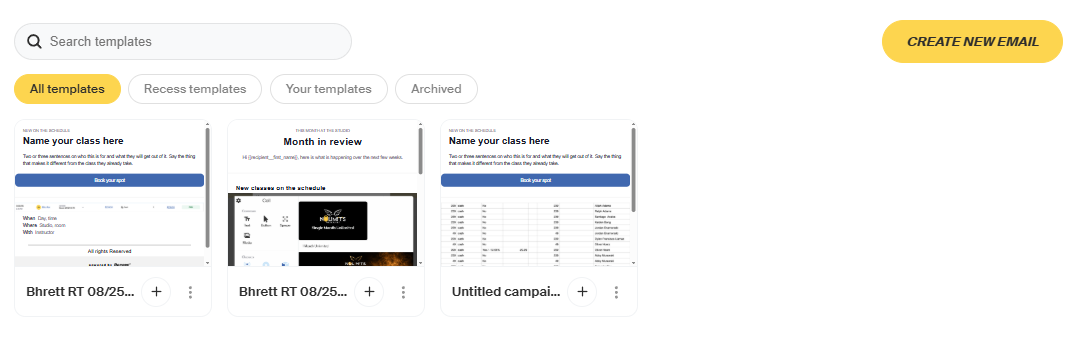
💡Tip: Publish a template from the Email Builder once, then reuse it for future campaigns instead of building from scratch each time.
Building Your Email
Now it's time to build your campaign!
The Builder Layout:
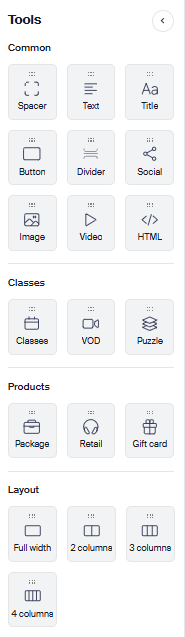
- Tools panel (left): drag elements onto your email.
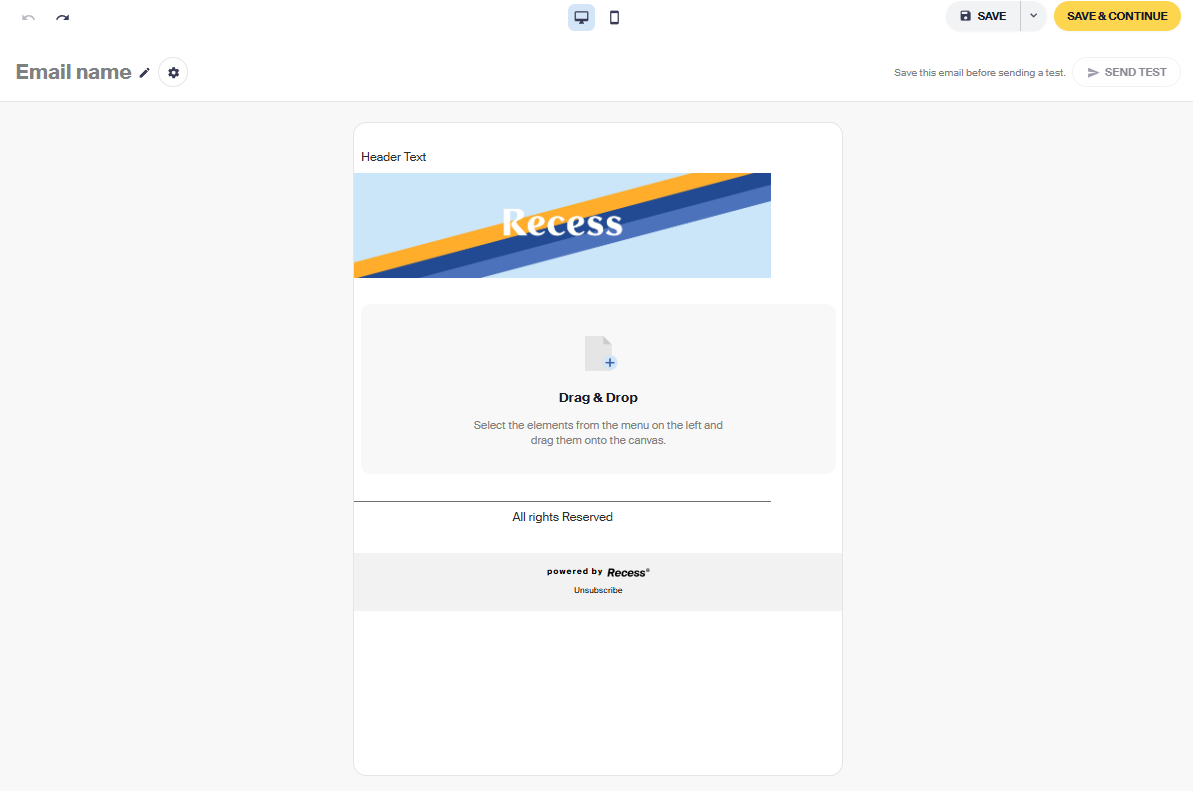
- Canvas (center): your email, editable in place. Toggle between desktop and mobile preview using the icons above it.
- Undo/redo arrows, top left.
- Email name: click the pencil to rename, or the gear icon for email-level settings.
- Send Test: available once you've saved.
- Desktop/Mobile preview: click the desktop or phone icon above the canvas to preview how your email will look on each. This only changes the preview, not what you're editing.
- Settings panel (right): select any block to edit its settings here. The settings change depending on the tool added.
Saving Your Email
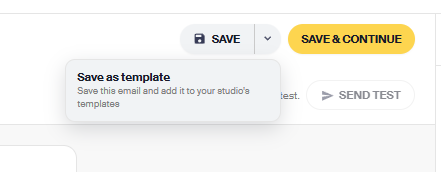
Next to Save, click the dropdown arrow for more options:
- Save: saves your progress.
- Save as Template: saves this email and adds it to your studio's templates, so it shows up in the template gallery for future campaigns.
- Save & Continue: saves and returns you to your campaign.
Adding Elements
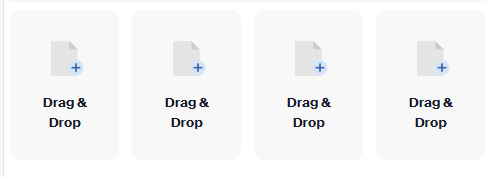
Drag any of these from the Tools panel onto your canvas:
- Common: Spacer, Text, Title, Button, Divider, Social, Image, Video, HTML
- Classes: Classes, VOD, Collection
- Products: Package, Retail, Gift Card
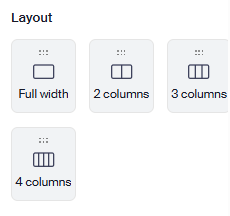
- Layout: Full Width, 2 Columns, 3 Columns, 4 Columns
💡Tip: Every block has a hover toolbar for moving, duplicating, or deleting it — no need to open settings just to reorder your email.
Text and Title
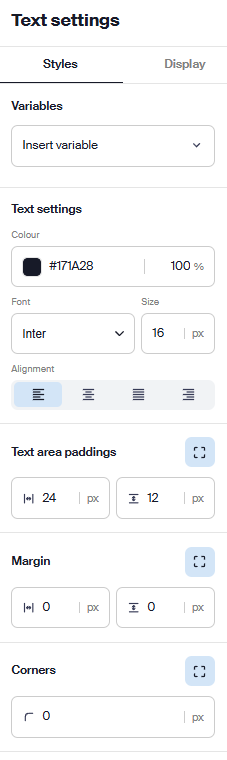
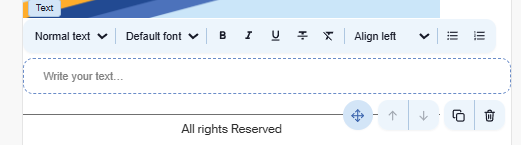
- Format using the inline toolbar (font, size, bold/italic/underline, alignment, lists), or the Text Settings panel on the right (color, font, size, alignment, padding, margin).
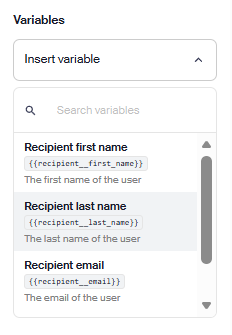
- Merge fields: Click Insert Variable and search for a field like Recipient first name, Recipient last name, or Recipient email to personalize your email. Selected variables appear in your text as
{{recipient__first_name}}.
Button
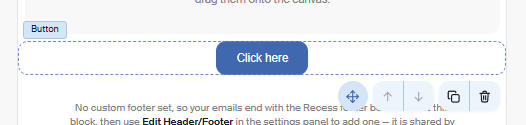
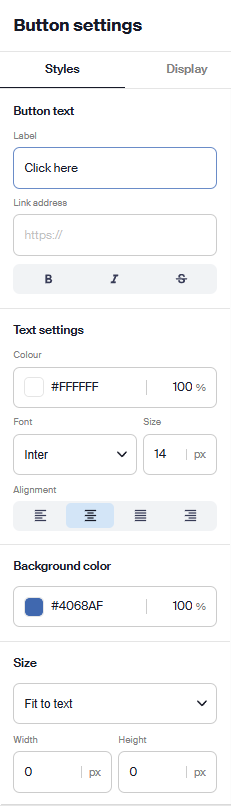
- Set your Label and Link address.
- Format the button text (bold, italic, strikethrough).
- Adjust color, font, size, and alignment in Text Settings.
Social
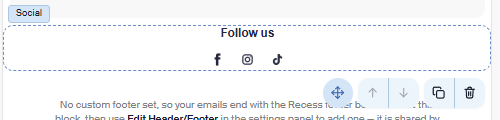
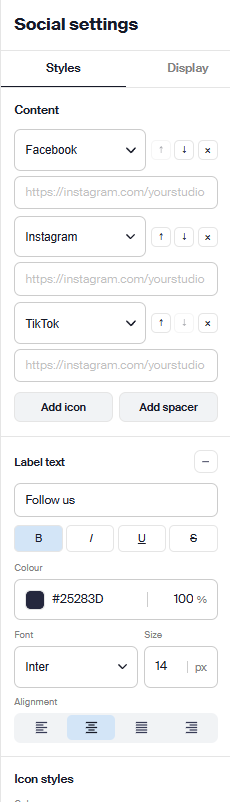
- Choose platforms (e.g., Facebook, Instagram, TikTok) and enter each profile's URL.
- Click Add Icon for more platforms, or Add Spacer for spacing between icons.
- Set a Label (e.g., "Follow us") with its own formatting.
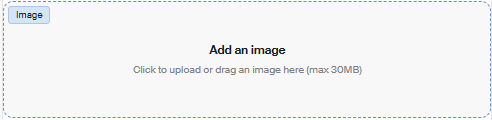
Image
- Click Upload Image or drag a file onto the canvas (max 30MB).
- Add Alt Text for accessibility.
- Set Width and Height manually, or toggle Fill Column / Fill Column on Mobile to size automatically.
- Adjust alignment, padding, and margin.
Video
Add a video the same way as an image. Drag onto the canvas or upload.
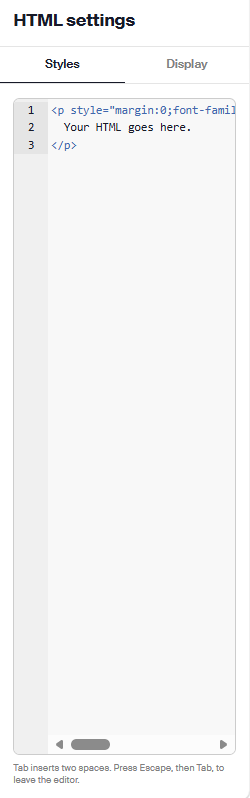
HTML
Paste raw HTML directly into the block if you need custom formatting the builder doesn't otherwise support.

Classes, VOD, and Collection
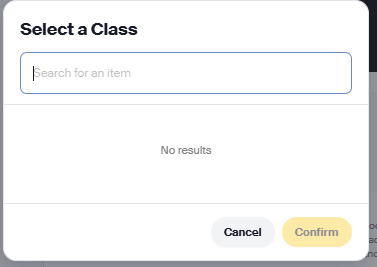
- Click Select a Class (or VOD/Collection).
- Choose the specific item > click Replace anytime to swap it out.
- Adjust its text, padding, margin, corners, background color, and stroke color in the settings panel.
Package, Retail Product, and Gift Card
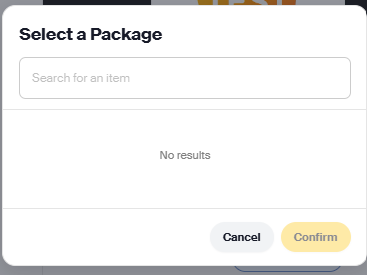
- Click Select a Package (or Retail Product/Gift Card).
- Choose the specific item > click Replace anytime to swap it out.
- Adjust its text, padding, margin, corners, background color, and stroke color in the settings panel.
Layout Columns
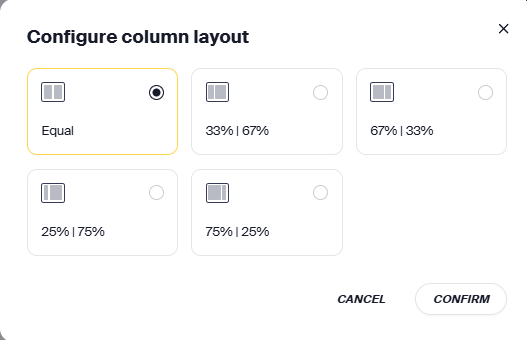
When adding a multi-column layout, choose your column split in the Configure Column Layout pop-up: Equal, 33%/67%, 67%/33%, 25%/75%, or 75%/25%. Click Confirm.
Adding Preview Text
Preview text is the line clients see in their inbox right after the subject line, before they open the email. If you don't set one, the inbox pulls the first bit of text from your email instead.
💡Tips:
- Keep it short: most inboxes cut it off around 40 to 90 characters.
- Don't repeat the subject line; use the space to say something new.
- Give clients a reason to open: a new class, a discount, a deadline.
Example:
- Subject: New Summer Schedule is Here 🌞
- Preview: More morning classes, plus a new Saturday bootcamp starting July 12.
Managing Existing Campaigns
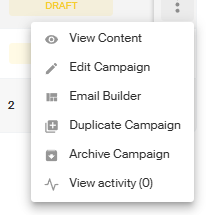
From the Campaigns list, click the three dots next to any campaign for:
- View Content: preview the email as your clients will see it, with a toggle between desktop and mobile views.
- Edit Campaign: change settings.
- Email Builder: jump straight into editing the email content.
- Duplicate Campaign: copy an existing campaign as a starting point.
- Archive Campaign
- View Activity
Need Help? Contact our support team at support@recess.tv if you have questions about marketing campaigns.