
Upcoming Renewals
Every repeating membership and credit package has a Renewal Timeline. It’s a 12-month view of what the client will be charged, when, and how much. From each row, you can collect a renewal early, change its price, pause or cancel from it, or switch the client to a different membership.
In this article:
- What’s in the Timeline
- Opening the Renewal Timeline
- Collect Now
- Reprice From This Renewal
- Pause From This Renewal
- Cancel From This Renewal
- Switch to a Different Membership at This Renewal
- Reading the Rows
- Booking a Client Past Their Renewal Date
- What Clients See
What’s in the Timeline
The timeline shows the next 12 months of renewals, in your studio’s timezone. Each row shows:
- The renewal date.
- The amount that renewal will bill. It’s an estimate if the renewal hasn’t been created yet.
- A status: upcoming, paid, failed, pending, refunded, or cancelled.
- Any scheduled pause, as a shaded block across the renewals it covers.
-
Any scheduled cancel or switch, as the last row. Nothing shows after it.
The timeline updates on its own when:
- A discount expires. A membership on a 3-month intro discount shows the discount dropping off in month four.
- A pause is scheduled. The following renewals move forward by the length of the pause.
-
A switch is scheduled. The new membership’s renewals appear from the switch date.
Opening the Renewal Timeline
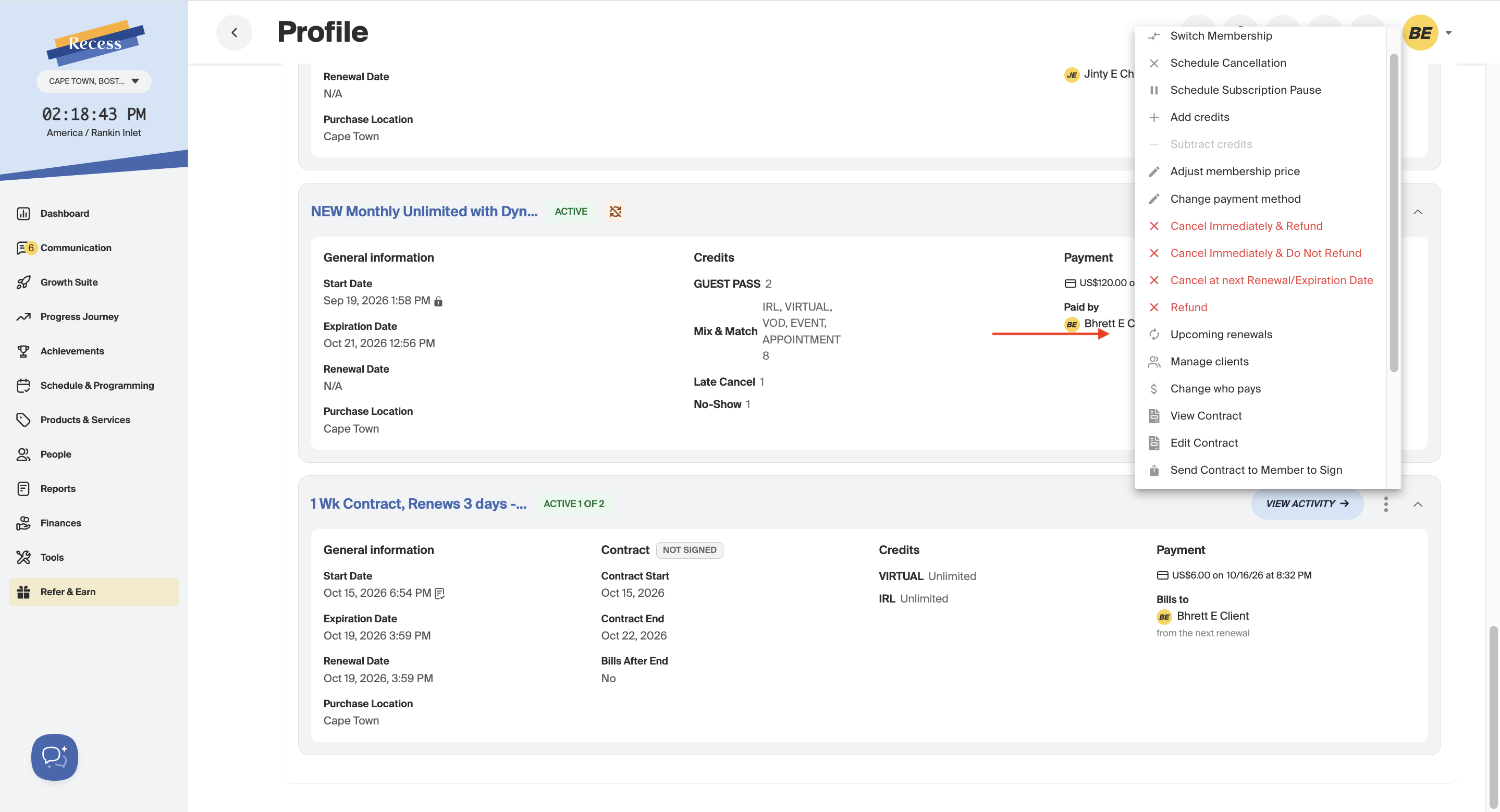
- Open the client’s profile and find Package under Active.
-
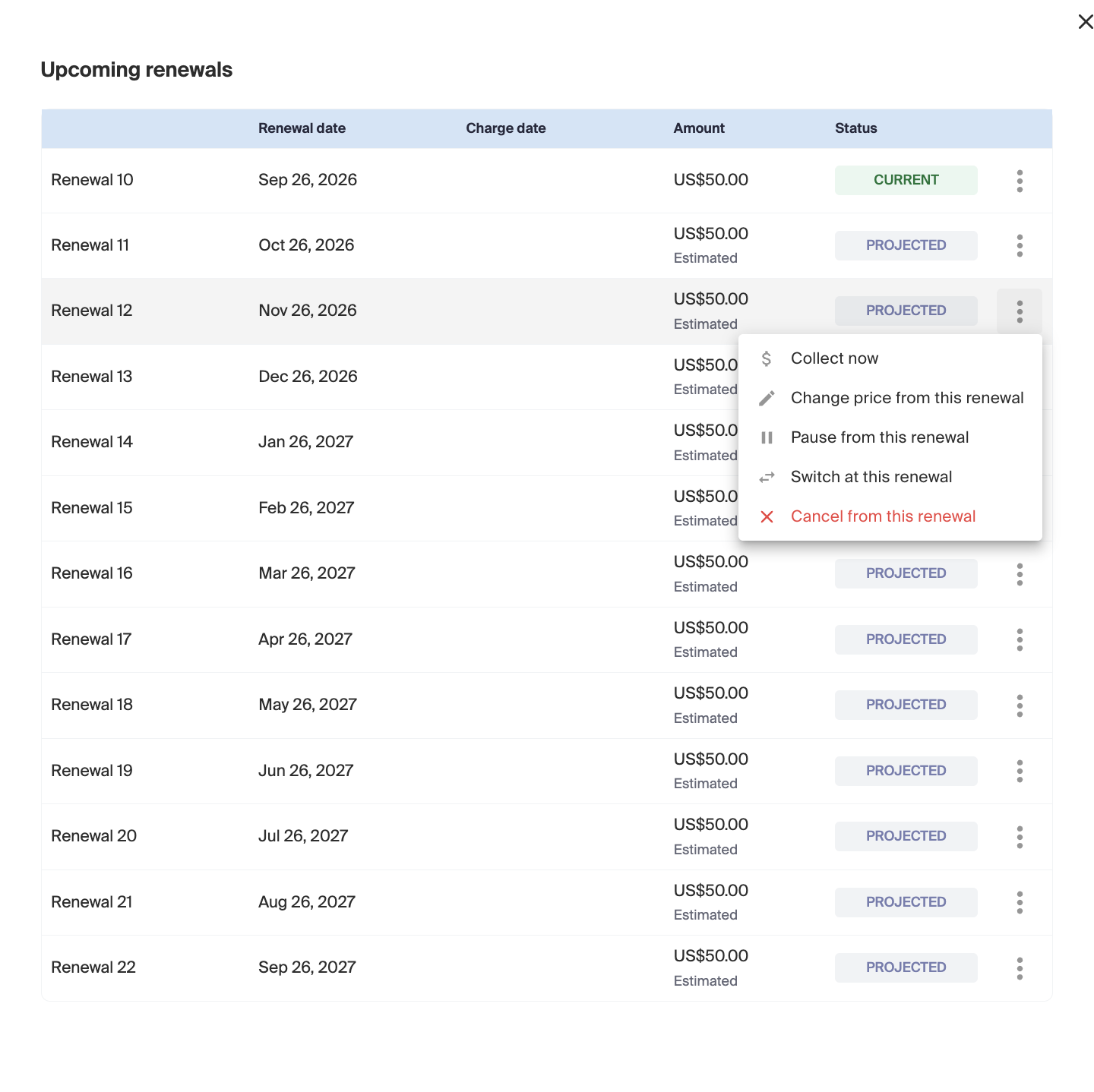
Click the three dots and select Upcoming renewals.
- The timeline opens in a drawer on the right.
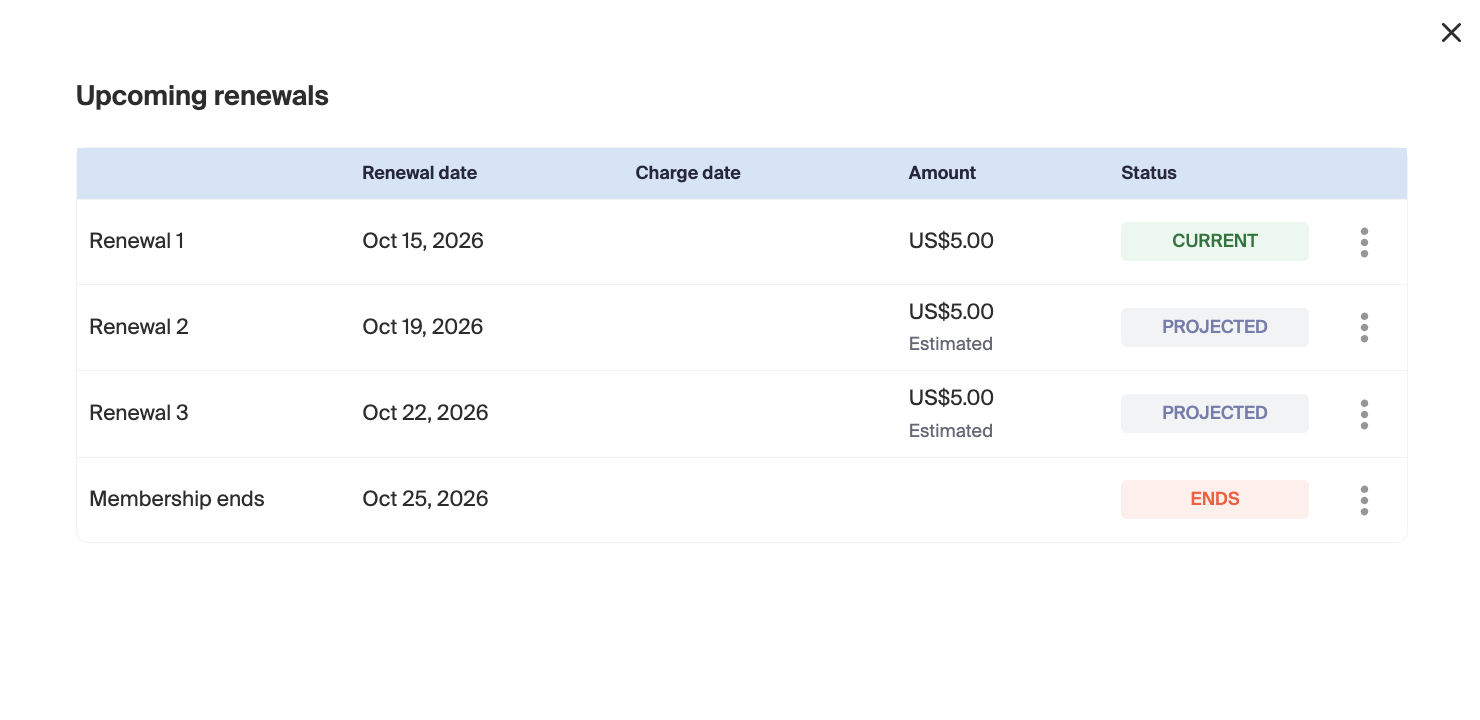
Note: Upcoming renewals doesn’t show if there’s nothing to list, such as for a non-repeating or cancelled membership.
Each row has its own three-dot menu, which only shows the actions that row can use:
- The period running right now uses the membership’s regular menu.
- A paid period offers a refund.
-
A scheduled switch row offers no actions.
Collect Now
Charges a future renewal today.
- Click the three dots on the renewal you want to collect.
-
Select Collect now.
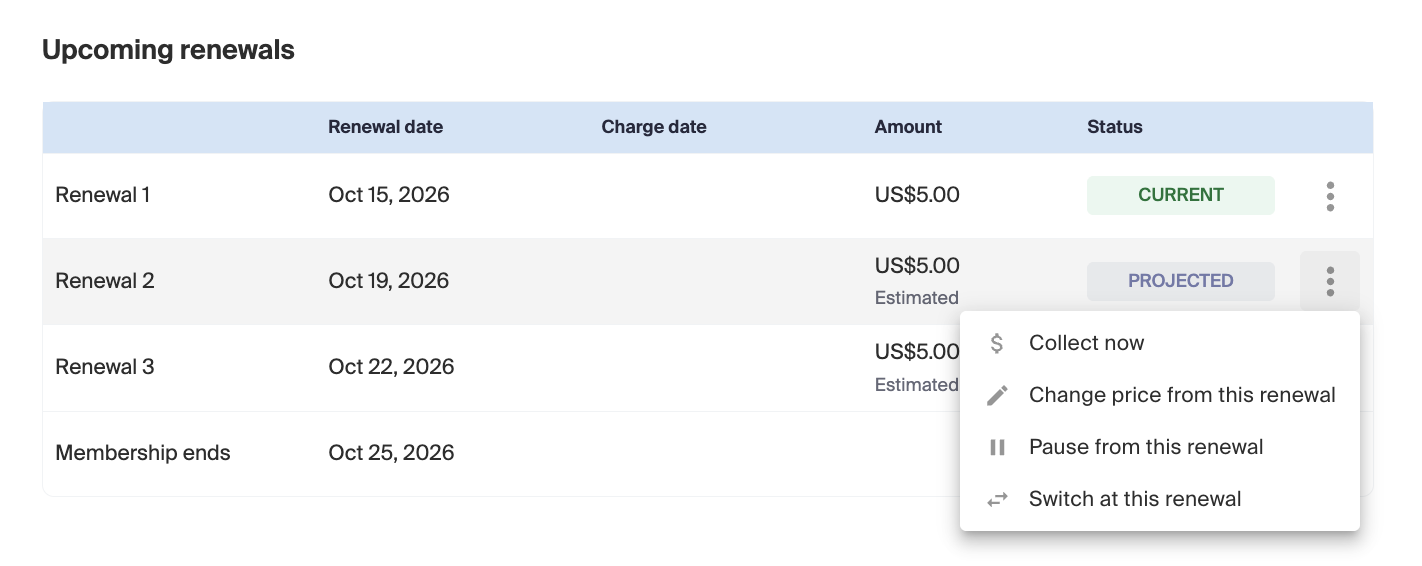
Recess creates every renewal between the current period and the one you picked, then charges the one you picked. That renewal shows as paid from then on.
Note: If the renewal is later changed:
- Paused - The prepayment moves with it to whenever the renewal actually happens.
- Cancelled - The prepaid renewal is handled in the Cancel & Refund pop-up, where you can choose not to refund, refund in full, or refund part, to the card or to the account balance.
-
Switched - The prepaid amount goes toward the new membership’s first charge. Any extra is returned.
Change Price From This Renewal
Sets a new price from the chosen renewal, and for every unpaid renewal after it.
- Click the three dots on the renewal and select Change Price from this renewal.
- Enter the new price.
-
Confirm.
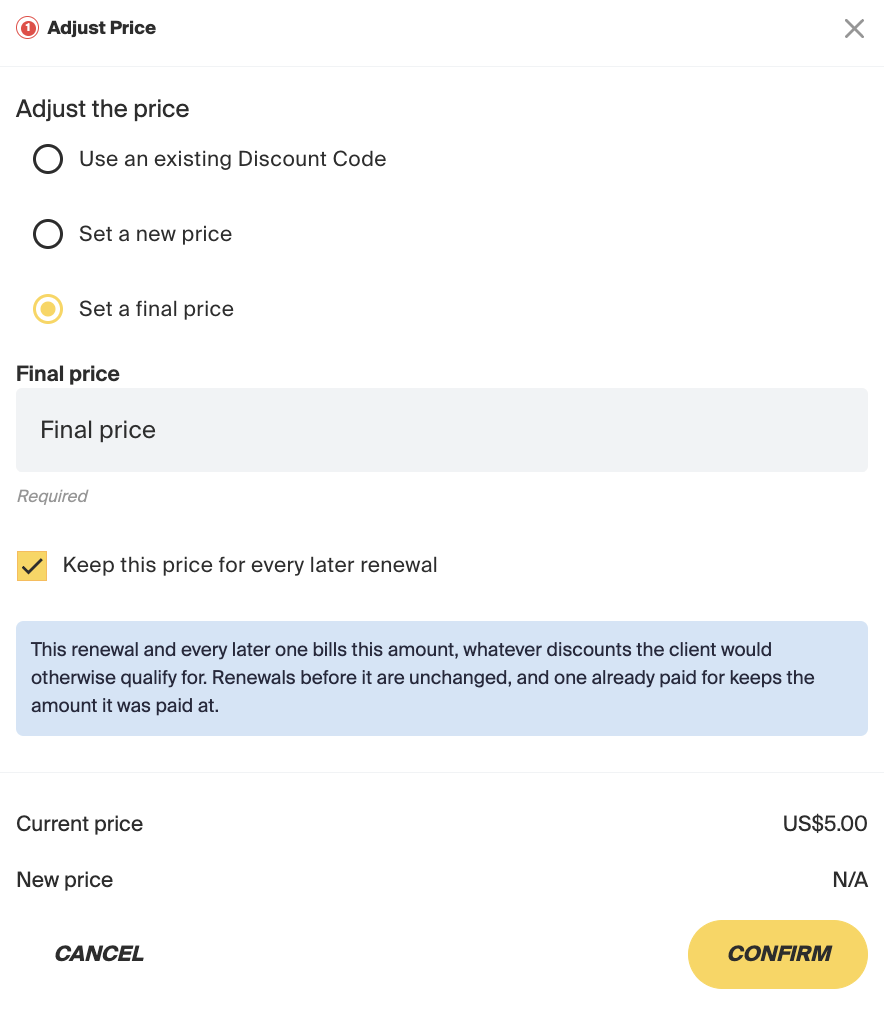
The new price is saved as a discount for that client off the package’s list price. If the package price changes later, the client’s price moves with it by the same dollar amount.
Important: You can’t enter a price above the package price. From that renewal on, the price is locked, so auto-applied tag discounts won’t change it.
Pause From This Renewal
- Click the three dots on the renewal and select Pause from this renewal.
- The Schedule Pause form opens, already set to start at that renewal.
-
Complete the form and save.
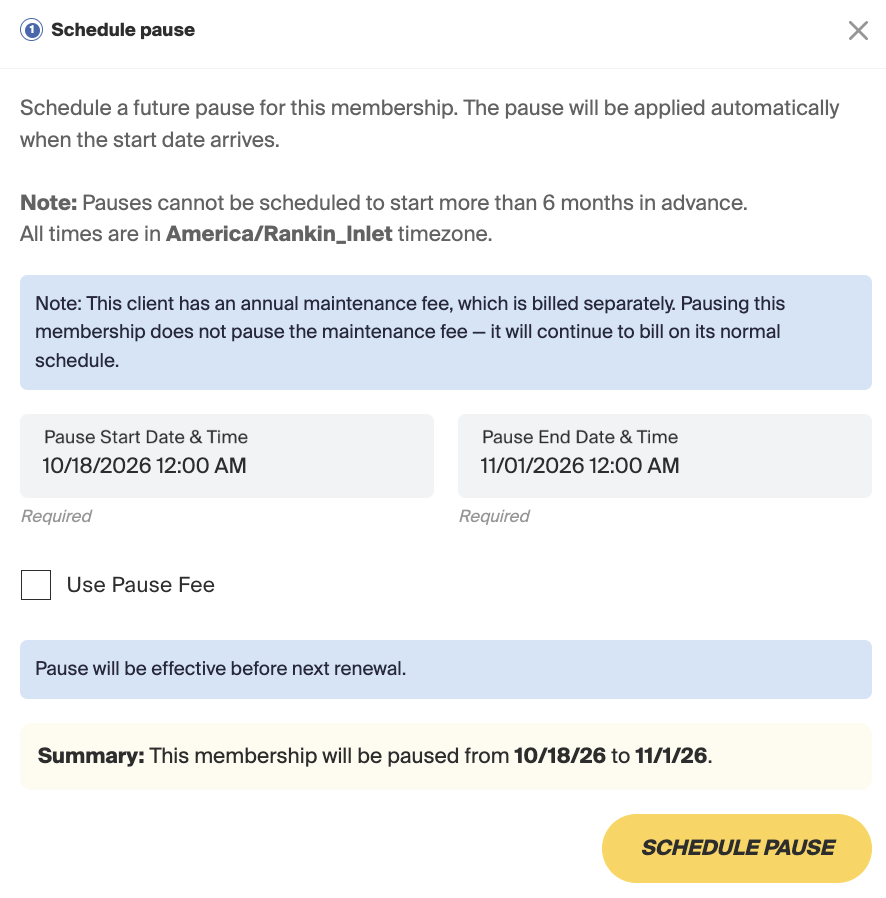
Pause fees, and whether the client can see the pause, work the same as when you pause from the membership.
Cancel From This Renewal
- Click the three dots on the renewal and select Cancel from this renewal.
- The Schedule Cancellation form opens, already set so the cancellation lands on that renewal.
-
Complete the form and save.
Switch to a Different Membership at This Renewal
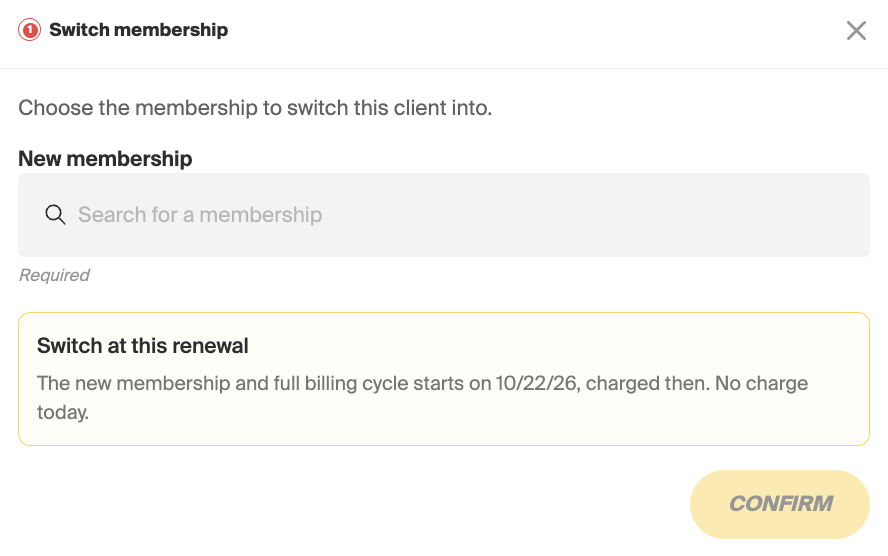
- Click the three dots on the renewal and select Switch at this renewal.
- Choose the membership to switch to.
- Confirm.
Important:
- Unused credits carry over only if both memberships have Roll over unused credits turned on.
-
If the new membership has fewer sessions per period, bookings above the new limit are dropped, starting with the latest ones. The earliest bookings stay, and the confirmation lists the ones that were dropped.
Reading the Rows
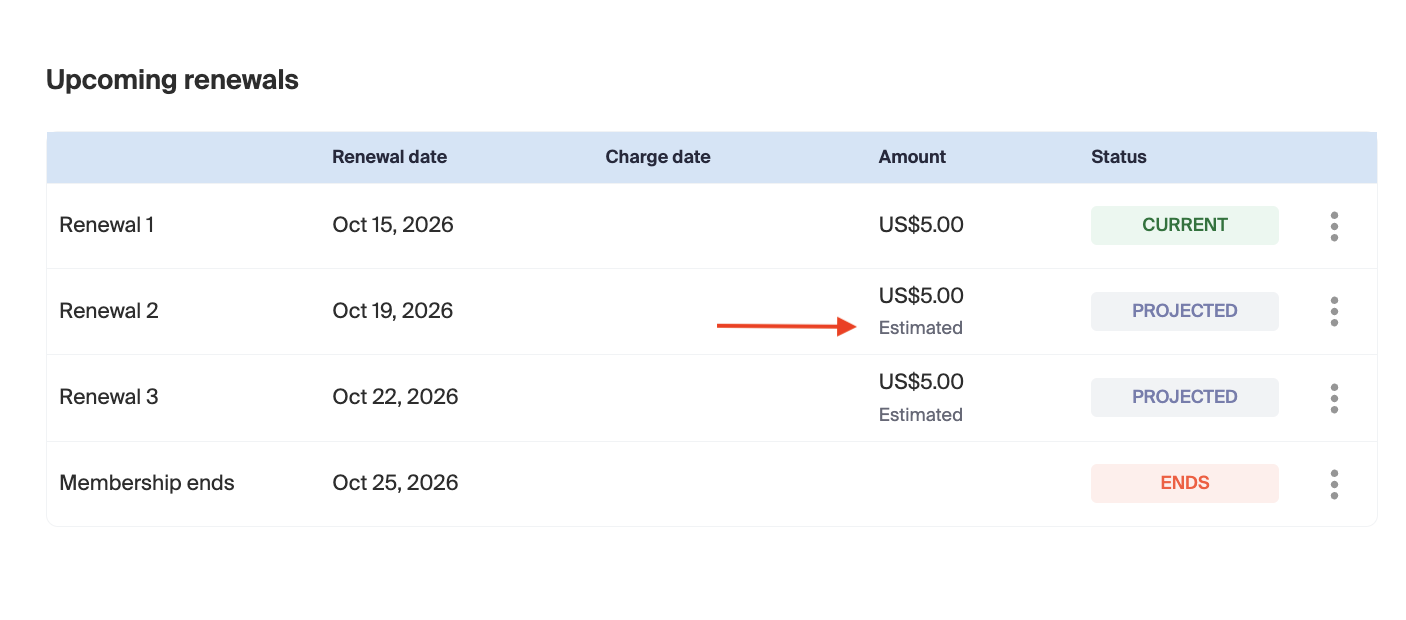
- Estimated amounts - A renewal that hasn’t been created yet shows an estimate. A repriced row also shows an estimate, because it can move if the package price changes.
- Failed - Only shows once the renewal’s due date has passed and the charge failed. If Collect now is declined once, the row stays unpaid, and the failed-renewal banner on the membership card covers it.
- Paid rows after a cancel - If a client prepaid a renewal and a cancel is later scheduled before it, the paid row still shows after the cancel row, with a Refund action.
-
Pause and cancel - A scheduled pause shows as a shaded block. A scheduled cancel ends the timeline.
Booking a Client Past Their Renewal Date
You can also put a client into a class that falls after their next renewal, which creates the renewal for them.
- Open the class, private session, or appointment.
- Book the client. Recess shows Redeem with Package, to let you know their current package qualifies once it renews.
-
Click Purchase.
The booking is created, along with any renewals before it.
Important: Cancelling the booking doesn’t cancel the membership. The renewals stay and renew as normal. To stop the membership as well, cancel it with Cancel at next renewal, Cancel immediately, or Schedule Cancellation.
Note: A client promoted from a waitlist into a future class gets their renewal created the same way.
What Clients See
Clients can see their upcoming renewals on their membership, in the app and in the embed. This is on by default.
To hide them:
- Go to Tools> Profile> Settings > Billing & Renewals.
-
Turn on Hide upcoming membership renewals from clients.
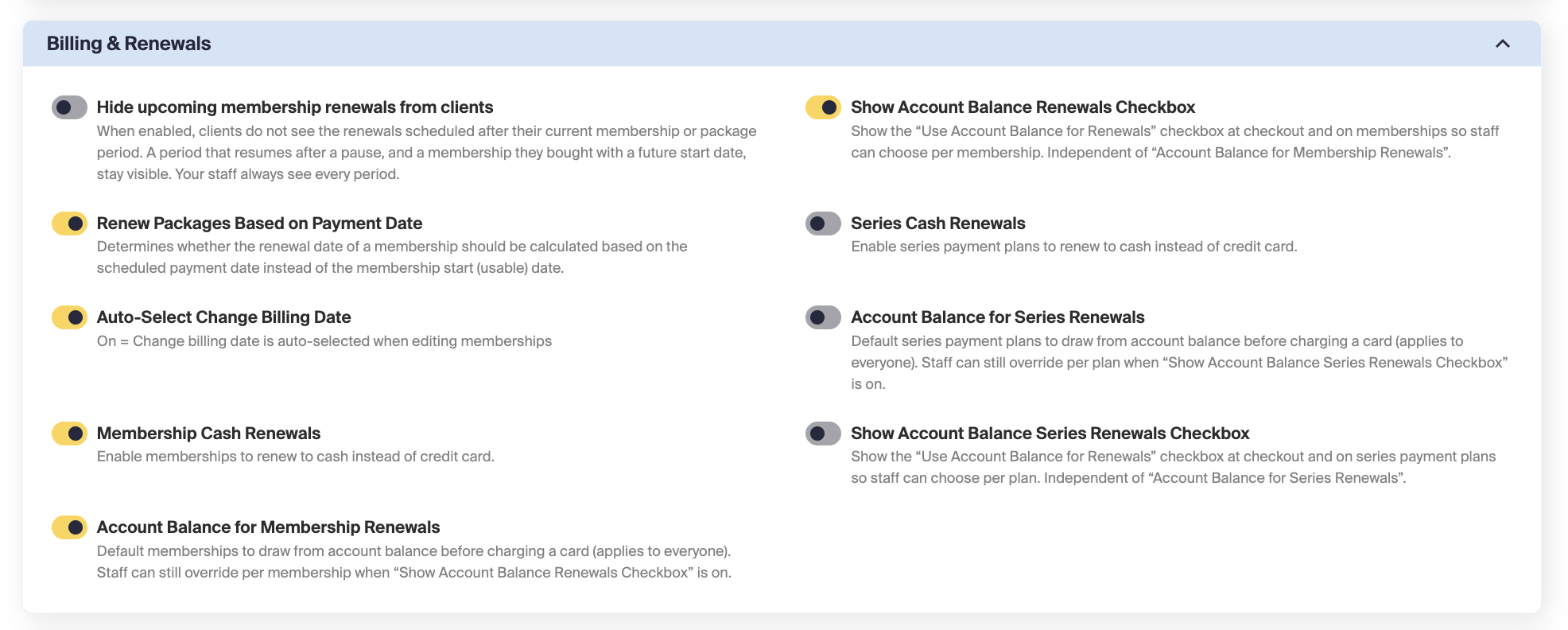
This applies to memberships and credit packages everywhere clients see them. Staff still see the renewals.
Need Help?
Contact our support team at support@recess.tv if you have questions about renewals.