
Creating a Semi-Private Series
What Is a Semi-Private Series?
A Semi-Private series lets you run sessions with more flexibility than a standard class. Instead of every client following one fixed schedule, you choose how your program works:
- Fixed Cohort: one shared time, with one or more day-based groups underneath it. For example: a 6am group on M, W, Fr and a 6am group on Tu, Th, Sa.
- Open Schedule: you publish a menu of available session times throughout the week, each with its own time and days; each client then chooses which of those fit their schedule, paying based on how many they pick, all under one enrollment and one bill.
Getting Started
- Go to Schedule & Programming > Semi-Private.
- Click + Add New.
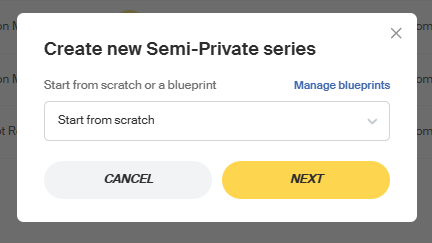
- Choose Start from scratch, or select a blueprint > a saved template you can reuse instead of building a series from zero each time (manage these via Manage blueprints).
Basic Info
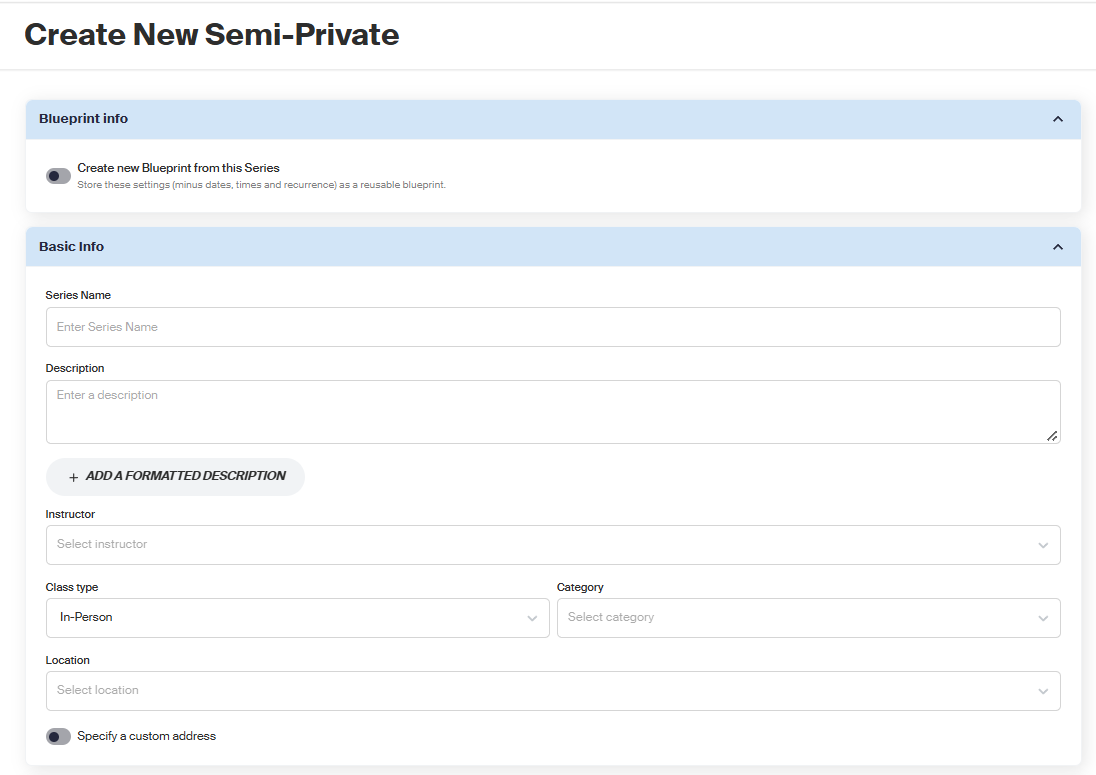
- Enter a Name and Description (or click + Add a Formatted Description).
- Select an Instructor.
- Choose a Class type.
- Select a Location, or toggle Specify a custom address.
Types of Semi-Private Sessions
Under Schedule & Capacity, choose one:
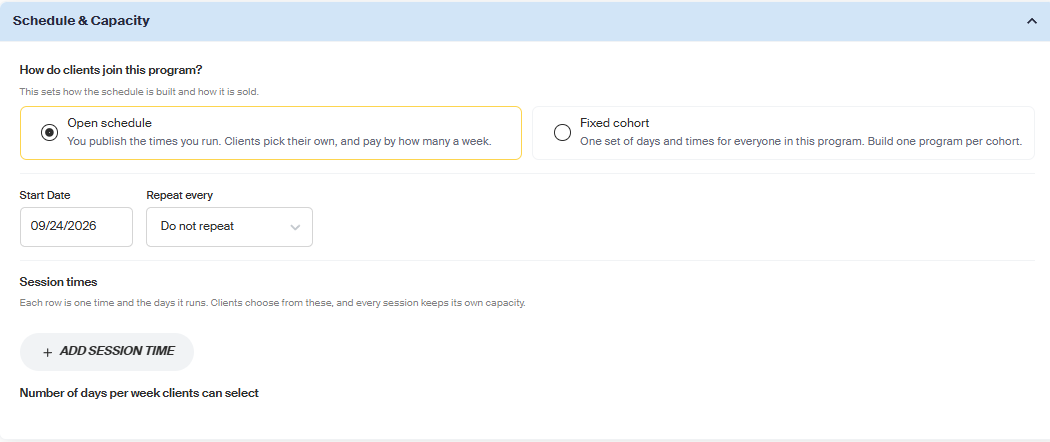
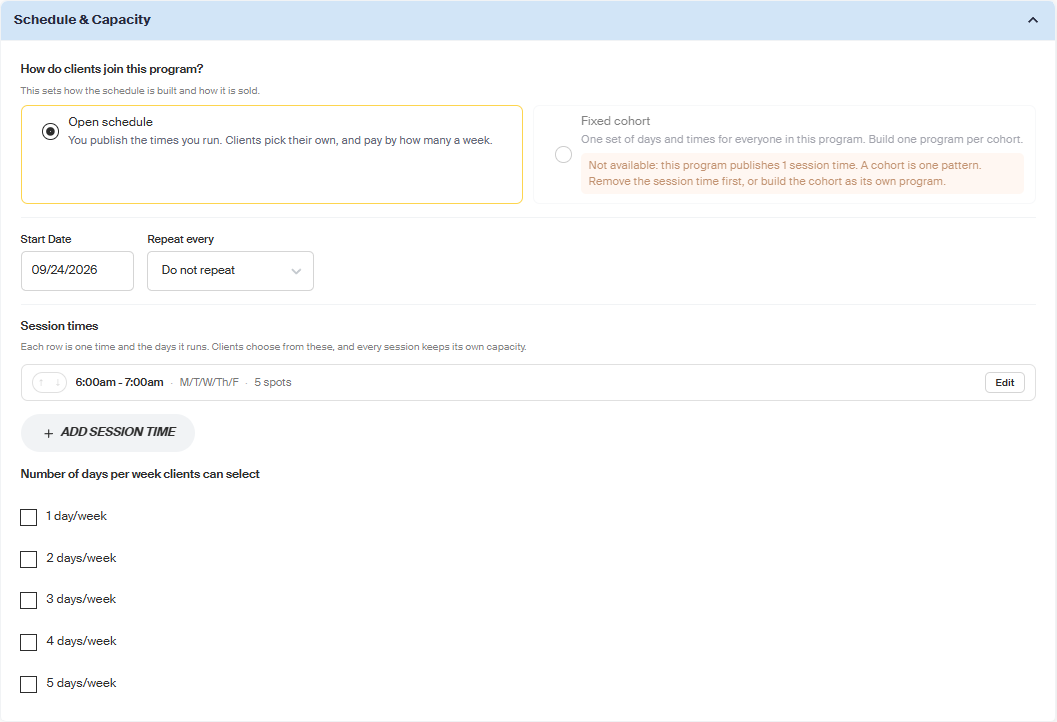
- Open Schedule: you build a menu of session times; clients pick which ones they attend. See Setting Up and Managing an Open Schedule below.
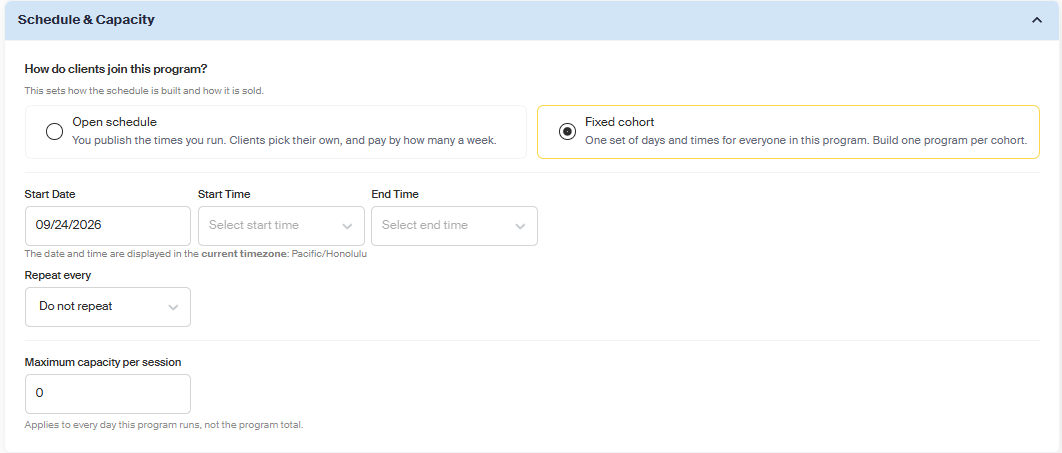
- Fixed Cohort: one shared time, with one or more day-based groups. See Setting Up and Managing Fixed Cohorts below.
Setting Up and Managing an Open Schedule
With Open Schedule, you build the menu of available times first. Clients don't set their own custom time; they choose from the options you've published, and can pick a different combination of times than another client enrolled in the same series.
Adding Session Times
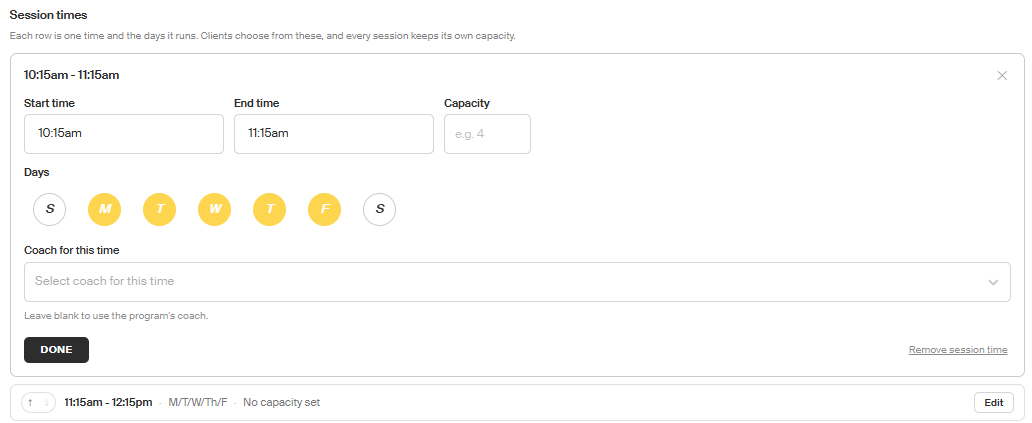
Each session time is one entry on your menu; its own start/end time, its own days, and its own capacity.
- Set your Start Date, Repeat every interval, and Repeats Until.
- Click + Add Session Time:
- Set the Start time, End time, and Capacity.
- Select the Days it runs.
- Optionally, choose a Coach for this time - leave blank to use the series' main instructor.
- Click Done.
- Repeat step 2 to add more session times (e.g. a 10am, 11am, and 12pm slot).
- Under Number of days per week clients can select, check which options (1–5 days/week) you want to offer. This controls how many session times a client can pick from your menu, and ties directly into your Flexible Recurring pricing below.
Managing Existing Session Times
Click Edit on any session time to change its details, or Remove session time to delete it. Editing preserves a client's existing seat; removing archives it rather than deleting their booking outright, since they may already be paying for it.
Setting Up and Managing Fixed Cohorts
With Fixed Cohort, every cohort in the series shares the same Start Time and End Time. You're not building multiple time slots here, only multiple day patterns at that one time. For example, you could run a Mon/Wed/Fri 6am group and a separate Tue/Thu/Sat 6am group under one series, since both are at 6am. But a 6am group and an 8am group can't live in the same series - that needs two separate series.
Setting the Overall Pattern
- Set your Start Date, Start Time, and End Time: this time applies to every cohort you add below.
- Set Repeat every interval.
- Set Maximum capacity per session: this applies to every day the program runs, not the program total.
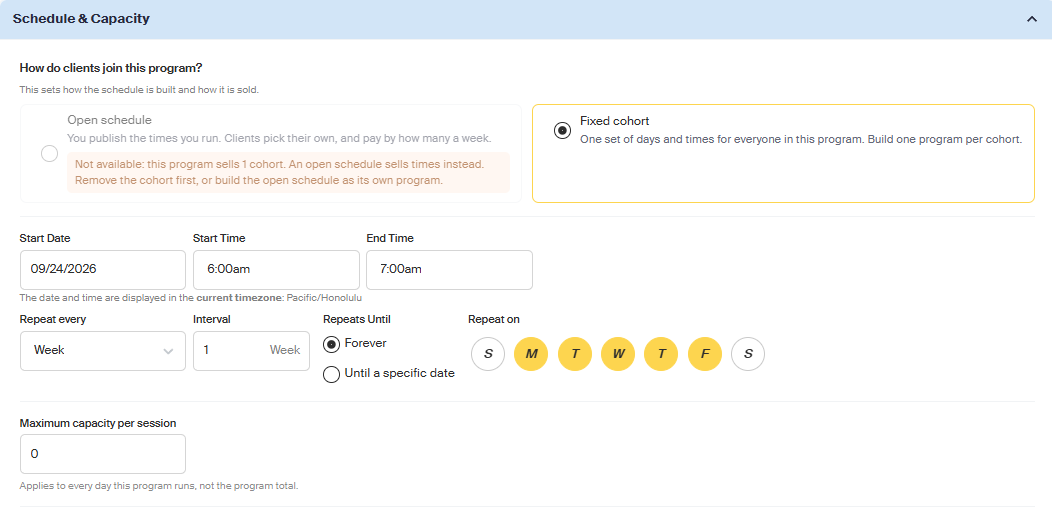
📝Note: If you need cohorts running at different times, build each as its own Semi-Private series rather than trying to combine them here.
Adding a Cohort
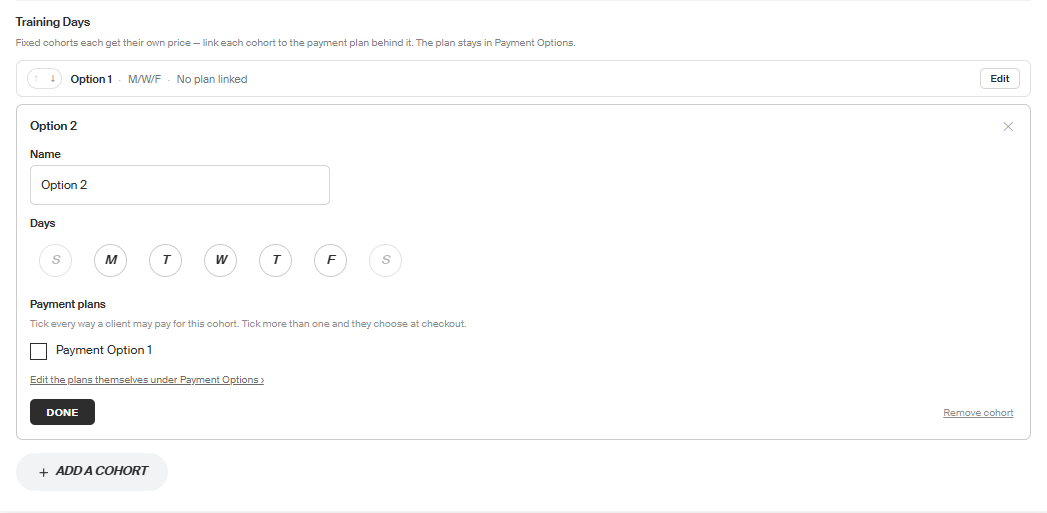
A cohort is a named group within your series; its own days, and its own price. This is where you actually build out each group clients can join.
- Under Training Days, click + Add a Cohort.
- Set a Name for the cohort. Rename it to something clear for your team and clients (e.g. "Morning Group"), rather than leaving the default "Option 1," "Option 2," etc.
- Select the Days this cohort runs. Cohorts within one series can only differ by days, not by time.
- Under Payment plans, check which plan(s) a client can use to pay for it. Check more than one to let clients choose between them at checkout.
- Click Done.
- Repeat to add additional cohorts.
Managing Existing Cohorts
Click Edit on any cohort to change it, or Remove cohort to delete it.
📝Note: A cohort's price is defined separately, under Payment Options. Click Edit the plans themselves under Payment Options to jump there directly.
Linking Cohorts to Payment Options
Each payment option has its own Used by list: which cohort(s) that price applies to. One payment option can cover several cohorts, and a cohort can link to more than one payment option, giving clients a choice at checkout.
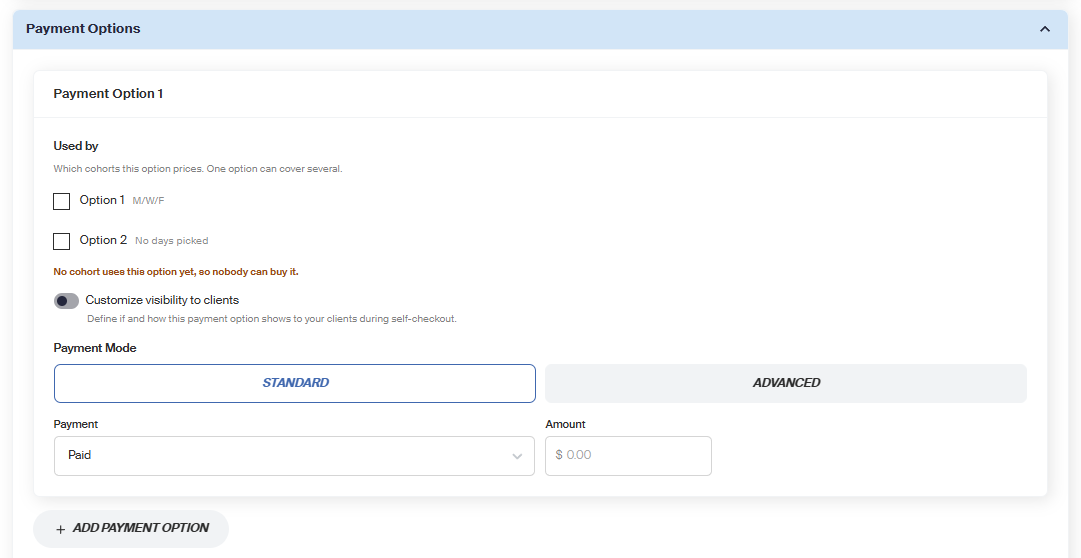
Payment Options
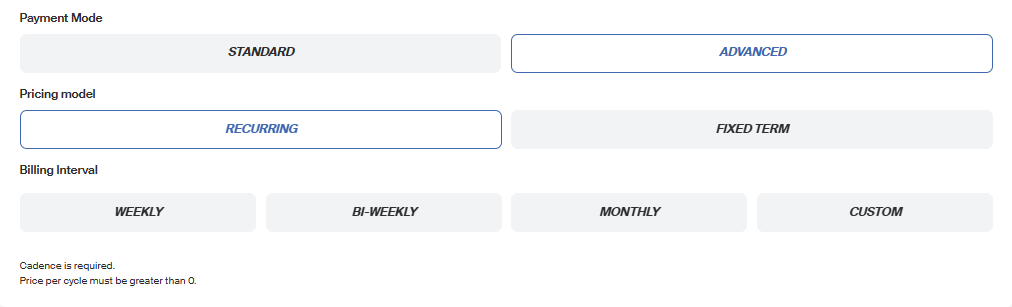
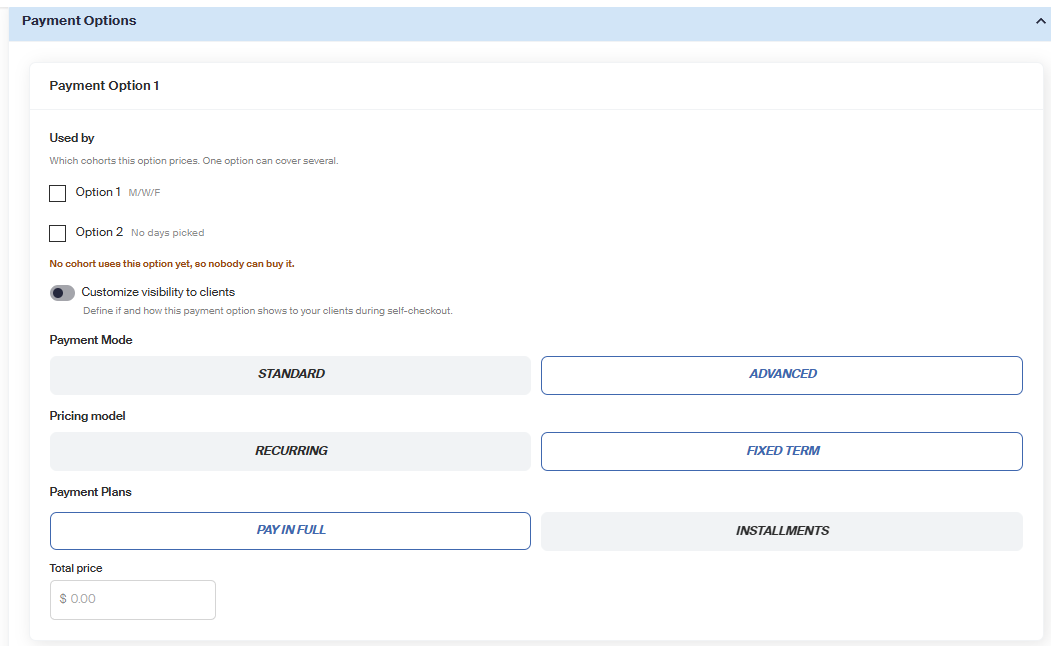
Choose a Payment Mode: Standard or Advanced. Under Advanced, choose a Pricing model:
Recurring:
- Billing Interval: Weekly, Bi-Weekly, Monthly, or Custom (bill every set number of days instead of a fixed calendar interval)
- Price, Billing rule, Billing day
- Week prior to class or Week of class
Fixed Term:
- Pay in Full or Installments
- Total price
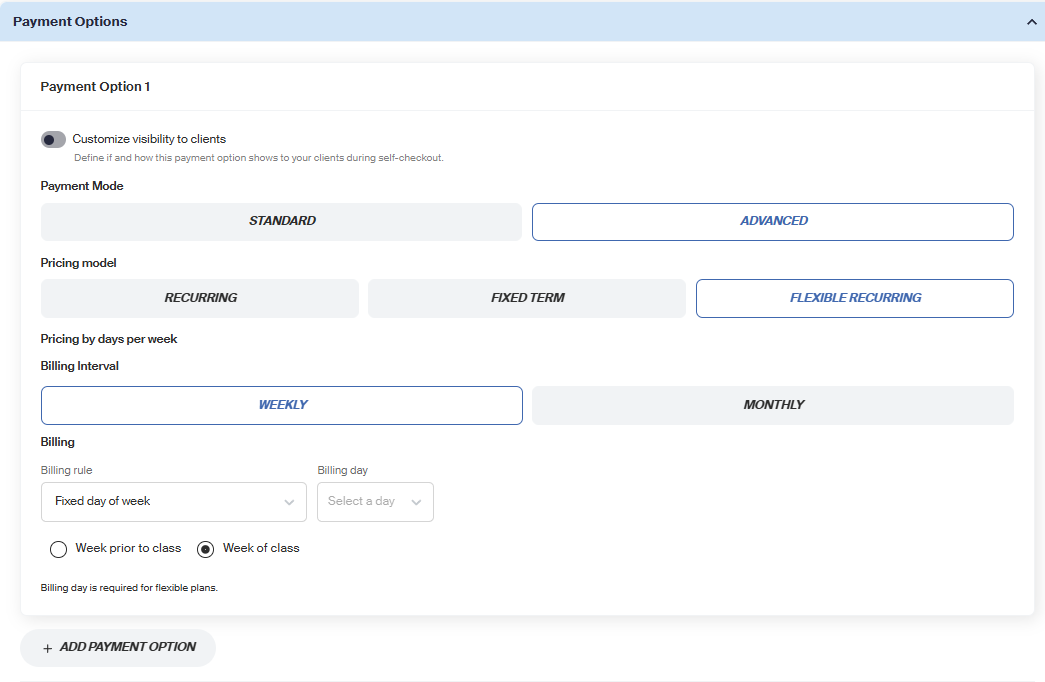
Flexible Recurring:
- Set a $/week price for 1–5 days per week
- Billing Interval: Weekly or Monthly
📝Note: Flexible Recurring is generally the right fit for Open Schedule series, since it prices by how many session times a client picks per week. For Fixed Cohort series, any pricing model works — set the price, then link it to the right cohort(s) under Used by.
Click + Add Payment Option to offer more than one plan. You can also toggle:
- Customize visibility to clients: control if and how a payment option shows during client self-checkout.
- Allow custom payment plans at checkout
- Has a trial offer
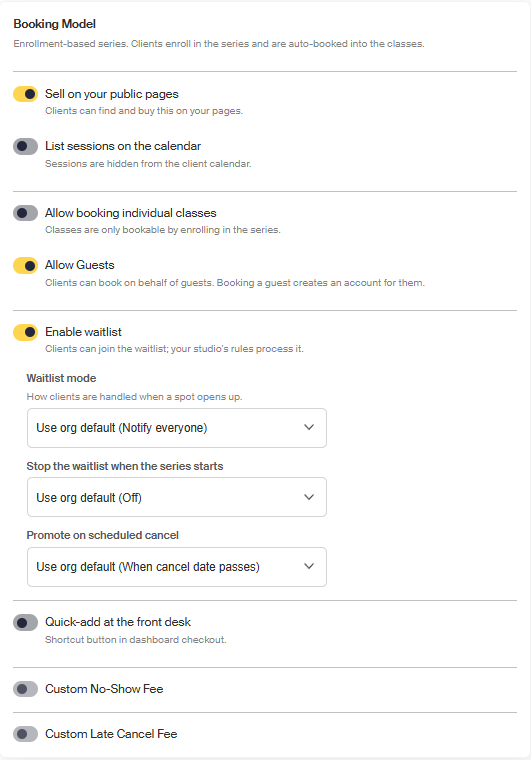
Booking Model Settings
These control how clients discover and book into the series:
- Sell on your public pages
- List sessions on the calendar: sessions show for awareness; booking one still enrolls the client in the whole series.
- Allow booking individual classes: lets a class be booked on its own, outside the series enrollment. Set a Drop-in Price. Individually booked classes reduce the series' overall capacity.
- Allow Guests: clients can book on behalf of a guest, which creates an account for them.
- Enable waitlist: configure Waitlist mode, whether to Stop the waitlist when the series starts, and Promote on scheduled cancel behavior.
- Quick-add at the front desk: shortcut button in dashboard checkout.
- Custom No-Show Fee and Custom Late Cancel Fee.
Cancellation Settings
Toggle Override the org default cancellation policy to set program-specific rules, or leave off to inherit your organization's default.
Note: Late-cancel and no-show fees for a single session are set separately, under per-class fees.
Make-up Bookings
When a client misses a session in this series, a Make-up Plan lets them get that session back instead of losing it. If they cancel or are marked as a no-show with enough notice, they earn a Makeup Credit for that session, which they can use to book into any other available session in the same series, at no extra charge.
To set this up:
- Toggle This Series has a Makeup Plan.
- When a client misses a session under the terms of your cancellation policy, they'll automatically receive a Makeup Credit.
- The client uses their credit to book into any other open session within the same series.
Media
Upload a Thumbnail and Trailer.
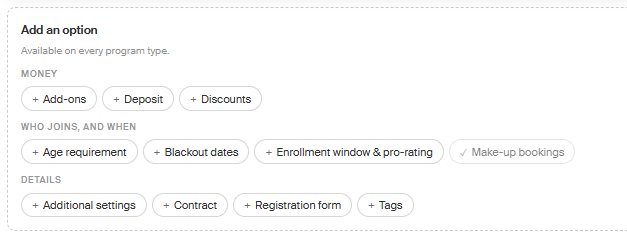
Add an Option
These are all optional. Toggle on only what your series needs. Each one adds a corresponding section to the page:
- Money:
- Add-ons: attach a product clients can buy alongside enrollment. Set whether it's Required at checkout, Allow multiple, or Series-exclusive, plus Billing and Inventory behavior.
- Deposit
- Discounts
- Who Joins, and When:
- Age requirement
- Blackout dates
- Enrollment window & pro-rating: limit when clients can enroll, and optionally add Custom enrollment windows scoped to specific client tags.
- Make-up bookings
- Details:
- Additional settings
- Contract: attach an existing contract or create a new one. Clients can still enroll without signing, but are blocked at check-in until they do.
- Registration form: attach an existing form or create a new one; optionally make it Required to complete checkout.
- Tags
Need Help? Contact our support team at support@recess.tv if you have questions about setting up a Semi-Private series.