
Waivers for Appointments
If you're running an appointment and you want all attending clients to sign a waiver, Recess can collect those signatures for you. Turn the feature on once, then require a waiver on any appointment service type.
Turn On Appointment Waivers
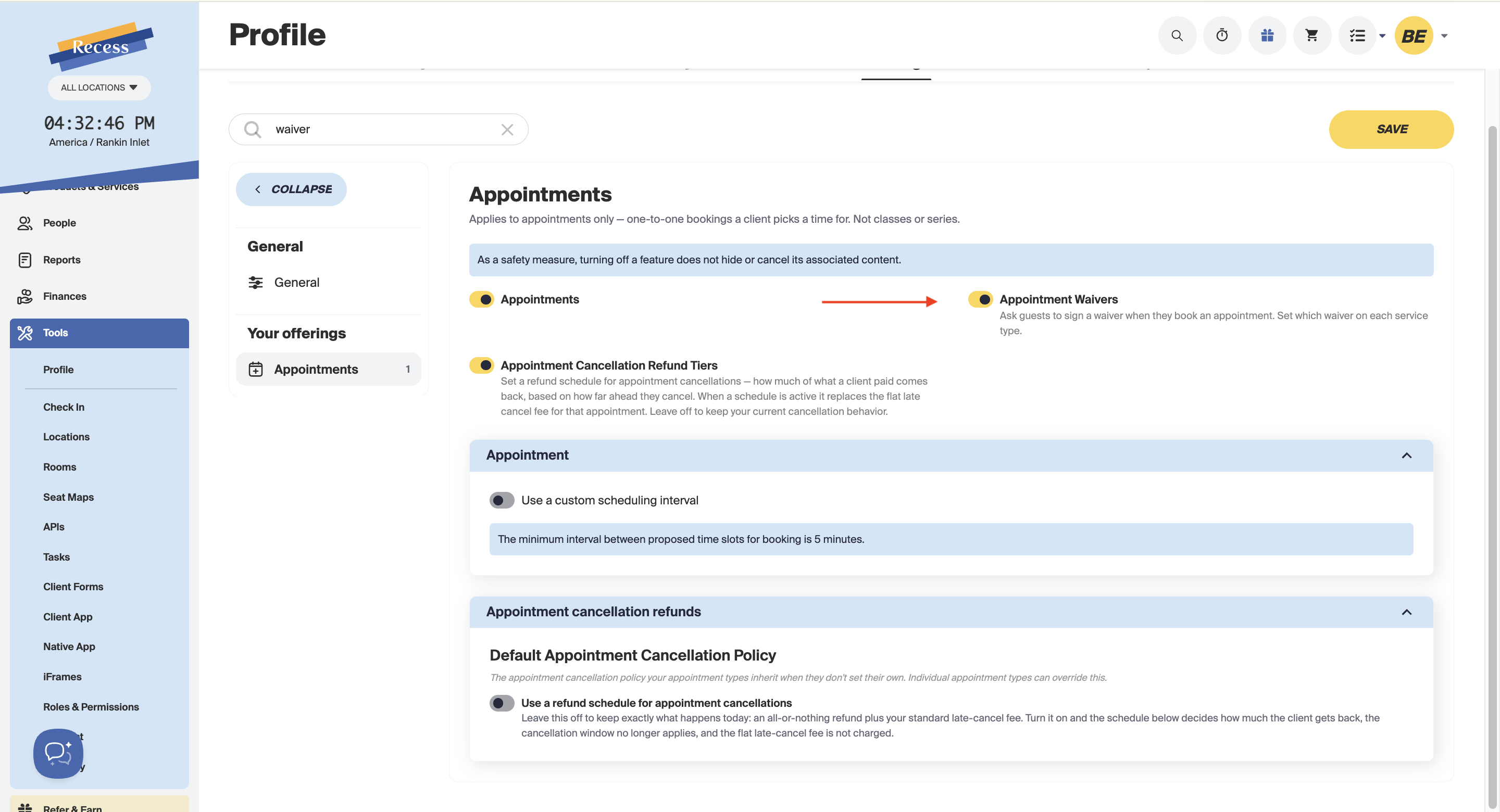
- Go to Tools > Profile > Settings.
- Search for Appointments in the left-hand menu.
- Toggle on Appointment Waivers
- Click Save.
Require a Waiver on a Service Type
- Go to Products & Services > Appointment Service Types.
- Open the service type you want to require a waiver for, or click + Create a New Service Type.
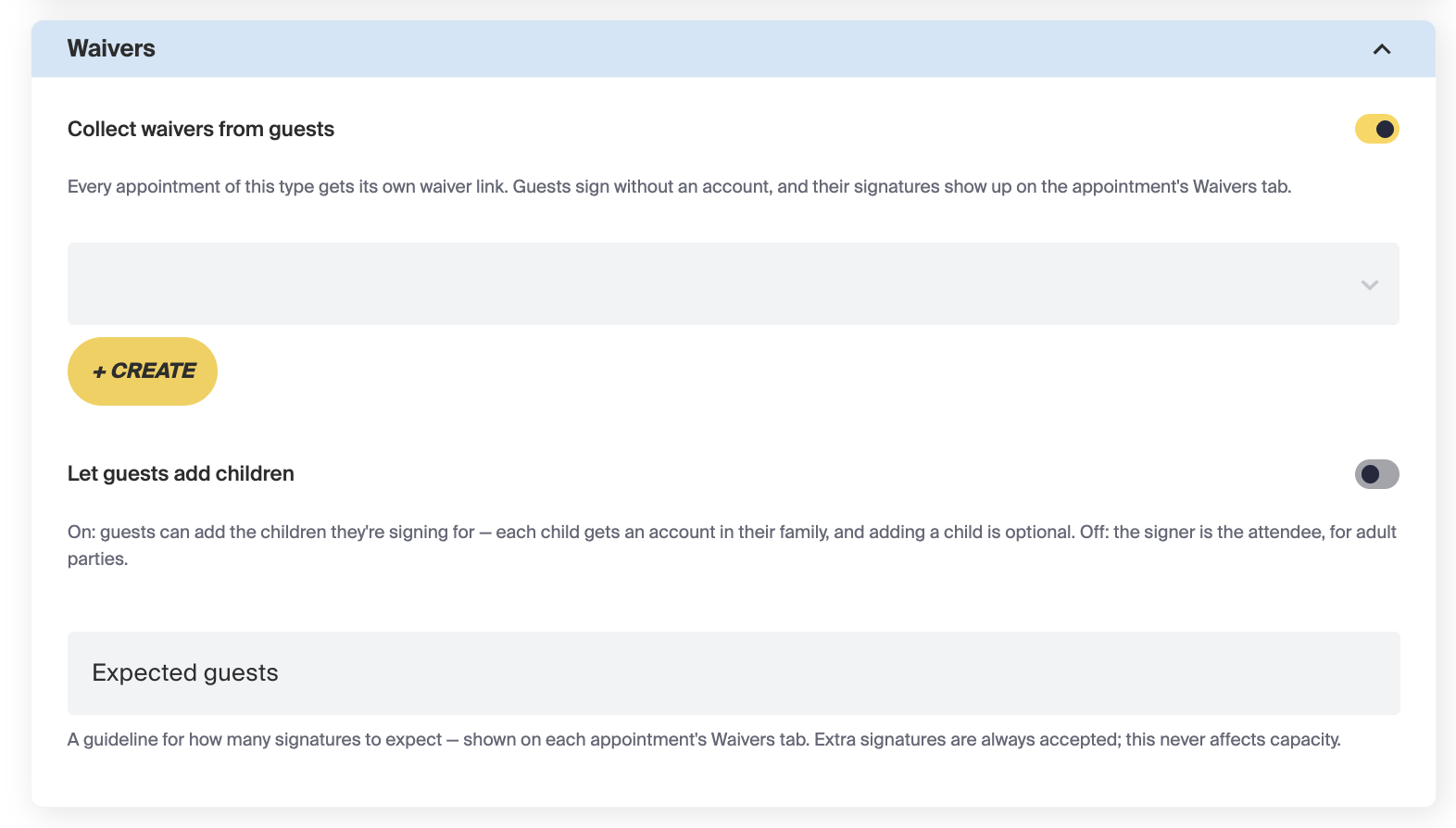
- Scroll to the Waivers section.
- Toggle on Collect waivers from guests
- Click Choose a waiver and select an existing one, or click + Create to build a new one.
-
Click Save.
Creating a new waiver:
- Enter a Waiver name.
- Click Add a Formatted Waiver if you want to write out custom waiver text and styling. Otherwise, Recess will still collect the standard fields below.
-
Click Save.
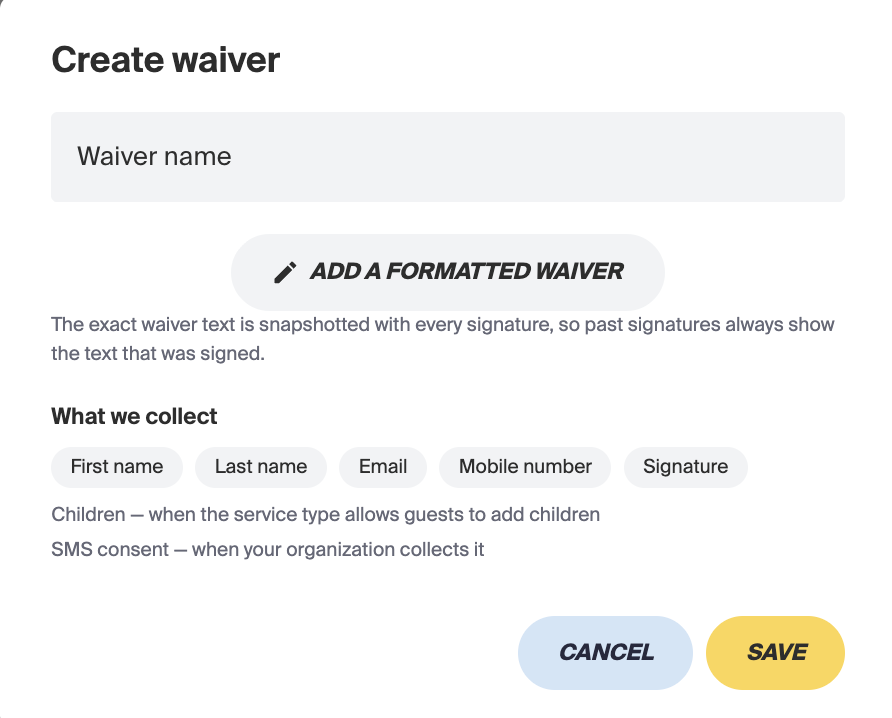
Every waiver collects First name, Last name, Email, Mobile number, and Signature. If the service type allows guests to add children, it also collects the children's names; if your organization collects SMS consent, that's included too.
Two more optional settings in the same section:
- Let guests add children - On: guests can add the children they're signing for, and each child gets an account in their family. Off: the signer is the attendee, for adult parties.
-
Expected guests - A guideline for how many signatures to expect. This shows on the appointment's Waivers tab and doesn't affect capacity — extra signatures are always accepted.
How Clients and Guests Sign
Once a client books an appointment with waivers turned on, the booking confirmation screen shows a Copy waiver link button. The client can copy this link and share it with anyone attending — a parent, a guest, anyone who needs to sign.
Where to Find Signed Waivers
Waivers are visible on the roster for that appointment.
Need Help?
If a waiver isn't showing up where you expect, contact our support team at support@recess.tv.