
Series Discounts
There are a few different ways to discount a Series — some configured directly on the Series, others managed studio-wide through Growth Suite.
Discounting a Specific Client
The main way to give a specific client a different price is through Client Tags on a Payment Option. Add a tag that only that client (or a small group of clients) carries, and that Payment Option will only be visible to clients with the matching tag.
For the full setup, see our Payment Plans for a Series article.
General Discount Codes
Discount codes let clients type in a code at checkout to redeem a discount, and can be scoped to specific packages, memberships, or class types.
Creating a Discount Code
- Hover over Growth Suite and click Discount Codes.
- Click + Create a New Discount.
- In the Code field, enter the code clients will type at checkout (e.g. "FREEMONTH"). Codes aren't case-sensitive.
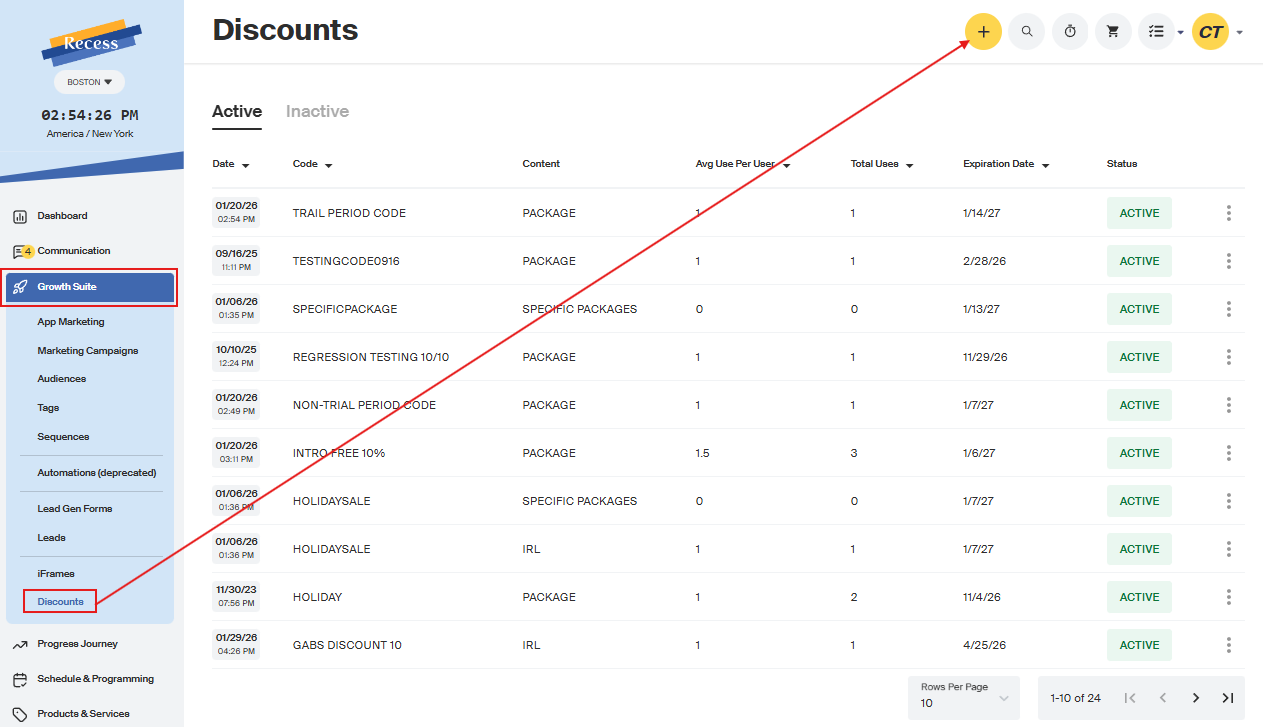
Discount Code Fields
- Code — the code name clients enter at checkout.
- Types — which services this applies to: Virtual Classes, In-Person Classes, Private (IRL and Virtual), On-Demand, Appointments, Events, Packages, Specific Packages, Collections, Bundles, or Retail Products. You can select multiple types for one code.
- Discount — enter the amount or percentage (e.g. "20" for 20%, no % or $ sign needed). Toggle whether it's a flat dollar amount or a percentage.
- Uses per Person — how many times each client can use this code. Leave blank for unlimited.
- Total # Uses — how many times the code can be redeemed across all clients. Leave blank for unlimited.
- Expires — the date this code stops working. An expiration date is required.
- Carry Over — when checked, the discount continues when a membership renews. If enabled, Uses per Person must be more than 1.
- Apply to Intro Offer Period — when checked, the discount applies during a membership's introductory offer period.
- Locations — which studio locations this code applies to.
- Disabled/Enabled toggle — switches the code active or inactive.
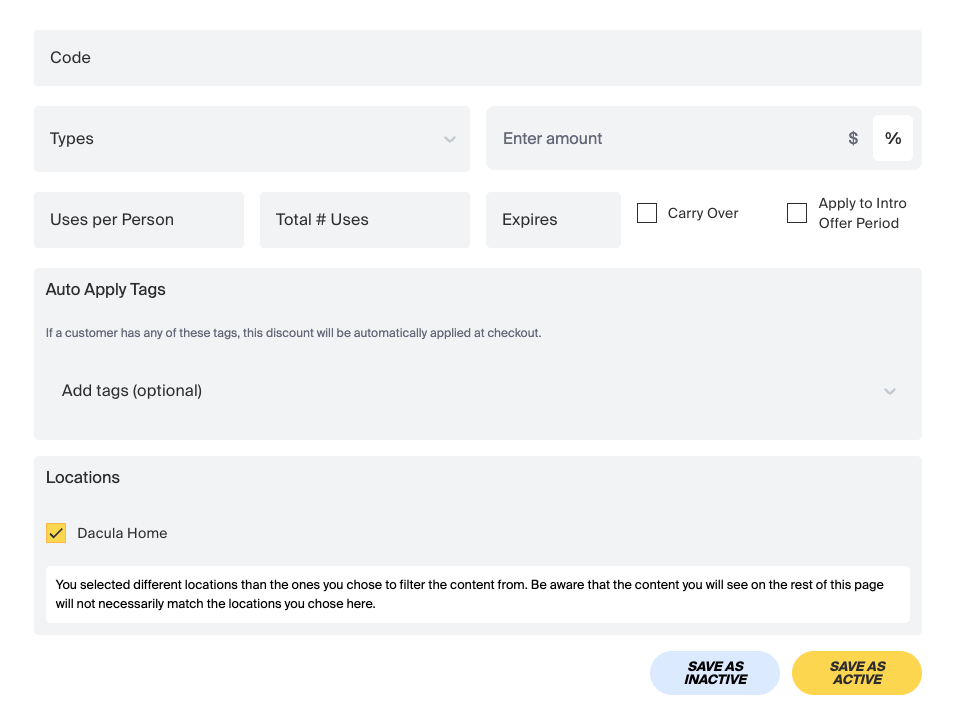
Click Save to activate.
Tracking Discount Code Usage
To see when a code was used:
- Go to the client's account.
- Find the purchased item where the code was applied.
- Under the payment method, you'll see the amount paid, date/time, and discount amount.
- Hover over the discount to see which code was used.
To see who's used a code:
- Go to Growth Suite > Discounts.
- Find the discount in the search bar.
- View its redemption history, including the discounted item, list price, discount, and final price paid.
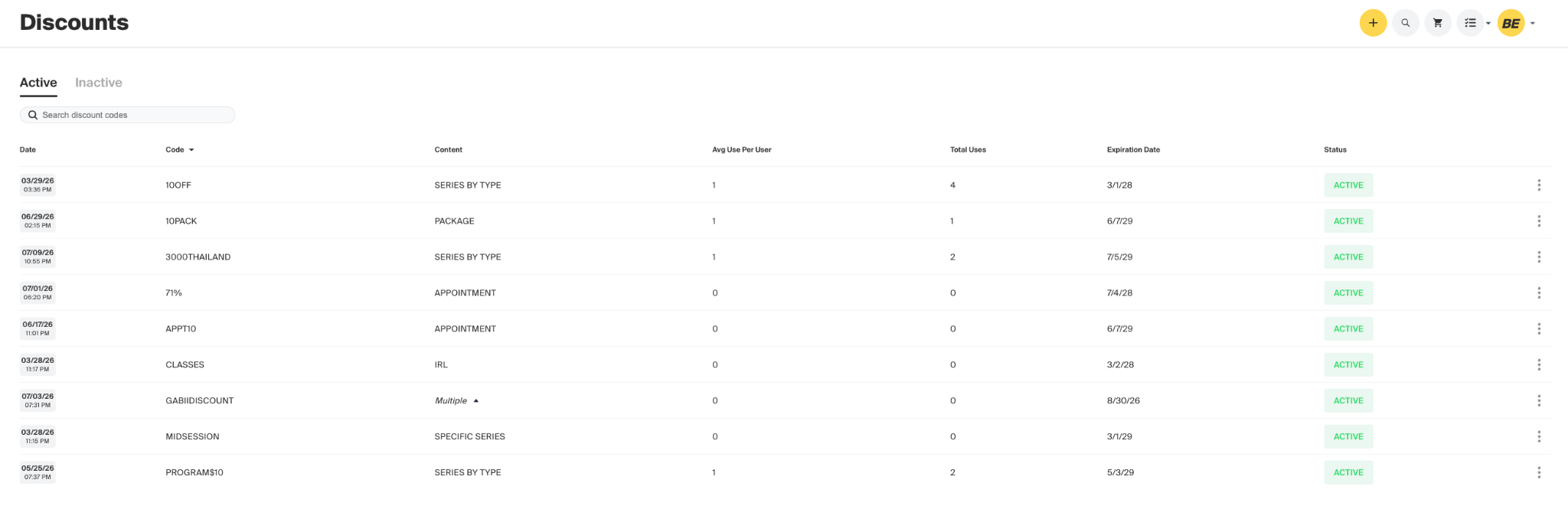
Tag-Based Discounts
A tag-based discount automatically applies at checkout based on a tag on a client's profile — no code entry needed.
Note: This is a different mechanism from the Client Tags field on a Payment Option. Client Tags controls which plan a client can see; an auto-apply tag discount automatically reduces the price for anyone carrying that tag.
Setting Up an Auto-Apply Discount
- Go to Growth Suite > Discounts.
- Click Create a New Discount.
- Enter a discount code for internal reference.
- Select which items the discount applies to (e.g. Events, Classes, or individual items).
- Set the discount percentage.
- Optionally set a limit on uses per person, total uses, and an expiration date.
Setting Up the Auto-Apply Tag
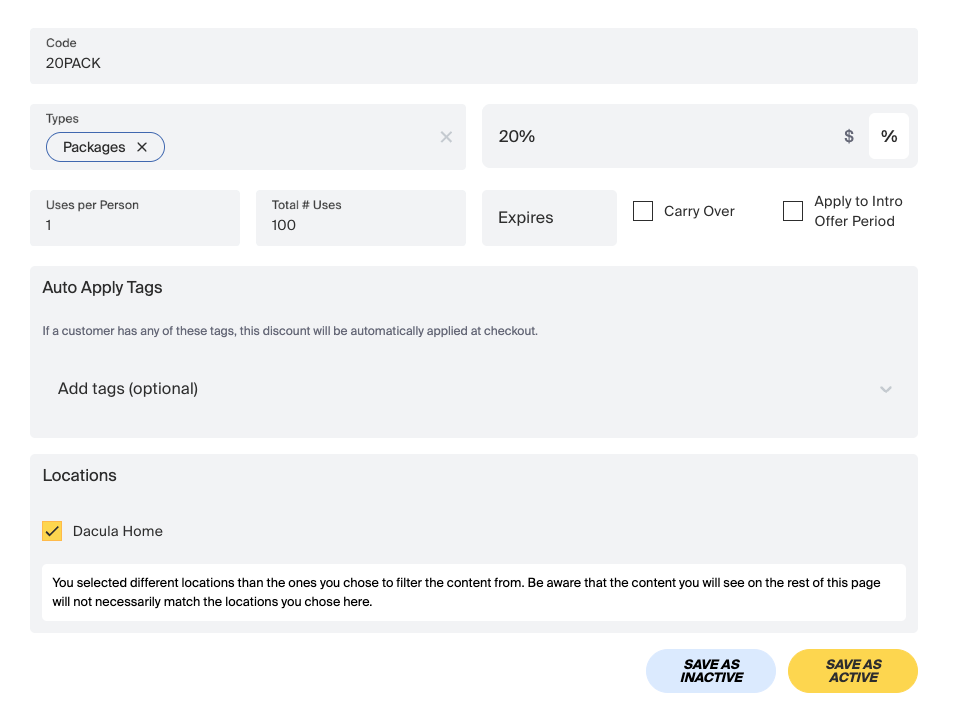
- Scroll to the auto-apply tag section.
- Select an existing tag, or type a new tag name and click Create.
- Attach the tag to the discount.
- Toggle Carry Over if the discount should continue when a package renews. A disabled or expired discount won't carry over.
- Click Save to activate.
Once saved, any client with this tag automatically receives the discount at checkout.
Applying the Tag to a Client
- Go to the client's profile.
- Click the pencil icon next to Tags.
- Search for and select the auto-apply tag.
- Click Save.
Tip: This works well for membership tiers, staff discounts, or special programs. The tag can be added manually or through an automation.
Purchase Date, Flash Sales, and Enrollment Number
These three discount types are configured directly on the Series, under Discounts & Promotions:
- Purchase Date — set a specific enrollment price based on how early a client purchases.
- Flash Sales — apply a temporary discount to the list price between two specific dates. You can set the sale's date range and time window, the discount amount or percentage, and a limit on how many enrollments are available during the sale, including a maximum number of uses per client.
- Enrollment Number — set a different price depending on where a client falls in the enrollment order (for example, a discounted price for the first 5 people to enroll).
Family-Based Discount
Note to reviewer: I don't have confirmed details on this one yet — I have a screenshot reference but no accompanying text or field labels I can verify. Please send a walkthrough or the relevant screen before this section gets published.
Need Help?
Contact our support team if you have questions about setting up discounts for a Series.