
Registration Forms for a Series
Attach a registration form to a Series so clients fill it out; things like an emergency contact, allergies, t-shirt size, or grade, as part of enrolling.
Attaching a Form
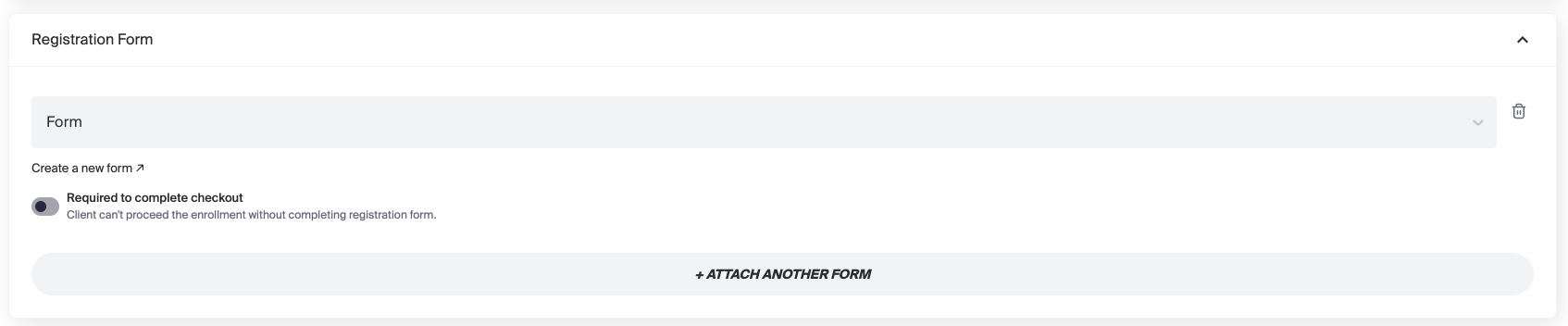
From the Registration Form section of a Series' creation or edit screen:
- Select an existing form from the dropdown, or click Create a New Form to build one from scratch.
- Click + Attach Another Form to attach more than one form to the same Series, each is tracked and completed independently.
- Toggle Required to Complete Checkout on if a client shouldn't be able to finish enrolling until the form is done.
Timing: Before or After Enrollment
A required form can be set to block checkout until it's completed, or to be completed after the client has already enrolled, in that case, it's surfaced as a follow-up task rather than something that stops checkout.
How Often the Form Needs to Be Completed
Each form has a completion frequency setting:
- For every enrollment — the client fills it out fresh each time they enroll in a Series.
- Once per family — completing it once covers the client's whole family; they won't be asked again for other family members.
- Once per category — completing it once covers every Series in that same category.
Filling It Out for a Client
From a Series' roster or enrollment view, staff can either:
- Fill out the form on the client's behalf, or
- Send the form to the client to complete themselves.
Checking Completion Status
The Series roster and enrollment detail show, per enrolled client, whether each required form is marked Complete or Incomplete — so you can see at a glance who still owes a form.
Need Help?
Contact our support team if you have questions about setting up registration forms.