
Pre Check out drawer and in-line authentication
Recess has streamlined the checkout experience for clients booking classes or purchasing packages. Everything is now handled in a single pre-checkout screen, eliminating extra steps and page redirects. Studios can also enable Drawer Inline Auth, allowing logged-out clients to log in or sign up directly within the checkout flow without interrupting their booking.
In this article you will find:
Pre-Checkout Drawer Experience
We have updated the checkout experience to make it faster and easier for your clients to complete a booking or purchase. Previously, clients were taken through a multi-step checkout page. Now, everything they need is available in a single pre-checkout screen that appears right after selecting a class or package, without any redirects or extra steps.
This experience is available in the Recess app and on your studio's website.
Booking a Class
After selecting a class and clicking on the class to book it, clients will see the following:
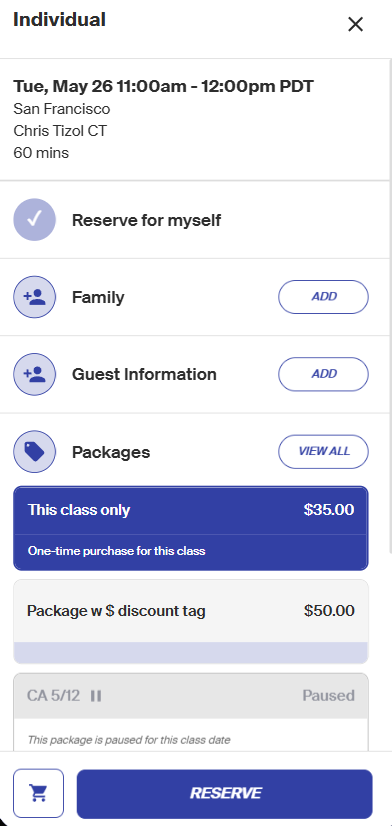
- Class details - The class name, date, time, location, instructor, and duration
- Reserve for myself - Selected by default
- Family - Tap or click Add to book the class for a linked family member
- Guest Information - Tap or click Add to include guest details
- Packages - Displays eligible packages that can be used to book the class. If the client has a paused package, it will appear greyed out with a note indicating it is paused for that class date. If no package is available, a drop-in option will be shown with the one-time purchase price
- Pay With - Shows the payment method on file, with the option to use a different payment method or apply an available account balance. The final payment breakdown including any service fees is displayed here
Once everything looks correct, clients tap or click Reserve to complete the booking.
Purchasing a Package or Membership from the website or direct link:
After opening a package or membership, clients will see a pre-checkout drawer on the right side of the screen (web) or as a full screen view (app) with the following:
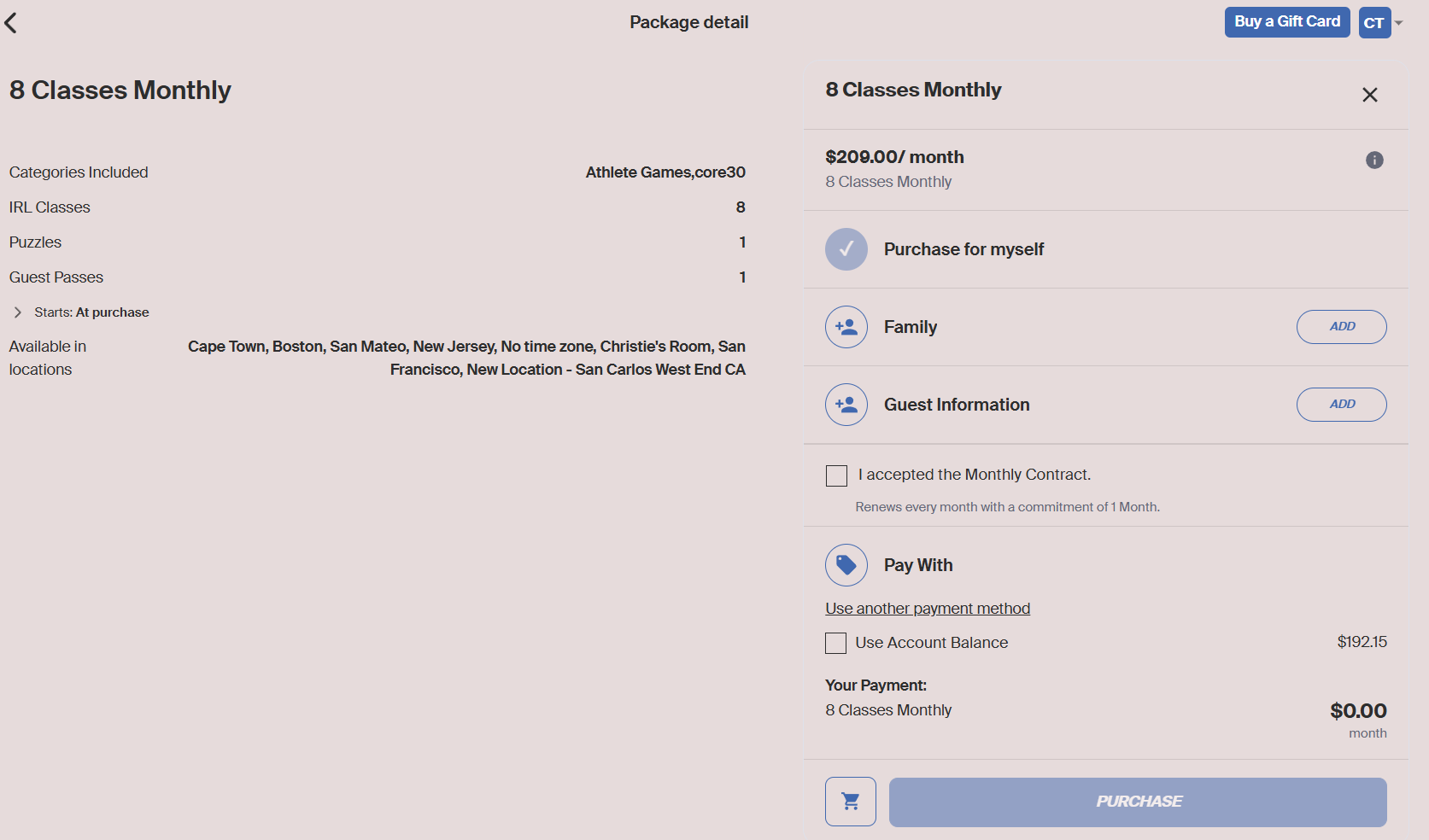
- Package name and pricing - Including any intro offer pricing and discount details
- Purchase for myself - Selected by default
- Family - Tap or click Add to purchase the package for a linked family member
- Guest Information - Tap or click Add to include guest details
- Pay With - Shows the payment method on file, with the option to use a different payment method or apply an available account balance
- Discount - A field to enter a discount code before purchasing
- Your Payment - A full breakdown of the final amount due, including the package name, any intro offer savings, and service fees
Once everything looks correct, clients tap or click Purchase to complete the transaction.
What Changed from the Previous Checkout Flow
Previously, clients were taken to a separate full checkout page after selecting a class or package. This required additional steps and page redirects before completing a booking.
With the new pre-checkout experience, clients can review their details, select a payment method, apply a discount, and complete their purchase all from a single screen without ever leaving the page they are on. This results in a faster, smoother, and more straightforward booking experience for your clients.
In-line authentication for quicker checkouts
Drawer Inline Auth
The Drawer Inline Auth feature allows logged-out clients to create an account or log in directly within the checkout drawer, without being redirected away from the booking flow. This creates a smoother, uninterrupted booking experience for your clients.
How to Enable
- Go to Tools > Profile > Settings
- Search for Drawer Inline Auth
- Toggle the setting on
How It Works
Once enabled, clients who are not logged in will see an email address field directly inside the checkout drawer when they go to reserve a class or purchase a package.
From there, two things can happen:
- Existing account - If the email is linked to an existing account, the client will be prompted to log in and continue checkout
- New account - If the email is not linked to an existing account, the client will be prompted to create one by entering their personal information and setting a password
Once signed in, the client is immediately logged in and the class or package is linked directly to their profile. They can then continue adding their payment method and complete the checkout process without ever leaving the page.
If this setting is disabled, logged-out clients will be redirected to the full authentication page before completing their booking.