
New Class Roster
We have updated the Class Details page with a new and improved roster experience. The new layout makes it easier to view, filter, and manage the clients in your classes all from one place.
Class Details Header
At the top of the Class Details page you will find key information about your class at a glance:
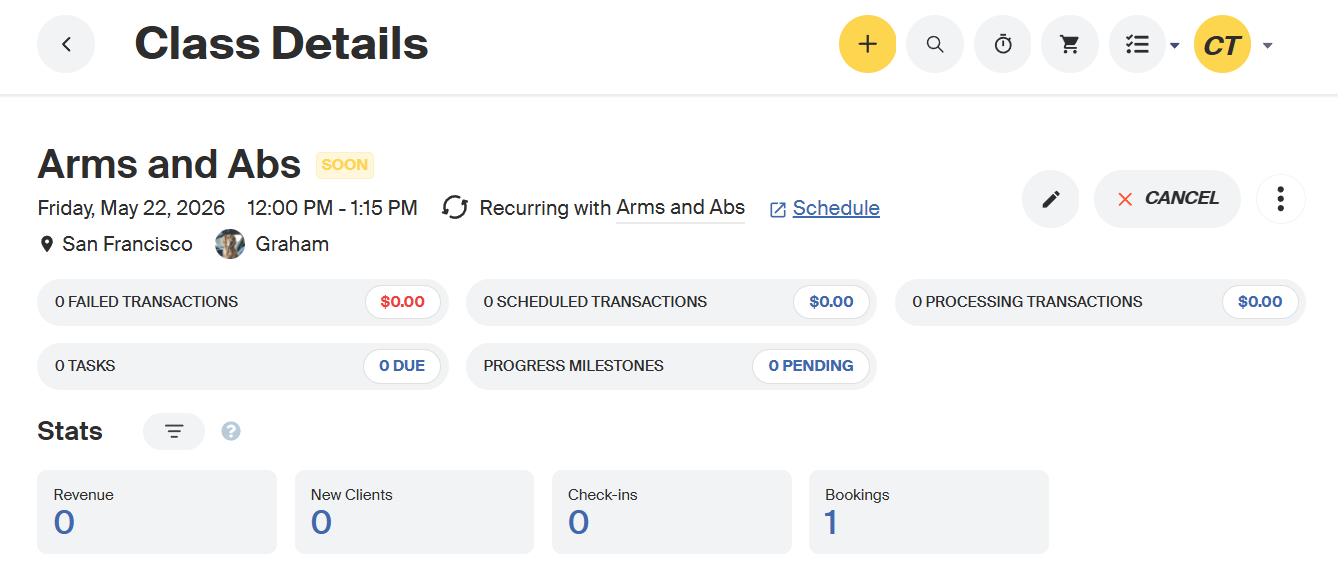
- Class name, date, time, and duration
- Instructor and location
- A live status showing the time remaining until class starts
- Quick-access alerts for failed transactions, scheduled transactions, processing transactions, tasks, and progress milestones
- Stats for Revenue, New Clients, Check-ins, and Bookings
People in Class
The People in Class tab shows everyone who has booked the session. The badge next to the tab displays your current bookings against the class capacity (for example, 1/2).
You can search for a specific client using the search bar and filter the roster using three options:
- Tags - Filter by tags like ClassPass, Wellhub, Guest, From Waitlist, and any custom tags you have created
- Status - Filter by booking status: Booked, Attended, No Show, Cancelled, Late Cancelled, and Hold
- Columns - Choose which columns are displayed in the roster. Available columns include Tags, # Classes, Seat, Booked On, Payment Method, Current Milestone, and Next Milestone
The default columns displayed are Tags, # Classes, Booked On, Payment Method, and Current Milestone.
Eligible Clients
The Eligible Clients tab shows clients who qualify for the class.
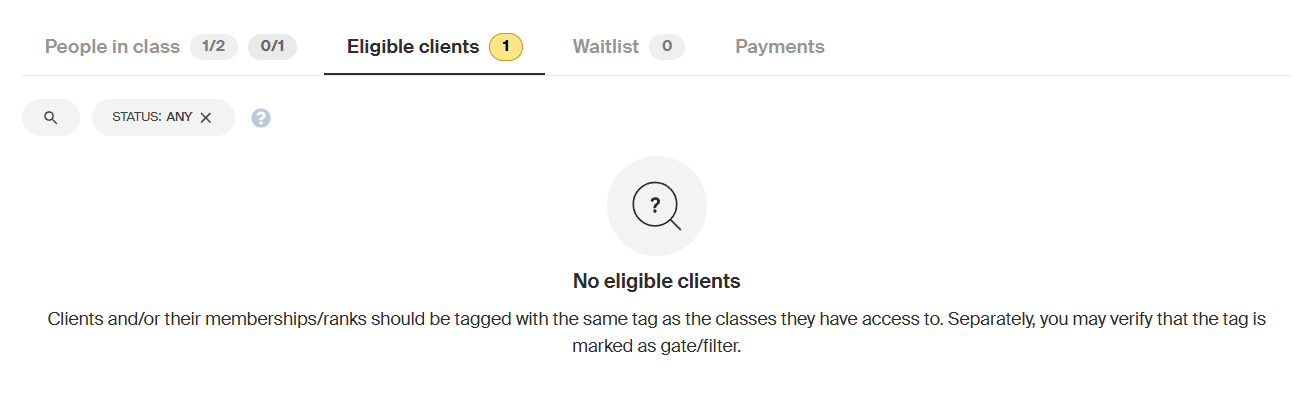
You can filter the list by booking status using the Status filter:
- Any - Shows all eligible clients regardless of booking status
- Booked - Shows eligible clients who have already booked the class
- Not Booked - Shows eligible clients who have not yet booked (selected by default)
Waitlist
The Waitlist tab shows any clients who are waiting for a spot to open up in the class. The badge next to the tab displays the current number of clients on the waitlist.
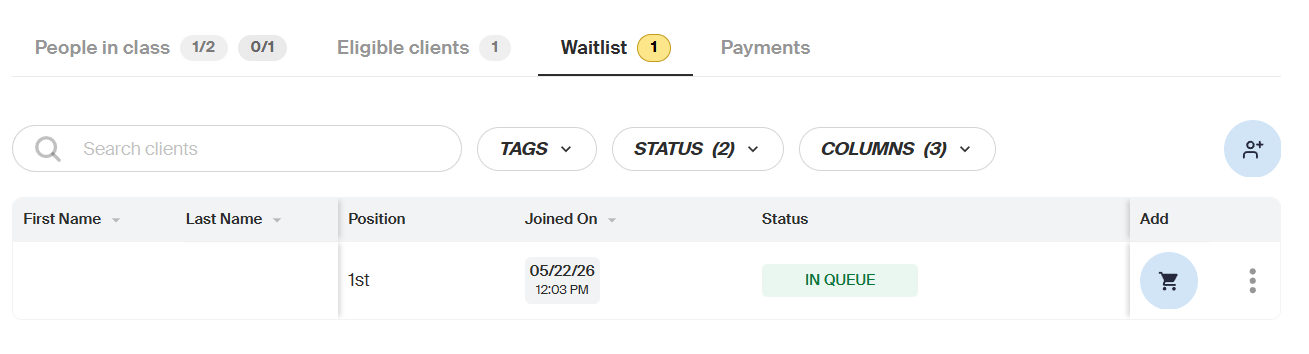
You can search for a specific client using the search bar, and filter the list using the same Tags, Status, and Columns filters available in the People in Class tab.
To manually add a client to the waitlist, click the Add Users to Waitlist button.
Payments
The Payments tab gives you a full view of all payment activity tied to the class. There are two sub-tabs:
- Pending & Settled Charges - View charges that are pending or have already been processed for this class
- All Transactions - View a complete list of all transactions associated with the class