
Setting Up a Card Reader (POS)
Recess supports in-person payments through a POS (Point of Sale) card reader, so your staff can take credit and debit card payments at your location during checkout.
Note: Card reader support has to be enabled on your account before you can set one up. Email support@recess.tv and we’ll turn it on for your studio.
In this article:
- Setting Up a Card Reader
- Using the Card Reader at Checkout
- Tap to Pay: Saving the Card for Next Time
-
Setting Up a Card Reader
- Go to Tools > Locations.

- Open the location
Find the location you’re setting the reader up for, click the three dots on the right side of its row, and select View Location.

- Add a POS reader
Scroll down the location page to the POS Readers section and click the + in the top right corner of that section.

- Get the registration code from your reader
Make sure the reader is connected to a trusted Wi-Fi network. Then, on the reader itself, enter the key sequence 0-7-1-3-9. The reader’s screen will show a registration code made up of three words separated by dashes (for example, PLANE-APPLE-BLUE).
- Register the reader
In the Register New Reader pop-up:
- Enter the Registration Code from the reader’s screen.
- Enter a Reader Label, a name that helps your team tell readers apart (for example, “Front Desk Reader”).
- Check that the Location is pre-filled correctly.
-
Click CREATE.
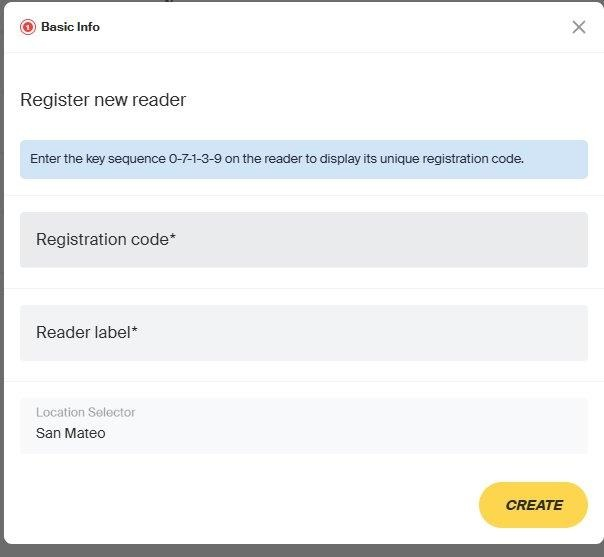
Your reader now shows up under POS Readers for that location.
Using the Card Reader at Checkout
Once a reader is set up, it’s available as a payment method at checkout.
- Open checkout for a client and add their items to the cart as usual.
- Under the payment method options, select Terminal (Card Reader).
-
Select the reader marked AVAILABLE, then click SELECTED to confirm.
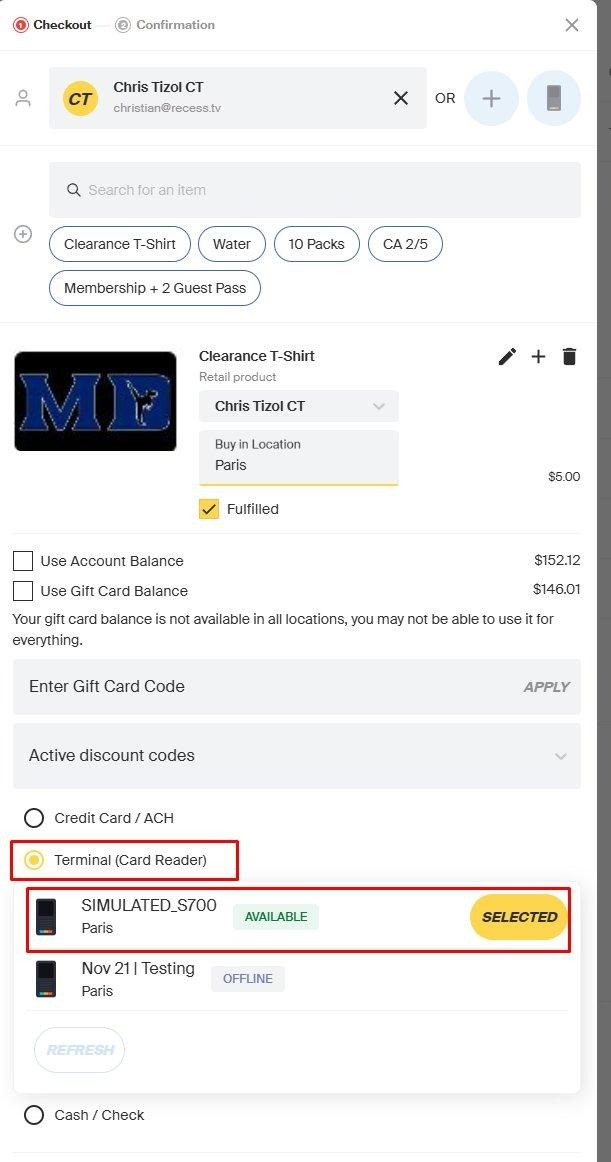
Note: Readers showing OFFLINE aren’t connected and can’t take payments. Click REFRESH to update their status.
Tap to Pay: Saving the Card for Next Time
After a successful tap, the reader asks the client (not your staff) whether they’d like to save the card to their profile for future purchases and renewals.
- Client taps “Yes”: The card is saved to their profile and can be used for front desk charges, auto-renewals, and online checkout. If they didn’t already have a working card on file, this card becomes their default. If they did, their existing default stays in place so recurring charges keep billing the same card.
- Client taps “No,” times out, or walks away: Nothing is saved. The sale still goes through - the card just isn’t stored.
- Reader is picked up for the next sale: Same as above: nothing is saved, and the sale is unaffected.
When a card is saved automatically
There’s one exception. If a client has no working card on file and buys a membership or package with recurring charges, the tapped card is saved to their profile automatically, without the “Save this card?” prompt. That way, their renewals have a card to bill.
A one-time purchase (a class, a pack with no renewal, a drop-in) never saves a card without asking first.
Note: The “Save this card?” question only appears on the client-facing reader screen. The saved card is always attached to the client being checked out, never to the staff member ringing up the sale.
Clearing the prompt for the next sale
If a client walks away without answering, the “Save this card?” question stays on the reader for about two minutes. Starting the next sale clears it automatically, so the reader is ready for the next client.
Troubleshooting
If the reader shows OFFLINE, or SELECTED doesn’t seem to stick when you pick a reader at checkout, click REFRESH and try again. If it still isn’t working, confirm the reader is on your trusted Wi-Fi network, then contact support@recess.tv.
Need Help? Contact our support team if you have questions about setting up your card reader.