
Setting up Gift Cards and How to locate them on customers profile
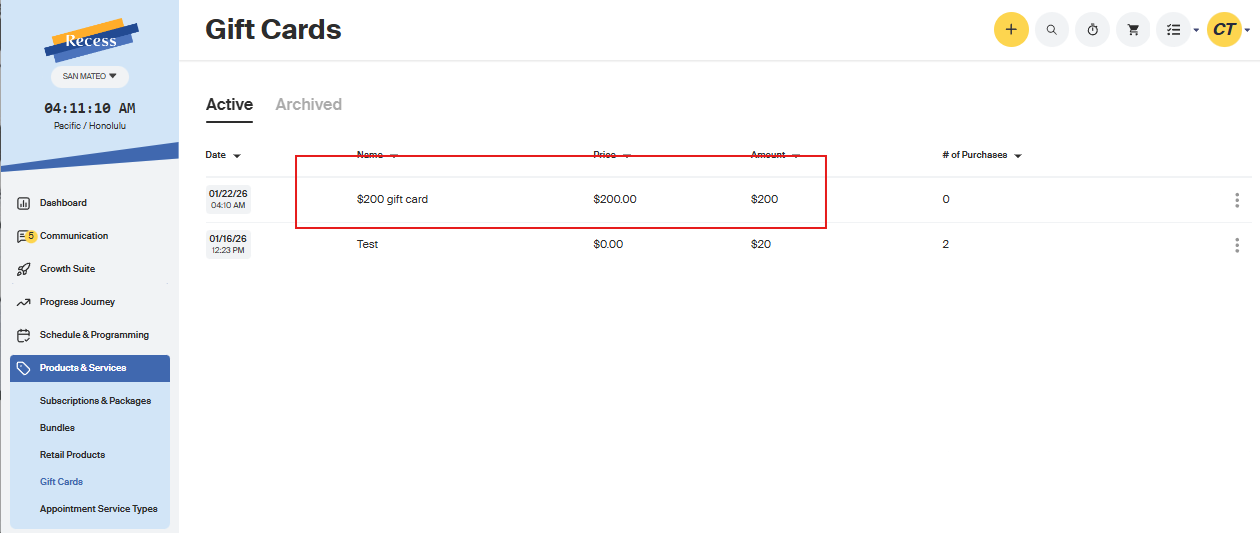
1. To set up your Gift Cards, hover over to the Products & Services tab > click Gift Cards:

2. Once you are here, click on + sign

Steps to create the Gift Card
- Enter the name you want to be displayed.
- Enter a price.
- Enter the gift card amount (usually the same as the price).
- Optionally add a thumbnail, then click Save once you are done.

- Once saved it will display on the gift card tab
Locate Gift Cards from a Customer Profile
- Go to the customer’s profile.
-
Scroll down to the Gift Cards section.
Select either:
- Purchased Gift Cards, or
-
Redeemed Gift Cards
Both tabs are available. Choose the appropriate tab depending on the situation.

- Locate the gift card you are looking for.
- To view the gift card code:
- Click the eye icon to reveal the code.
- Click the paper (copy) icon to copy the code.

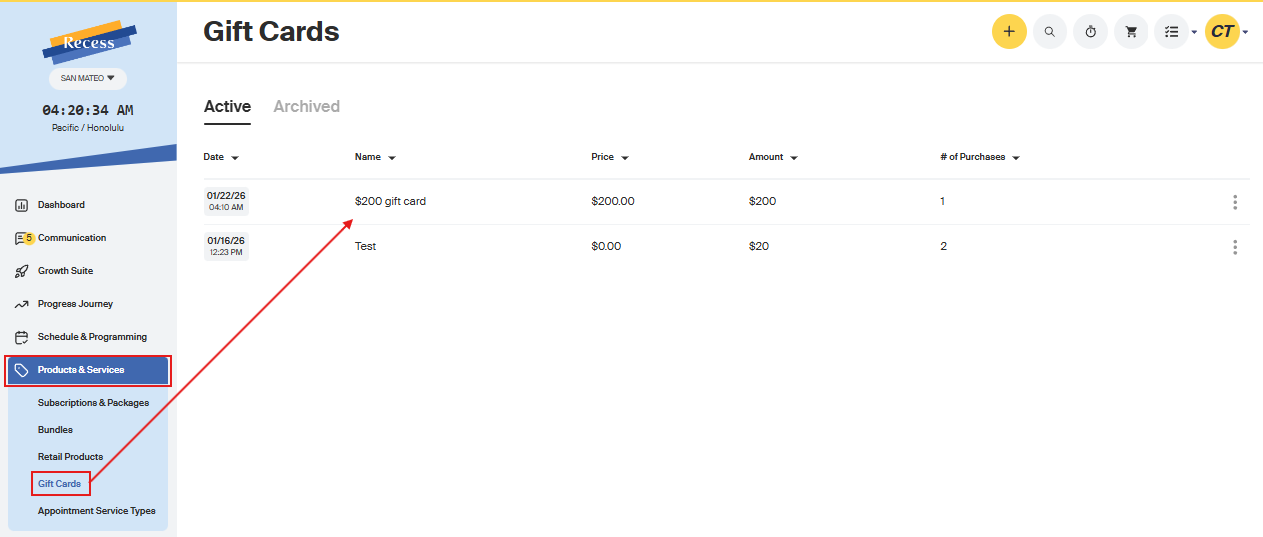
Locate Gift Cards from Products and Services
- Navigate to Products and Services.
- Select Gift Cards.
-
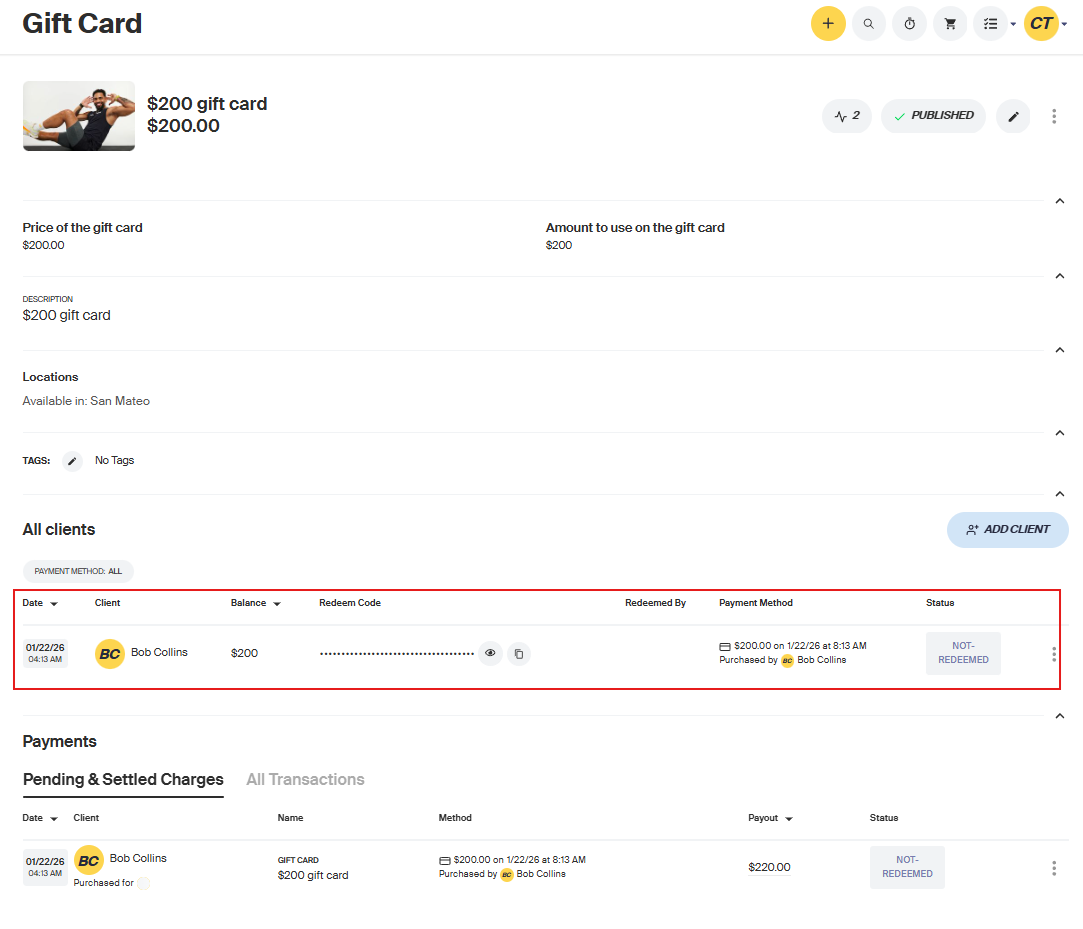
Click on the gift card you want to review.
You will see full details, including:
- Who purchased the gift card
- Who the gift card was purchased for
- To view and copy the gift card code:
- Click the eye icon to reveal the code.
- Click the paper (copy) icon to copy it.
Additional Information
- Both methods allow you to access gift card details and codes.
- Use the Customer Profile view for customer-specific inquiries.
- Use the Products and Services view to review gift card purchase history and ownership details.
How it Works
Gift cards will appear on your packages page. When a client purchases a gift card, they will be asked to enter the recipient's email. The recipient can then apply a gift card coce to the cart when checking out.