
Creating discount codes
Discount codes allow you to offer special promotions to your clients. You can create package-specific discount offers that apply only to certain packages, memberships, or class types.
This article covers:
- Steps to Create a Discount Code
- Discount Code Configuration Fields Explained
- How to Track Discount Code Usage
Steps to Create a Discount Code
- Hover over Growth Suite from the left-hand menu bar and click on Discount Codes
- Press + Create a New Discount in the upper-right hand corner

- In the Code field, type in the code you want to use (FYI, they are NOT case sensitive)
- Example: FREEMONTH
Discount Code Configuration Fields Explained
Code
Enter the discount code name that customers will type at checkout (e.g., "FREEMONTH", "SAVE20"). This is NOT case sensitive, so "SAVE20" and "save20" work the same way.
Types
Select which type of services this discount applies to. Options include:
- Virtual Classes
- In-Person classes
- Private (private sessions) IRL and Virtual
- On-Demand (on-demand content)
- Appointments
- Events
- Packages
- Specific Packages (You will be prompt to select the package the code is intended for)
- Collections
- Bundles
- Retail Products
You can select multiple types for one discount code.
- Discount
Enter the discount amount or percentage.
For example, use "20" for 20%: do not place the "%" or "$" sign, as the system will place this by default. You can toggle it on if you want this to be a fixed dollar amount or a percentage.
- Uses per Person
Set how many times each individual customer can use this code. Leave blank for unlimited uses per person. Example: Enter "2" if you want each client to get 2 free classes.
- Total # Uses
Set the total number of times this code can be redeemed across all customers. Leave blank for unlimited total uses. Example: Enter "50" if only the first 50 customers can use it.
- Expires
Choose the date when this discount code will expire and no longer work. An expiration date is not required.
- Carry Over (checkbox)
When checked, allows the discount to continue when a membership renews. Important: If you enable this, "Uses per Person" must be more than 1. The code will deactivate on the expiration date.
- Apply to Intro Offer Period (checkbox)
When checked, the discount will apply during introductory offer periods for memberships.
- Locations
Select which studio locations this discount code applies to. You can choose multiple locations. The checked boxes.
- Note below Locations:
"You selected different locations than the ones you chose to filter the content from. Be aware that the content you will see on the rest of this page will not necessarily match the locations you chose here."
This warns you that your location filter and discount location selection don't match, which might cause confusion.
- Disabled/Enabled Toggle
At the bottom left, this toggle switches the discount code on (active) or off (inactive). When disabled, customers cannot use the code.
- SAVE Button
Click this yellow button to save all your discount code settings and make it active (if the toggle is enabled).

Activate Your Discount Code
Once you have all of this filled out, you can click on "save as inactive" or "active."

How to Track Discount Code Usage
Want to know when a discount code was used or who redeemed it? Here's how to check both.
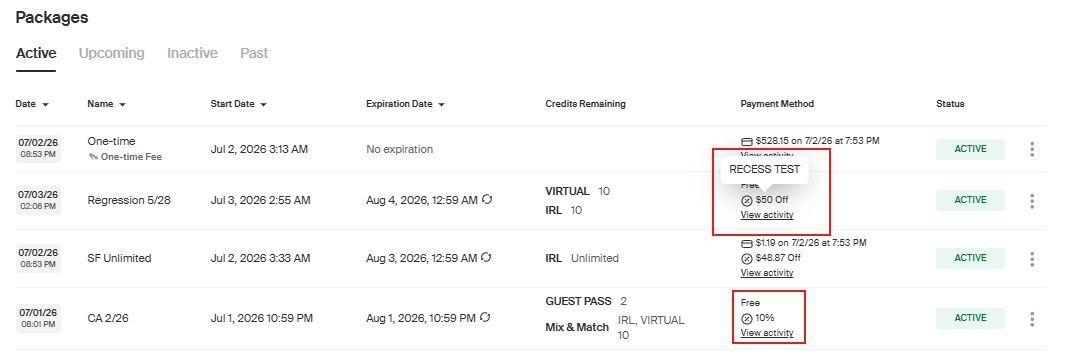
How to identify when a discount code was used
- Head over to the customer's account.
- Look for the purchased item where a discount code was applied.
- Under the payment method, you'll see what they paid, the date and time, and the amount that was discounted.
- Hover your mouse over the discount, and it will display which discount code was used.
How to see who has used a discount code
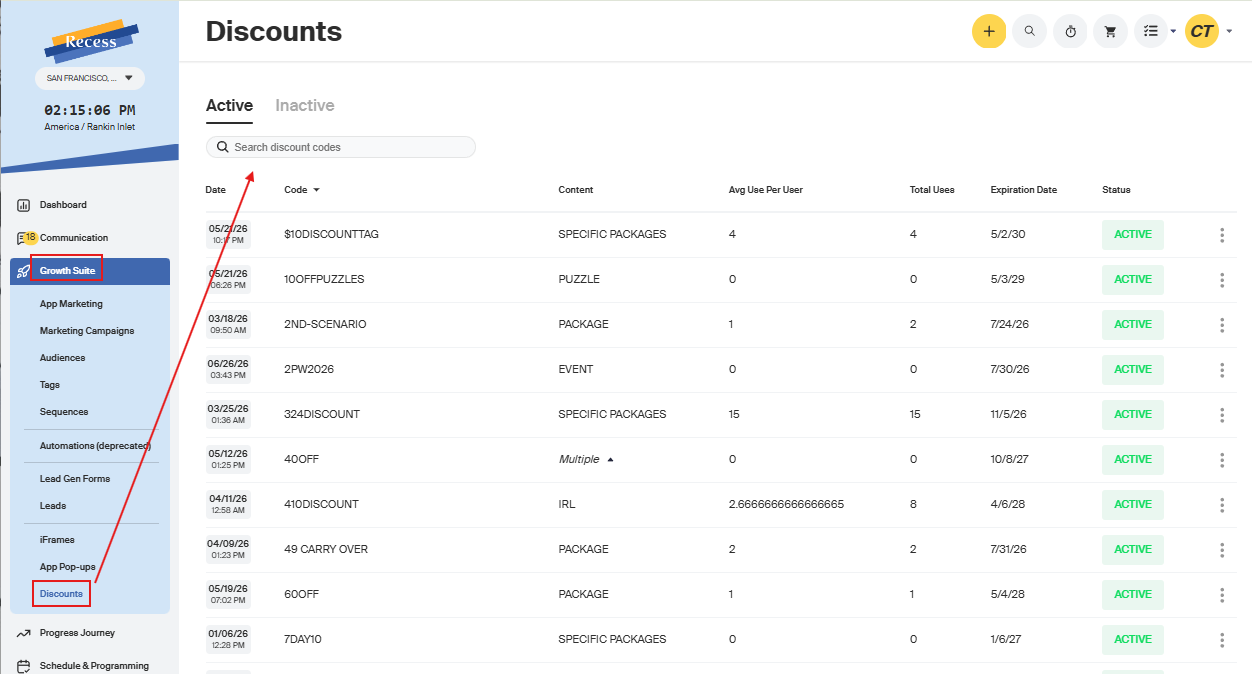
- Go to Growth Suite, then open the Discounts tab.
- Find the discount you want to review in the search bar.
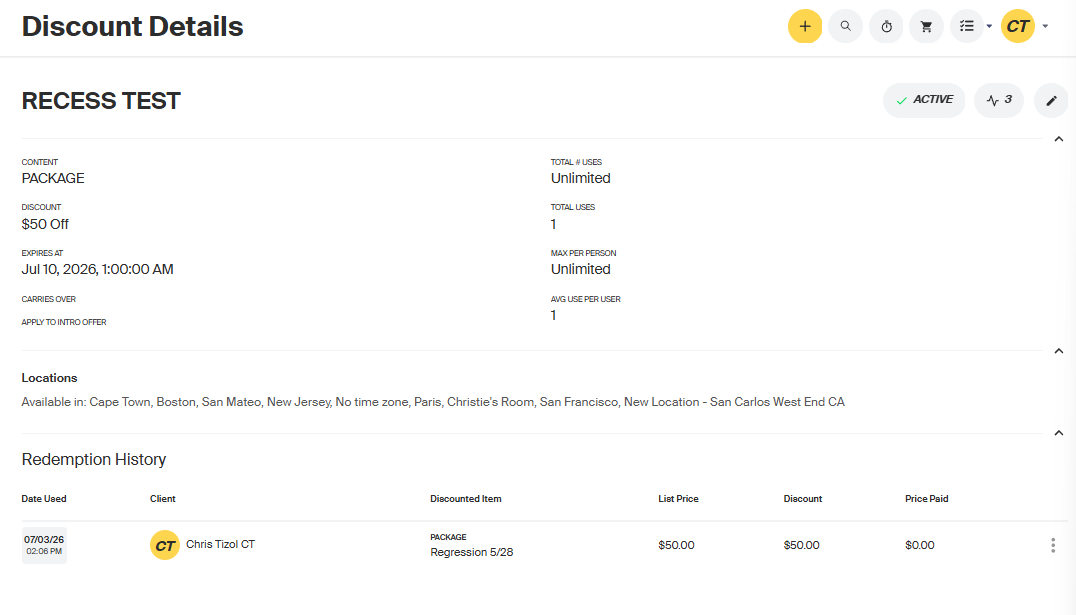
- There you'll see the redemption history, including the discounted item, list price, discount, and final price paid. You can also view the details of the discount itself.
Need Help? Contact our support team if you have questions about creating or managing discount codes.