
Managing Your Class Roster
In this article:
How do I add clients to my class?
How do I cancel clients out of my class?
How can I view the booking method and guest information for a client?
How do I add clients to my class?
- Follow the steps to create or edit a virtual class or an in-person class
-
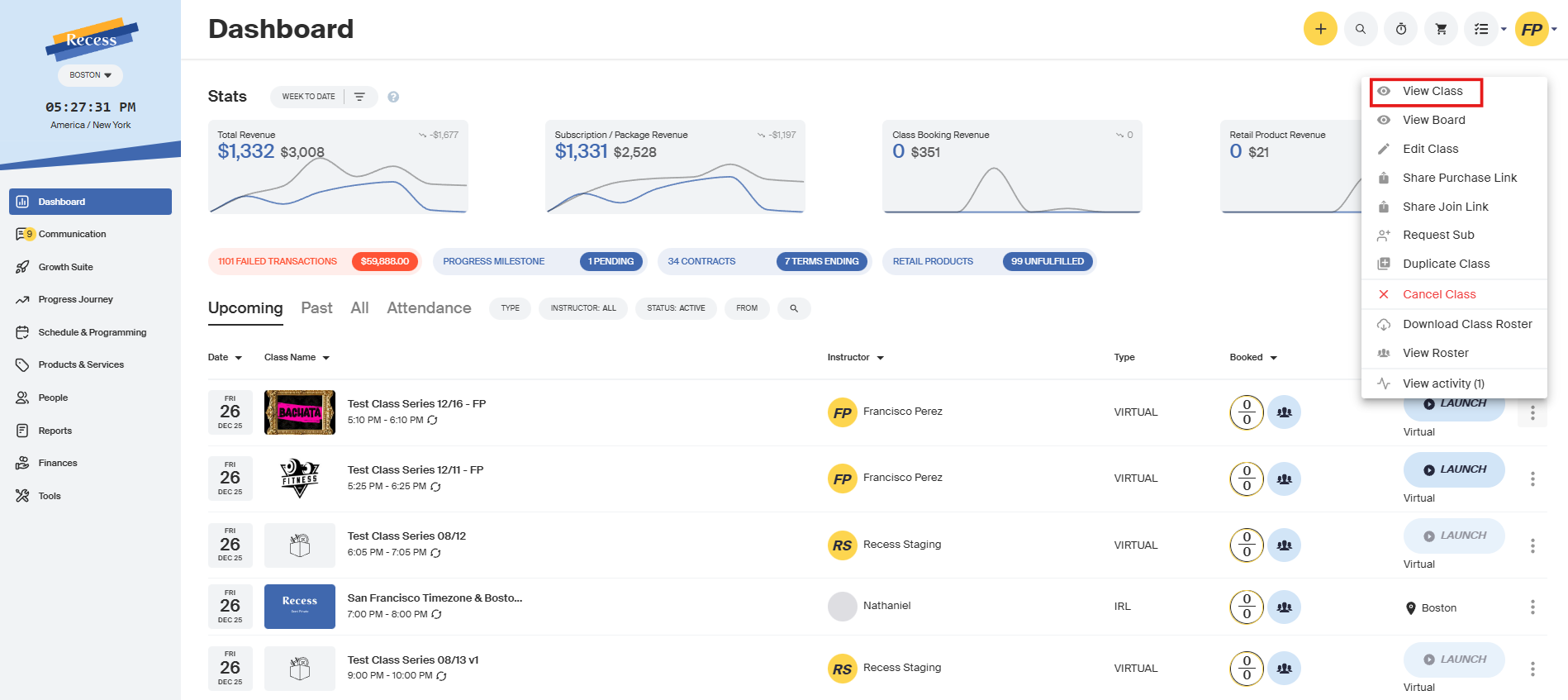
Find the class in the dashboard and navigate to the class’ details page by clicking the 3 dots menu next to the class and clicking “View Class”.
-
Scroll down the page and find the section labeled “People in Class.”
-
Click the plus icon on the right to “Add user”.
-
Type in the name or email of the client you want to add and select the correct user.
The cart will automatically add the class. You can also add a package/membership to the cart, and the class will be "Redeemed" during checkout
- Tip: To add a client for free, click the pencil and change the price to $0
- Additional Help: More information about the Checkout Process can be found here
-
How do I cancel clients out of my class?
-
Find the class in the dashboard and navigate to the class’ details page by clicking the 3 dots menu next to the class and clicking “View Class”.
-
Scroll down the page and find the section labeled “People in Class.”
-
Find the client that you want to cancel out of the class and click the 3 dots menu on the right.
-
Choose one of three options:
a) Cancel & refund. This option will cancel the client’s booking for this class and issue a refund in the form of the original payment method.
b) Cancel & don’t refund. This option will cancel the client’s booking for this class without issuing a refund.
c) Refund. This option will keep the client booked in the class and issue a refund in the form of the original payment method.
-
If a refund option is chosen, you can choose if you want to issue a full refund or a partial refund.
a) Full Refund. Refunds the entire payment including fees to the client. You will also see this transaction removed (or a negative payout) in your payout report.
b) Partial Refund. Enter the amount that you want to refund. The client will receive this amount refunded. You will also see this transaction updated (or a negative payout) in your payout report.
-
Double-check to make sure everything looks correct and click Refund.
How can I view the booking method and guest information for a client?
-
Find the class in the dashboard and navigate to the class’ details page by clicking the 3 dots menu next to the class and clicking “View Class”.
-
Scroll down the page and find the section labeled “People in Class.”

-
On the middle of the table, a client’s booking can have tags:

