
Tags
Tags label clients, classes, memberships, and more, so Recess knows who something is for or what it applies to. They carry through to Reporting, Audiences, the Comms Center, Discounts, Payment Plans, Memberships, and Fees.
In this article:
- Where to Manage Tags
- Creating a Tag
- Choosing Who Gets the Tag
- Rule Types
- Where the Tag Is Used
- Where the Tag Shows
- Fee Tags
- Adding or Removing Clients and Items
- Using Icons
- Built-In Tags
-
Where to Manage Tags
- Go to Growth Suite > Tags to see every tag in your studio.
- Click a tag’s name to open its page, which shows the clients on it, the items it’s on, and its settings.
- Click the three dots on a row for Edit, Duplicate, or Delete.
- Click the yellow + to create a new tag.

Creating a Tag
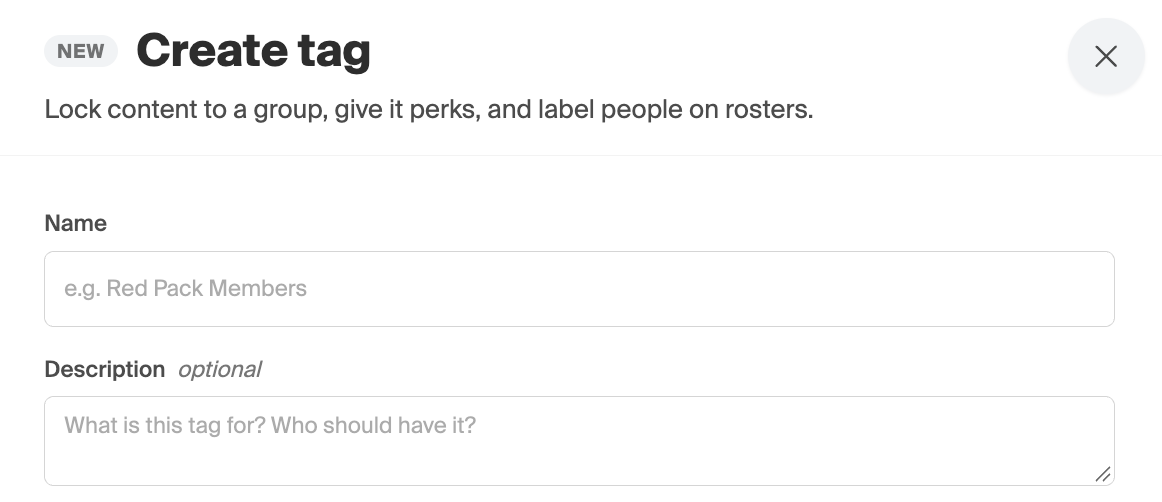
- Click the yellow +. The tag drawer opens on the right.
- Enter a Name. Staff see it, and clients see it too if the tag is public.
-
Enter a Description. This is an internal note for staff, shown on the tag page.
- Choose who gets the tag (see below).
- Set where the tag is used and where it shows.
- Click Save.
Choosing Who Gets the Tag
At the top of the drawer, choose how people get the tag:
- By hand - Staff add and remove people themselves. The rules section is hidden.
- Automatically - Recess gives the tag, takes it away, and keeps it up to date from the rules you set.
If you choose Automatically, add one or more rules. A tag can have at most one rule of each type.

When a tag has two or more rules, choose how they combine:
- ANY of these rules - The person gets the tag if they match at least one rule. This is the default.
-
ALL of these rules - The person must match every rule.
At the bottom of the drawer, a live count shows how many people will get the tag, for example “This will automatically give it to 12 people.” Click the count to Preview people and see the exact list before you save.

Rule Types
- Membership - Gives the tag to people with an active membership or package. Choose All memberships, All packages, All memberships and packages, or Specific and pick one or more. They lose it when the subscription ends.
- Staff - Gives the tag to staff. Narrow it to one or more roles, or leave it empty for everyone on staff. They lose it when they leave staff or lose the role.
- Past due - Gives the tag to people with an unpaid balance. Set the minimum amount owed and the minimum days overdue, and optionally “within the last X days.” They lose it as soon as the balance is paid.
- Level - Gives the tag to everyone at an achievement level and its sub-levels. This is mostly used for martial arts rank gates. They lose it when they move off the level.
- Birthday - Gives the tag to people whose birthday is in the current month. They lose it at the start of next month.
-
Anniversary - Gives the tag to people whose “member since” date falls in the current month, in any earlier year. They lose it at the start of next month.
Where the Tag Shows
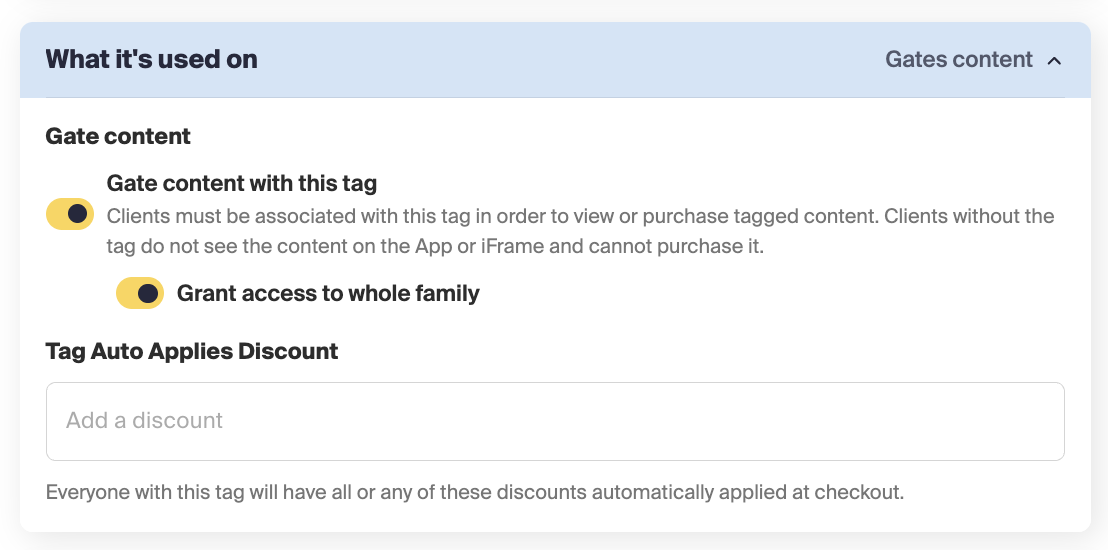
- Gate / filter content - Turn this on to make the tag a gate tag. Only people with the tag can see and book the classes, videos, collections, or events it’s on. Anything without a gate tag stays visible to everyone. The switch shows the current count, for example “On 1 class and 0 videos.”
-
Give access to the whole family - Available on a gate tag. When a parent has the tag, their linked family members can also see and book the gated content, without the tag on their own profile. This is off by default.
- Show on roster - Shows the tag’s icon next to the client’s name on class and appointment rosters. It’s on by default for new tags.
- Visible to clients - Makes the tag’s name public. This is mostly used so a tag can be a store category or video library section.
- Create a category on your Client App/iFrame - Turns the tag into a section on your Client App/iFrame for on-demand videos and retail.
- Sort on profile/iframe - Sets the order of that section. 0 shows first.

Fee Tags
If you use service fees, you can make a tag a fee tag, so your studio pays some or all of the fee for people who have it.
- In the Fees section of the drawer, add a fee line.
- Choose the item type the line applies to, or leave it empty for everything.
- Enter the percentage of the fee your studio pays, from 1 to 100.
-
Click Save.
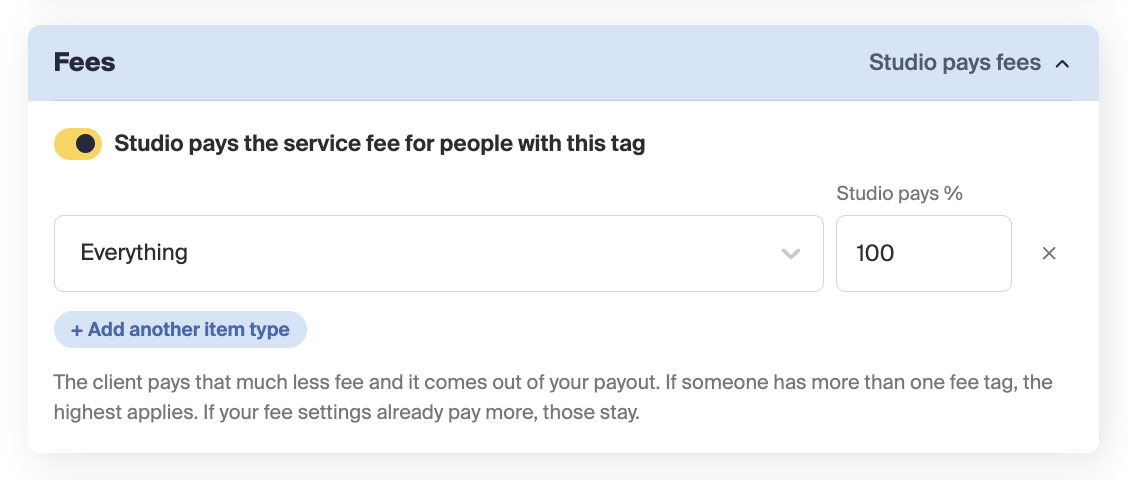
Note: If a person has more than one fee tag, the highest percentage applies to each item. Only staff with the Manage Service Fees permission can see fee lines.
Adding or Removing Clients and Items
- Open the tag’s page and click Tag Items.
- Search and select everything you want to add.
-
Click ADD to save.
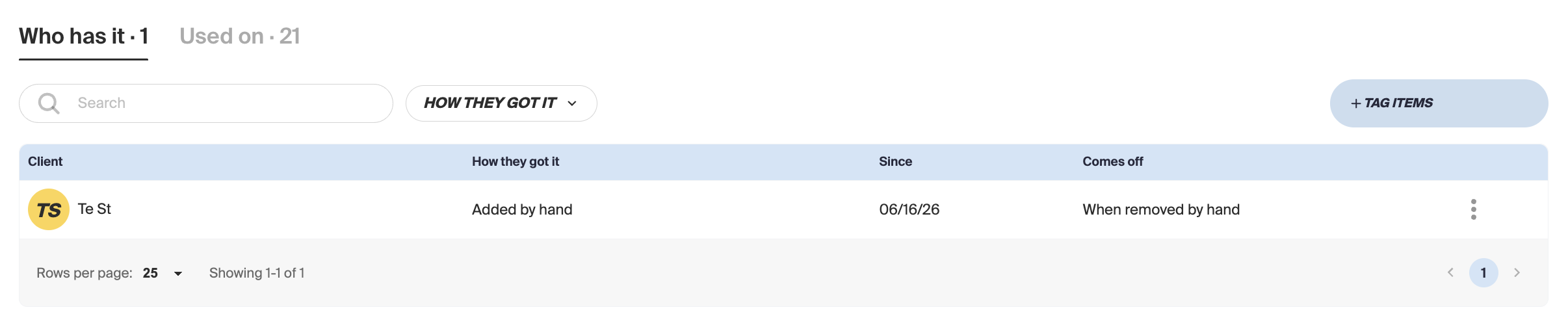
To remove one, click the three dots on its row and choose Remove.

Important: People who got a tag from a rule appear on their profile under Associated Tags, not User Tags, with the reason, for example “VT MEMBER via VT Gold Membership” or “Past due: $40 since Oct 3.” Staff can’t remove these by hand. The person loses the tag automatically when they no longer match the rule.
Using Icons
Icons show a tag at a glance wherever it appears.
- Edit the tag and turn on Show icon.
- Pick an icon from the gallery.
- Click Save.

Built-In Tags
Recess keeps a few tags for every studio. You can use them like your own, for example on discounts, products, plans, and fees. You can’t rename them, change who has them, or delete them.
- All Clients - Every client linked to your studio who isn’t archived.
- All Staff - Every staff member.
- Classpass - Clients booking through ClassPass.
- Gympass - Clients booking through Gympass.
- Guest - A guest booking.
- New client - A first-time client.
-
Level tags - One for each achievement level, such as “Orange Belt.”
Other Ways to Use Tags
Search for any tag in the search bar to see everything it touches. Common uses:
- On-demand videos & retail - turn on Read filter in the video library and Its own section in the video library and the store in the tag drawer to make the tag a filter and a section on your Client App/iFrame.
- Audiences (Growth Suite → Audiences) - build an audience from people who hold a tag.
- Discounts, Payment plans, Memberships, Fees - a tag can gate who sees the discount code or plan at checkout or be carried by a membership.
- Roster eligibility and gating - Class roster eligibility.
- Reporting - many reports can be filtered by tag.
Need Help?
Contact our support team at support@recess.tv if you have questions about tags.