
Time Clock - Clocking In / Out
Time Clock lets your staff record the hours they work. They click a button at the top of the dashboard when they start work and click it again when they finish. You can then see everyone’s hours in one list, fix mistakes, and remove entries that shouldn’t count.
In this article:
- Turning On Time Clock
- Clocking In, Taking a Break, and Clocking Out
- Choosing a Location
- Viewing and Editing the Timesheet
- Time Clock Settings
- Approving Corrections
- Voiding an Entry
- Who Can Do What
Turning On Time Clock
Time Clock is off until you turn it on. Until then, no one sees the clock button.
- Go to Tools > Profile > Settings.
-
Search for Clock In/Out and turn it on.
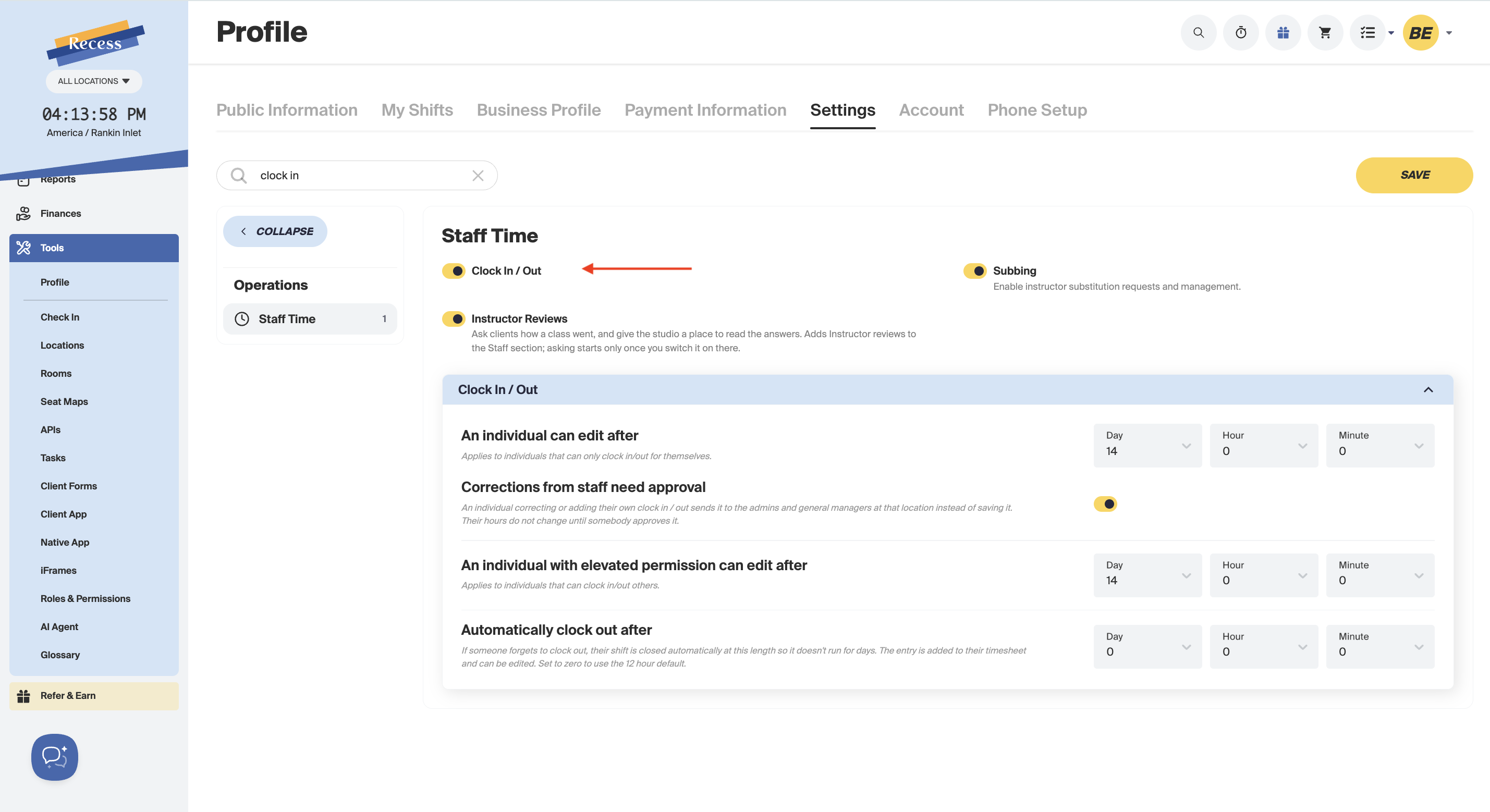
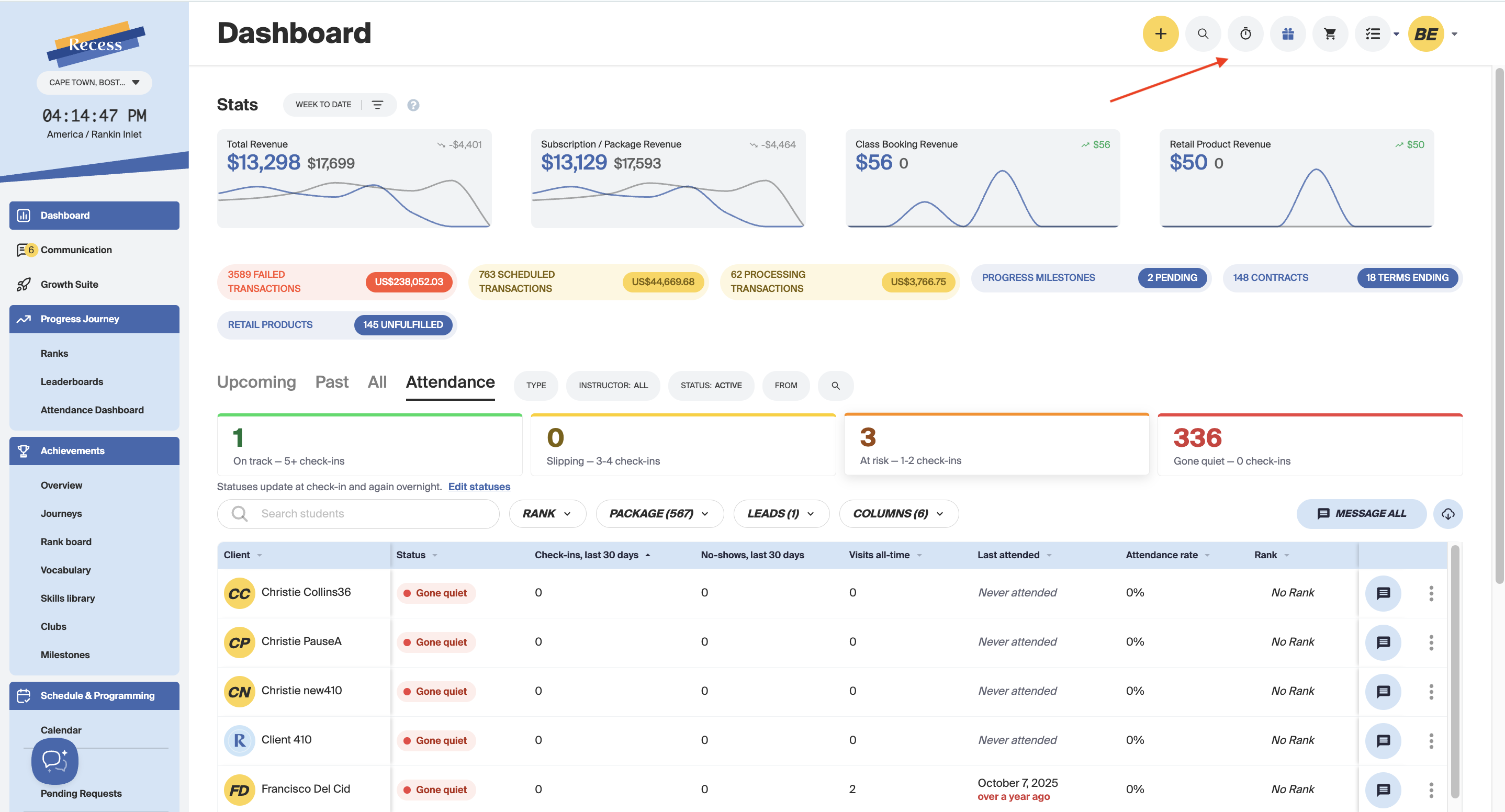
A clock icon now shows at the top of the dashboard for every staff member who is allowed to clock in.
Clocking In, Taking a Break, and Clocking Out
-
Click the clock icon at the top of the dashboard.
-
If you like, add a description, such as “Front desk cover.”
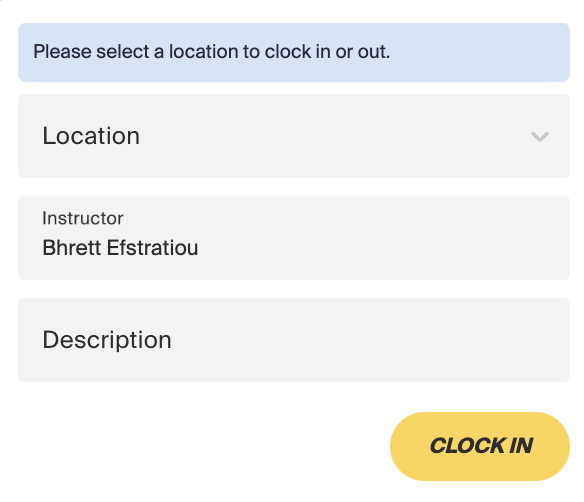
- Click Clock In. The clock turns green to show you’re on the clock.
-
To take a break, click the icon again and start a break. Click it again to end the break.
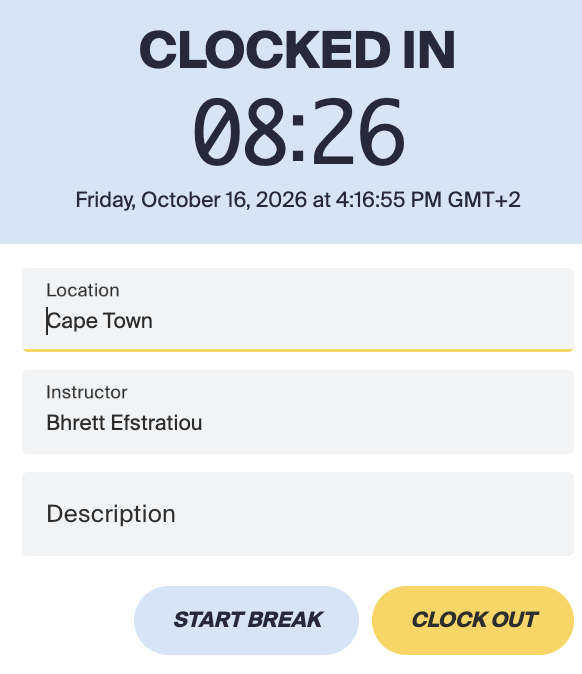
- When you finish, click the icon and clock out.
Choosing a Location
Every clock-in is recorded for a location, so the timesheet shows where each person worked.
- If you only work at one location, Recess picks it for you and you don’t need to do anything.
-
If you work at more than one, choose where you are from the Location dropdown in the clock-in window, then click Clock In.
You can clock in even when All Locations is selected at the top of the dashboard. Just choose the location in the clock-in window.
Note: The dropdown only lists locations you have access to. If one is missing, ask an admin to add you to it.
Viewing and Editing the Timesheet
The timesheet is the list of everyone’s clock-ins and clock-outs.
- Go to People > Staff > Time Clock.
- The list shows each entry with the person, date, start time, end time, how long it lasted, the location, and the description. The newest entries are at the top.
- To change an entry, click the three dots on its row and choose Edit or Void entry.

Note: Admins and General Managers see everyone’s entries. Other staff only see their own.
Time Clock Settings
Go to Tools > Profile > Settings > Clock In/Out to control how corrections and forgotten clock-outs work.
- An individual can edit after: This sets how long staff have to fix their own mistakes. After that time passes, they can’t change the entry themselves.
- Corrections from staff need approval: Turn this on if you want a manager to check any change a staff member makes to their own hours. Their hours don’t change until a manager approves it.
- An individual with elevated permission can edit after: This is the same time limit, but for people who can edit other people’s hours, such as admins and General Managers.
- Automatically clock out after: This covers people who forget to clock out. If a shift is still running after this long, Recess closes it for you, so it doesn’t keep going for days. For example, with 12 hours, a shift left running is closed after 12 hours. You can still edit the entry afterward. Enter zero to use the default of 12 hours.

Note: Corrections from staff need approval only applies to staff who can edit their own hours. Admins and General Managers who can edit everyone’s hours save changes straight away, because they’re the ones who approve requests.
Approving Corrections
When Corrections from staff need approval is on, a staff member who fixes a time or adds a missed shift doesn’t change their hours right away. Instead, the Save button reads Send for approval, and their change goes to an admin or General Manager as a request.

Admins and General Managers see a panel at the top of the Time Clock page saying how many corrections are waiting. Each request shows:
- Who sent it.
- Whether it’s a Correction to an entry that exists, or a Never clocked in entry for a shift they forgot to record.
- The New time they’re asking for, and the Old time it would replace.
To review a request:
- Click Approve to make the change.
- Click Decline to dismiss it.

Important: The person’s hours stay the same until a manager approves the request.
Voiding an Entry
Voiding an entry takes it out of the person’s paid hours. Use it for an entry that shouldn’t count, such as one made by mistake. Because it removes pay, Recess asks you to confirm.
- On the Time Clock page, click the three dots on the entry and choose Void entry.
- Check the summary shown: the person, date, times, and how long it lasted.
- Enter a reason. It’s saved in the entry’s history.
- Click Void.
Important: If you void a clock-in, the whole shift is voided, including any break and the clock-out. This lets you enter the correct hours in its place. Recess tells you in the pop-up if the shift has a break.
Note: Only people who can edit clock entries can void. An entry that’s already voided can’t be voided again, so the option is greyed out.
Who Can Do What
- Admins and General Managers: See and edit everyone’s entries, approve corrections, and void entries.
- Front Desk, Instructors, and Trainers who can clock themselves in: Clock in and out, see their own entries, and edit the description on them. Whether they can also fix their own times, and whether a manager has to approve it, depends on the settings above.
-
Anyone with any clock permission: Can open the Time Clock page. If their permission only covers their own clock, they only see their own entries.
Need Help?
Contact our support team at support@recess.tv if you have questions about Time Clock.