
How to Create and Edit an Event or Event Series
An event series is how you sell and run anything outside your regular class schedule, such as workshops, retreats, pop-ups, and parties. A series has two parts: the series, which holds the name, description, price plan, and waiver, and the events, which are the individual dates inside it.
In this article:
- Turning On Events
- Creating an Event Series
- Adding Events to a Series
- Editing an Event Series
- Editing an Individual Event
- Archiving an Event Series
Turning On Events
- Go to Tools > Profile > Settings > Events.
-
Turn on Events.
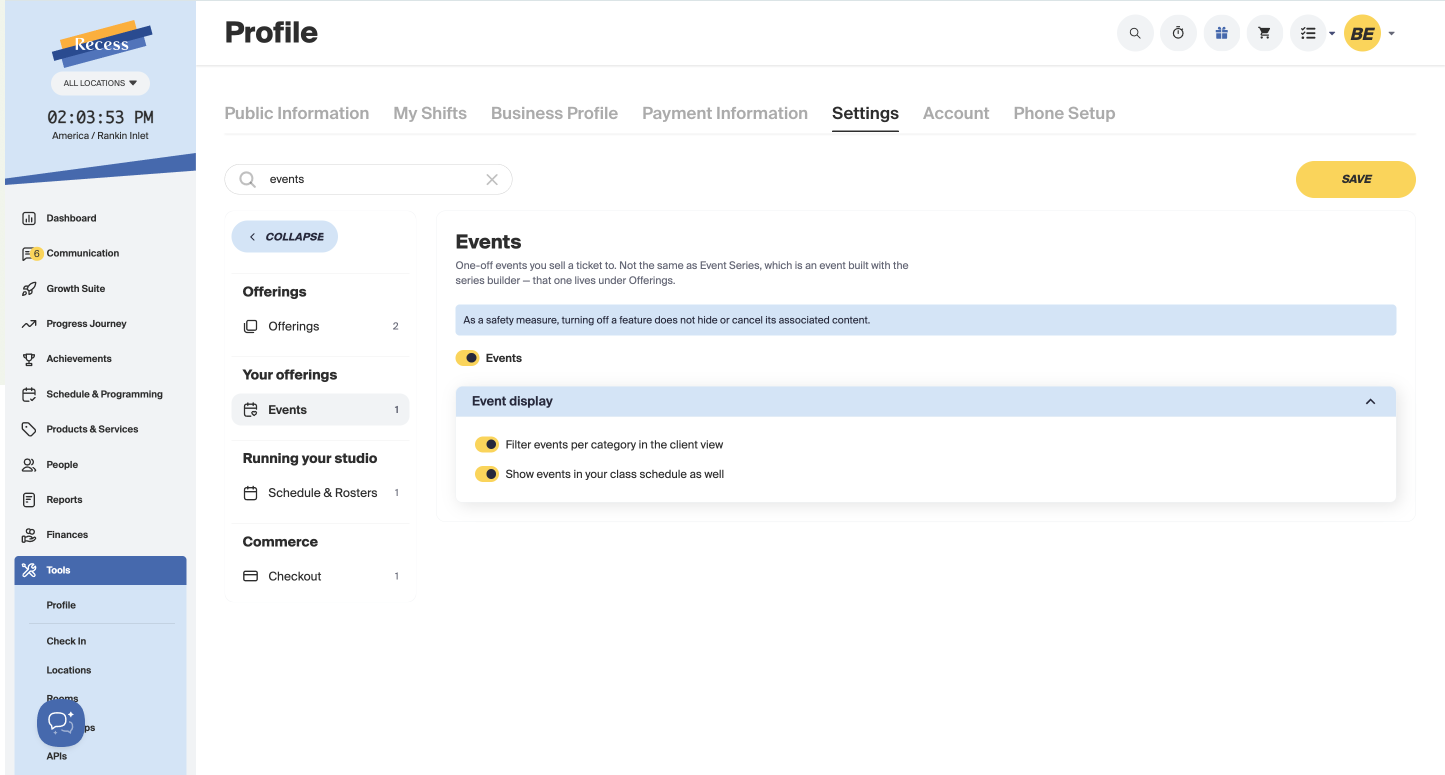
An Events page now appears under Schedule & Programming in the left-hand menu.
Creating an Event Series
- Go to Schedule & Programming > Events and click Create a new event series.
- Enter the series details. These apply to every date in the series:
- Name, description, and cover image.
- Event Category.
- A no-show fee and a late-cancellation fee, if you want them.
-
A waiver, which applies on top of your studio waiver.
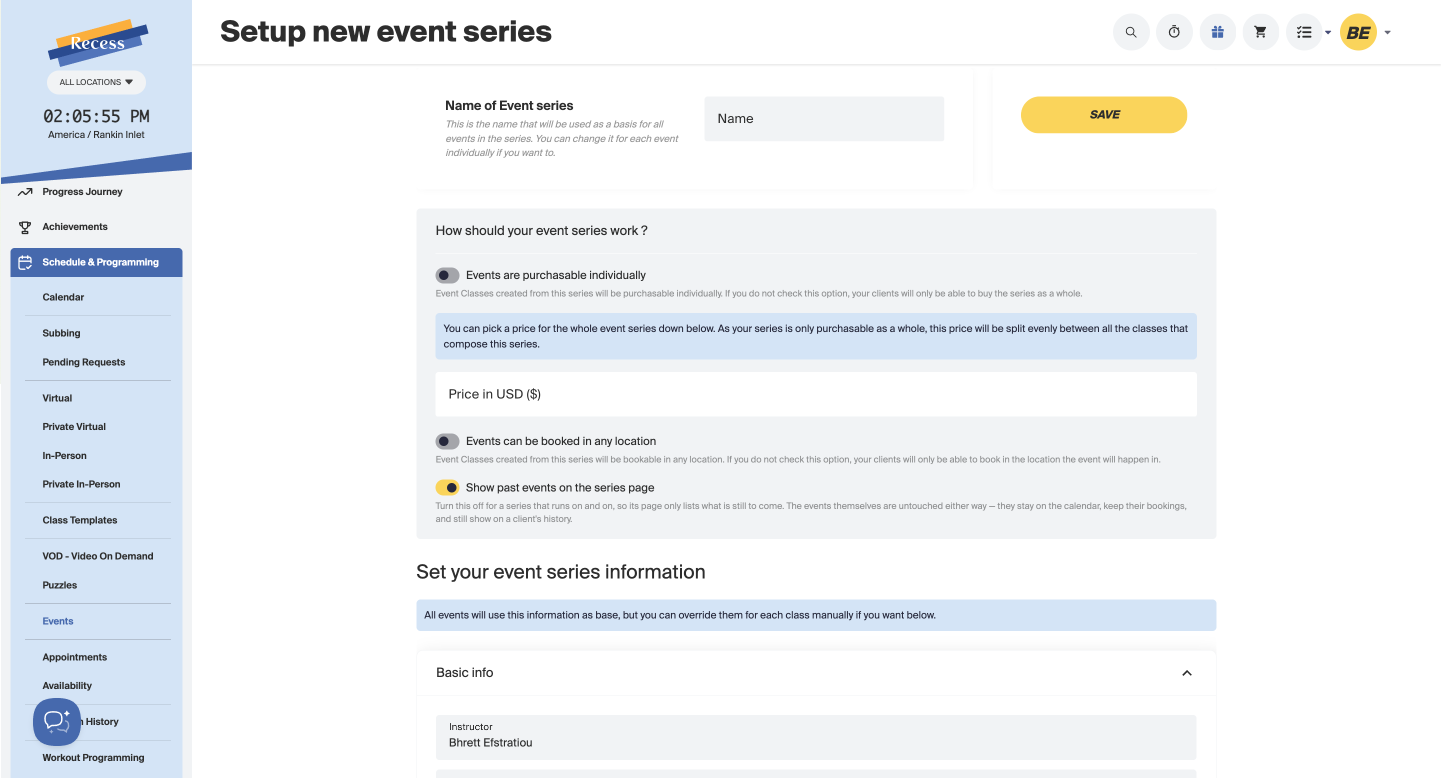
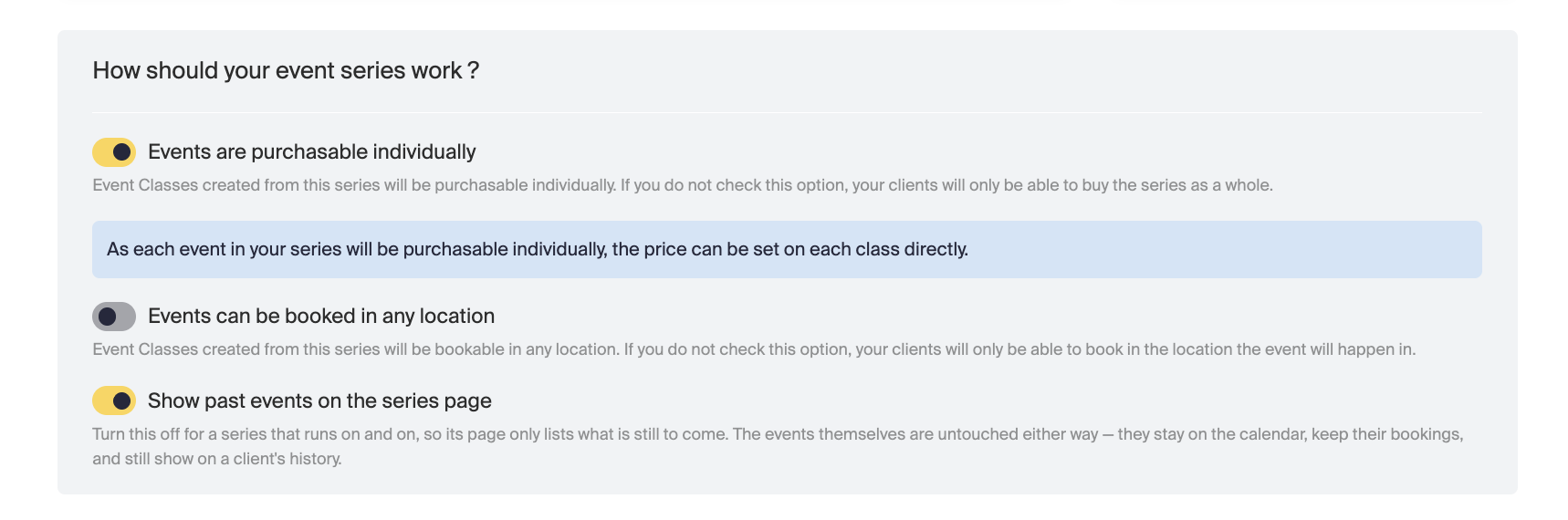
- Under How should your event series work?, choose the options that fit:
- Events are purchasable individually - Clients can buy single dates, and you set each event's price on the event. Turn it off, and clients can only buy the whole series.
- Events can be booked in any location - Clients can book an event at any location. Leave it off, and they can only book at the event's location.
-
Show past events on the series page - Turn it off for an ongoing series, so the page only lists upcoming events.
- Add your events (see below).
- Click Save.
Note: All events use this information as a starting point. You can override it for each event.
Adding Events With a Recurrence Pattern
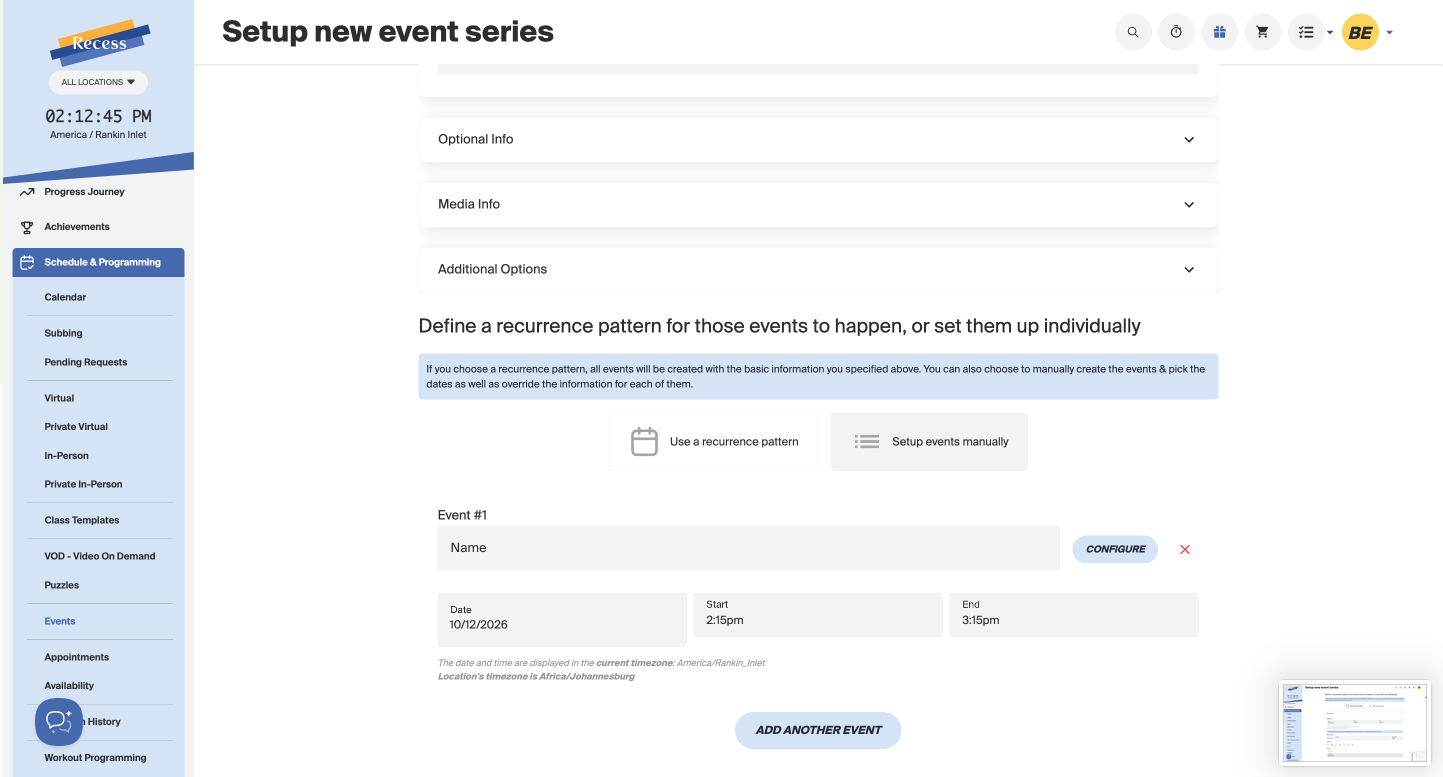
Under Define a recurrence pattern for those events to happen, or set them up individually, choose Use a recurrence pattern to create all your events at once with the details above.
- Under Starts on, set the Date, Start, and End time.
- Under Recurrence, set Repeat every: enter an Interval and choose a Frequency, such as Week.
- Under Repeat on, select the days of the week.
- Under Ends, set the End date.
- Click Save.

Important: You can't change the recurrence pattern after the series is created, but you can still change when the series ends.
Adding Events Manually
Choose Setup events manually to pick each date yourself.
- For Event #1, enter a Name and set the Date, Start, and End time.
- Click Configure if you want to override the series details for that event.
- Click Add Another Event for each additional date.
- Click the red X next to an event to remove it.
-
Click Save.
Editing an Event Series
- Go to Schedule & Programming > Events.
-
Click the three dots on the series and select Edit Event Series.
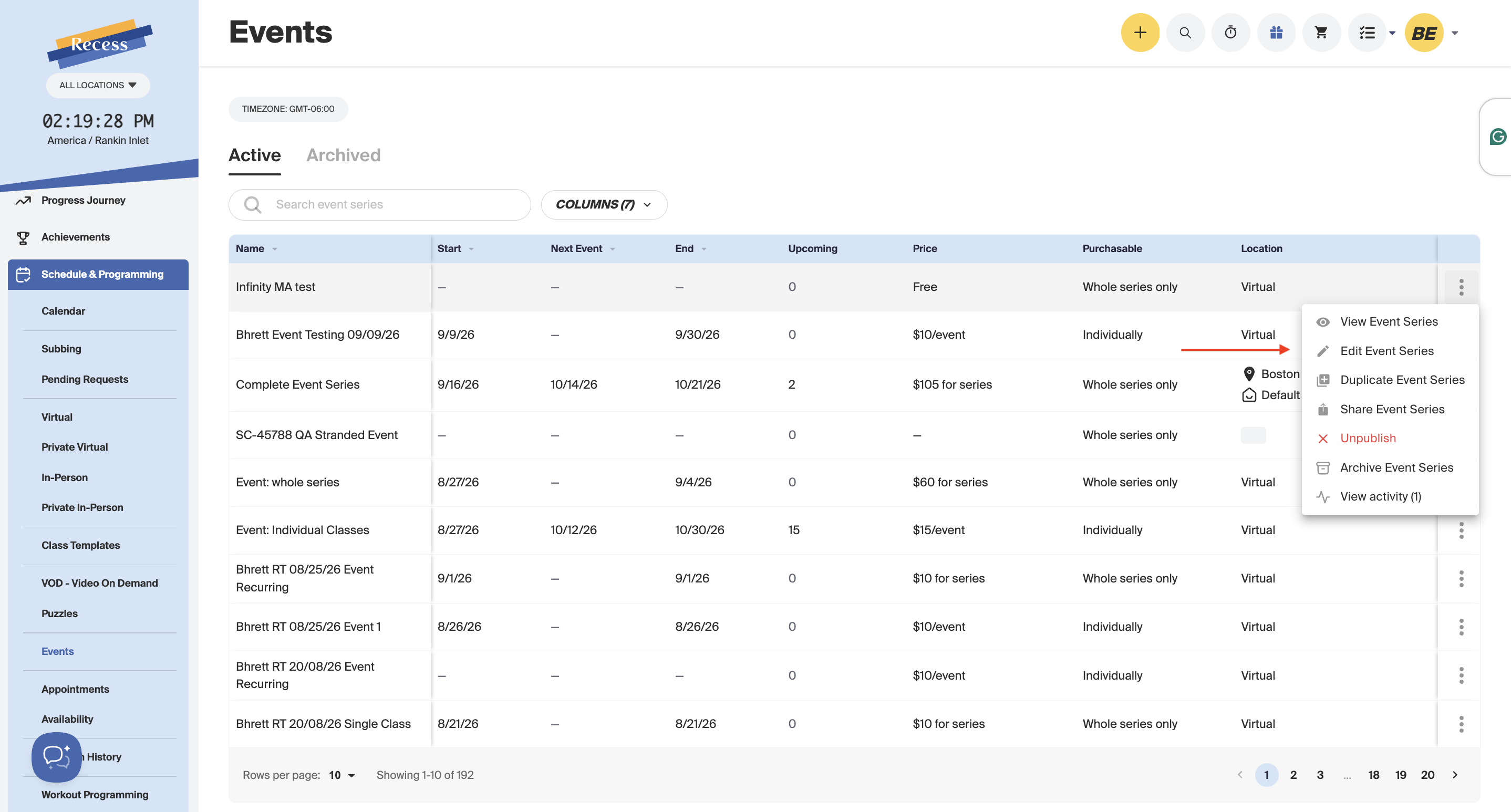
- Make your changes and click Save.
Important: Changes to the series apply to every date in it.
Editing an Individual Event
- Go to Schedule & Programming > Events.
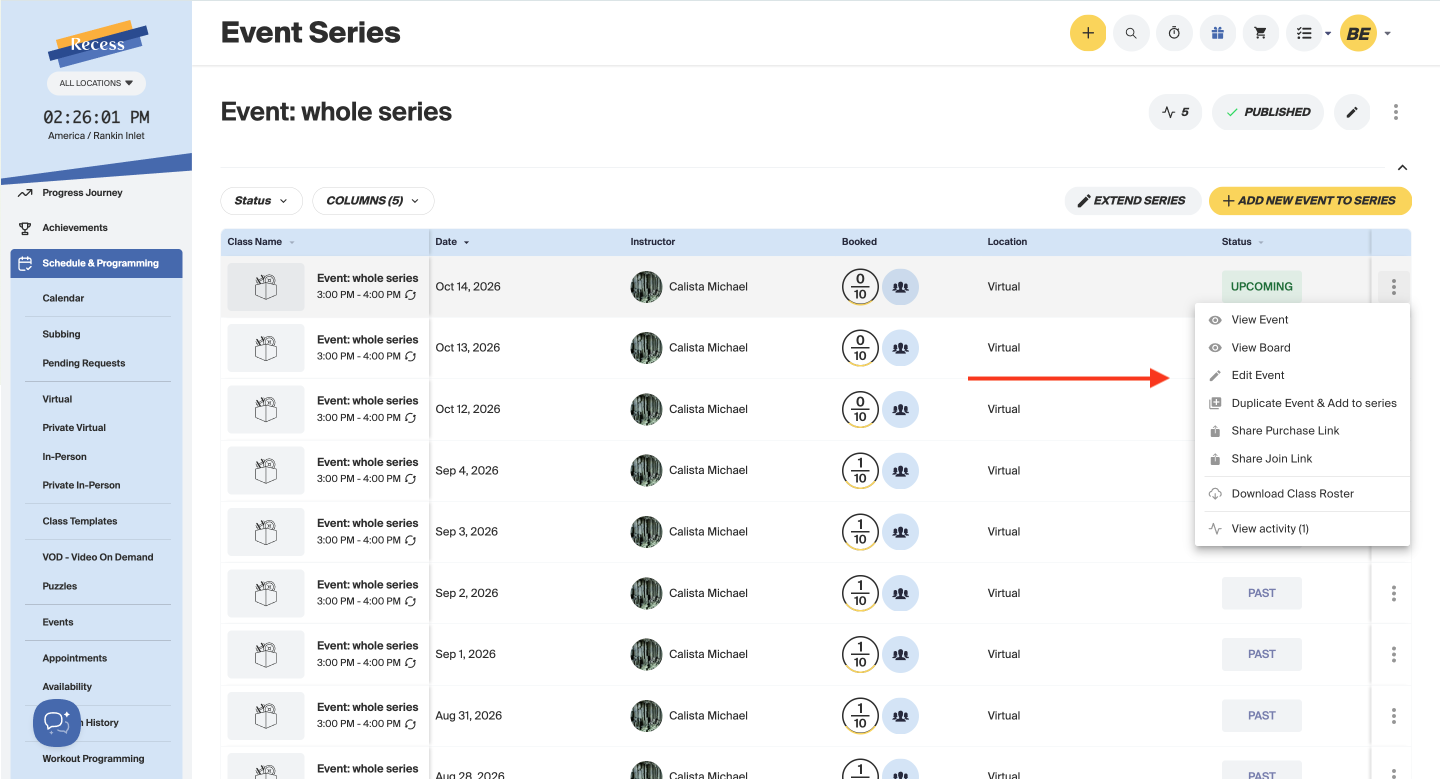
- Select the Event > Navigate to the Event Series
- Click 3 dots > Edit Event
- Make changes
-
Save
Archiving an Event Series
- Go to Schedule & Programming > Events.
- Click the three dots on the series and select Archive Event Series.
-
Check the number of upcoming events in the pop-up, then confirm.
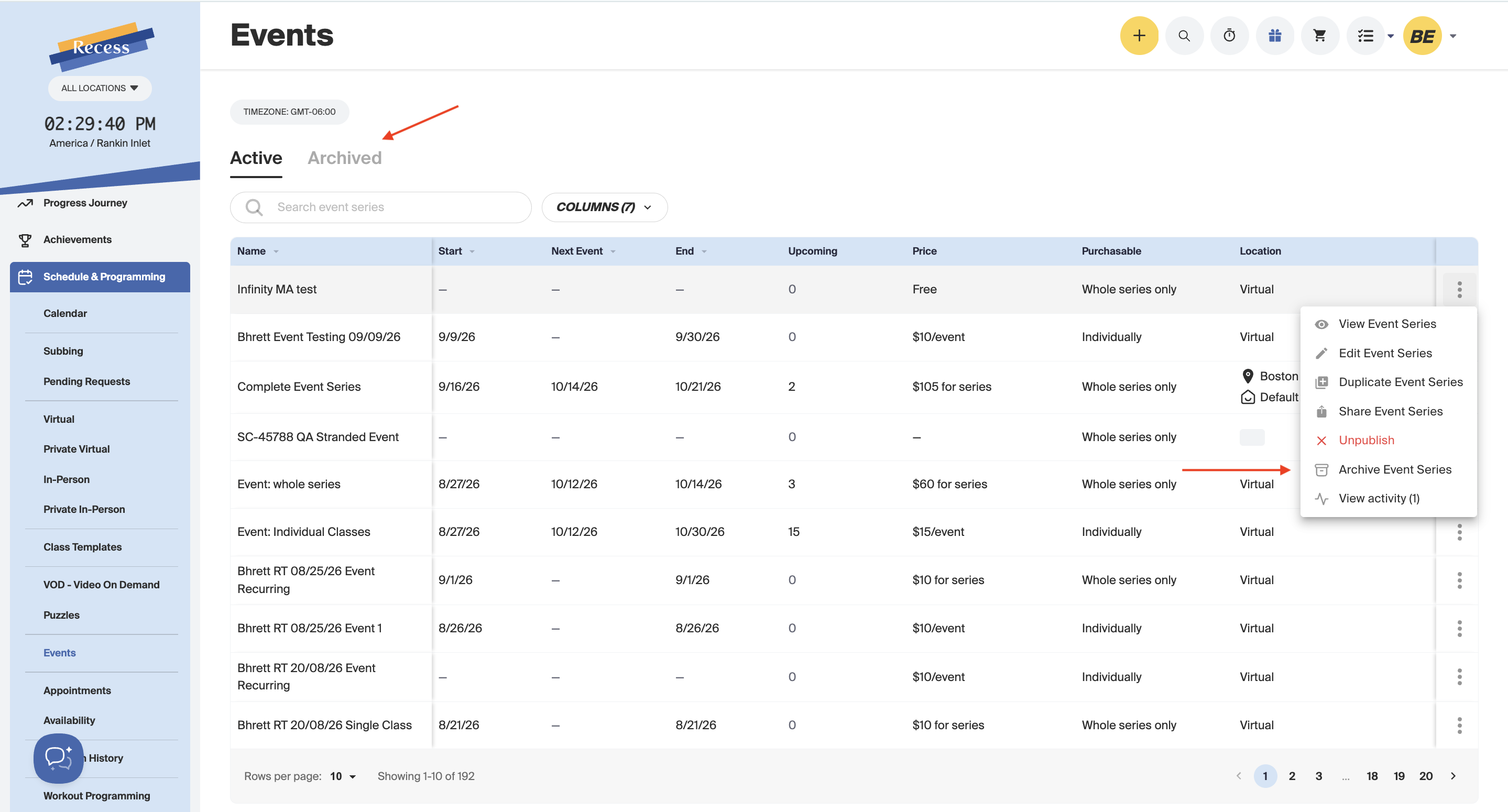
The series moves to the Archived tab.
Important: Archiving doesn't cancel upcoming events. They stay on the schedule and keep their bookings. To take a date off the calendar, cancel that event first.
Need Help?
Contact our support team at support@recess.tv if you have questions about creating or editing events.