How to send receipts
How to Send a Payment Receipt and Send Receipts Manually
You can send payment receipts to clients either directly through the Recess platform or via Stripe. Follow the steps below depending on which method you prefer.
Option 1: Send a Receipt via Recess Platform
- Log in to the Recess platform.
- Go to the account of the person you want to send a receipt to.
- Scroll down to the Payments section.
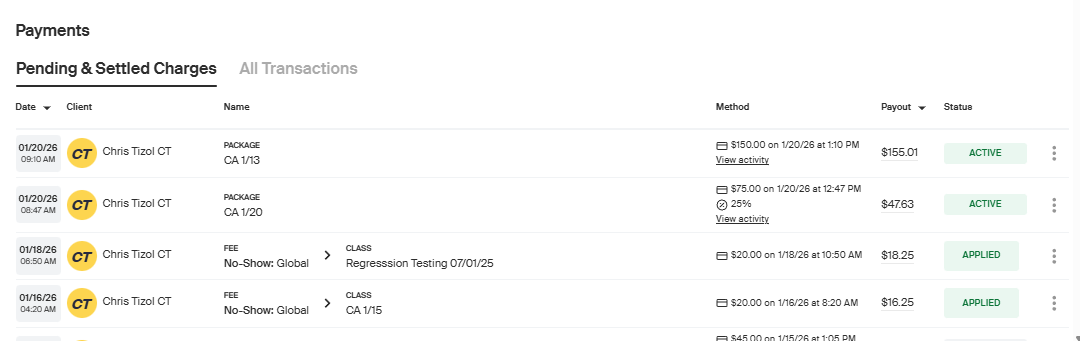
- Locate the transaction for which you need to send a receipt.
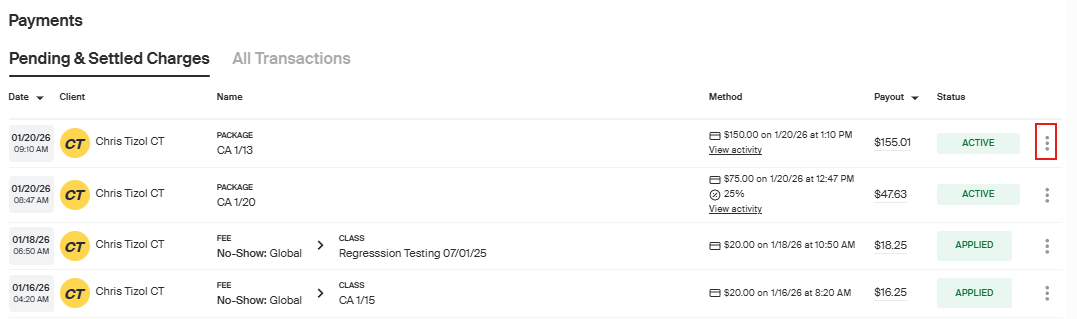
- Click the three dots next to the transaction.
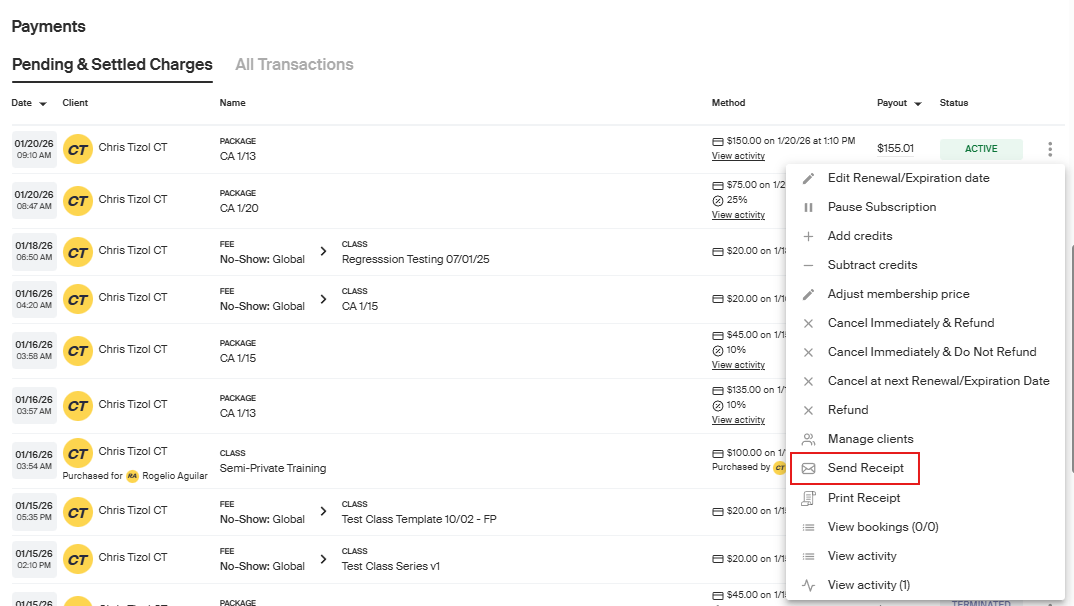
- Select Send Receipt.
- A pop-up will appear showing the client’s email address and phone number.
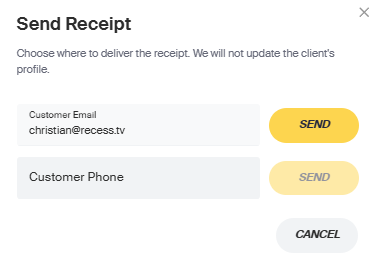
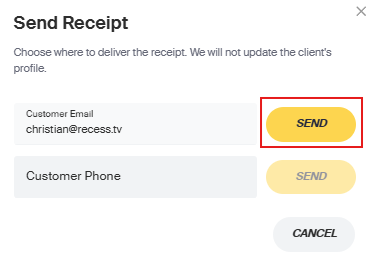
- Click Send. The receipt will be delivered to the client’s email.
Option 2: Send a Receipt via Stripe
- Log in to your Stripe account.
- Navigate to the Payments section.
- Find the transaction for which you want to send a receipt.
- Click on the transaction to open the details page.
- Click Send receipt at the top-right of the transaction details.
- Confirm the client’s email address and click Send receipt. The client will receive the receipt in their inbox.
Tips:
- Ensure the client’s email address is up to date before sending the receipt.
- Receipts can be sent multiple times if needed.
- For recurring payments, you can also enable automatic receipts in Stripe settings.
How to send receipt automatically?
You can configure your account to automatically send receipts or invoices to your customers whenever a new purchase is made. Follow these steps:
Steps to Enable Automatic Receipts
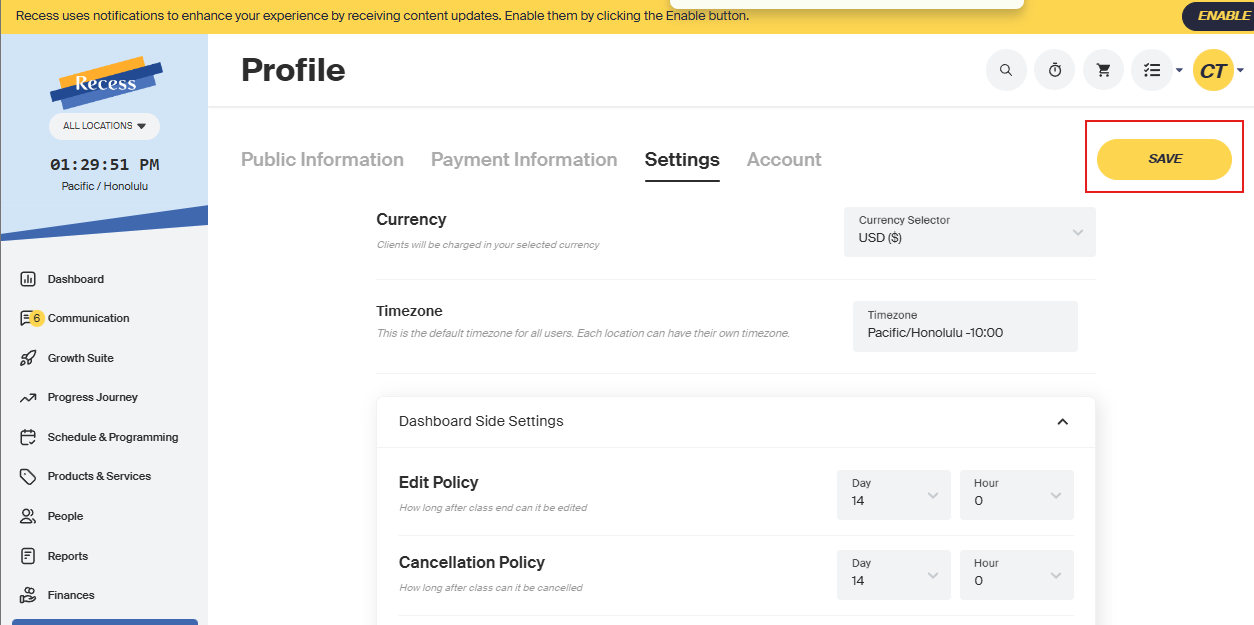
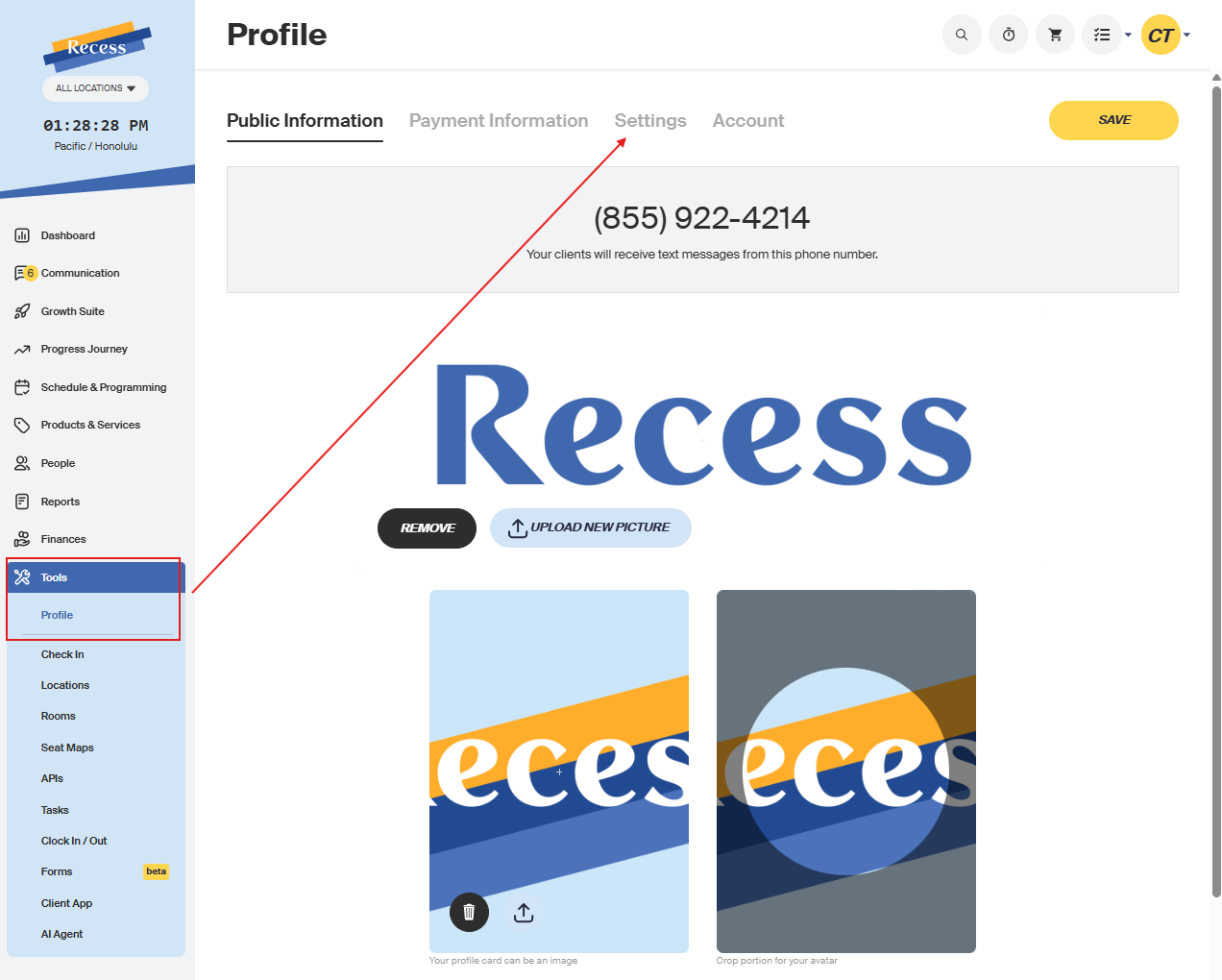
- Go to Profile and then Settings
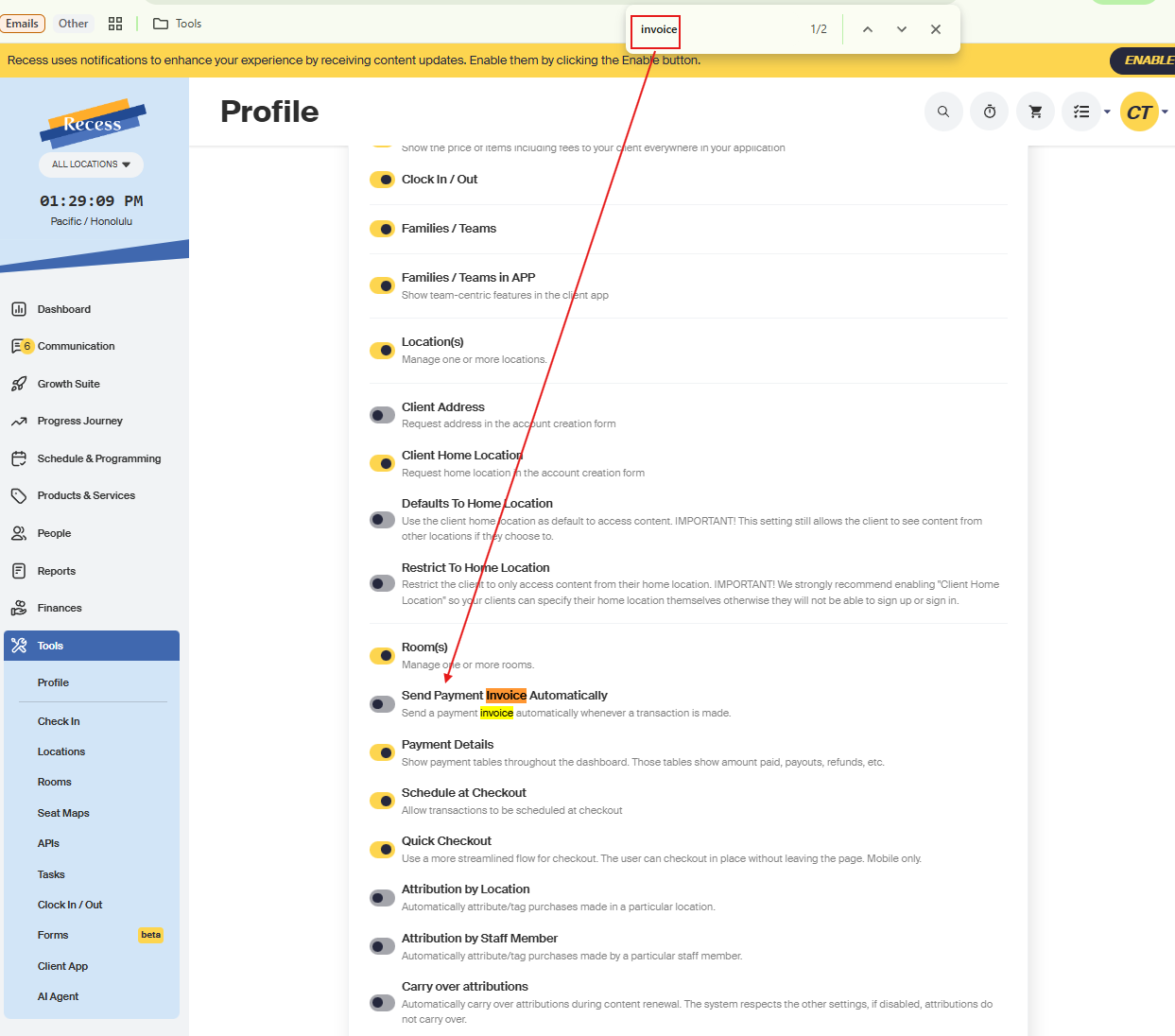
- Find the Invoice Settings: Scroll down, or use Ctrl + F (Cmd + F on Mac) to search for “Invoice.”
- Enable Automatic Invoices: Look for the option “Send Payment Invoice Automatically” and toggle it ON.
- Save Changes: Once toggled on, invoices will automatically be sent to customers whenever a new purchase occurs.